Sub Voice_It_Out()


Dim oVoice As SpVoice                               ' Voice Object


' --------------------------------------------------------------

' Code for http://vbadud.blogspot.com

' --------------------------------------------------------------


Set oVoice = New SpVoice


For iVol = 100 To 10 Step -10

    oVoice.Volume = iVol

    oVoice.Speak "Echo!"

Next iVol


End Sub
Thursday, June 24, 2010
How to simulate speech Echo in VBA
The following snippet simulates ( a sort of ) the Echo effect in VBA. This uses Microsoft Speech Object Library


VBA : How to convert text file to speech (audio) using VBA
Text to Speech using Excel VBA : Audio/Speech from input file
If you want to spell out the content of text file using VBA you can do it as shown below:
The above code creates a filestream and reads the text file and the Voice object speaks it out!
The code requires Microsoft Speech Object Library (see figure below)

See also:
If you want to spell out the content of text file using VBA you can do it as shown below:
Sub Speech_FromFile_Example()

Dim oVoice As SpVoice                               ' Voice Object
Dim oVoiceFile As SpFileStream                      ' File Stream Object
Dim sFile As String                                 ' File Name

Set oVoice = New SpVoice
Set oVoiceFile = New SpFileStream

' --------------------------------------------------------------
' Code for http://vbadud.blogspot.com
' --------------------------------------------------------------

oVoice.Speak "This is an example for reading out a file"

sFile = "C:\ShasurData\ForBlogger\SpeechSample.txt"

oVoiceFile.Open sFile

oVoice.SpeakStream oVoiceFile

End Sub
The above code creates a filestream and reads the text file and the Voice object speaks it out!
The code requires Microsoft Speech Object Library (see figure below)

See also:
Voice Messages in VBA
How to get Author details from Track Changes using VBA
Word VBA - extract Revision Author information
If you want to know the details of track revisions, for example, Author name etc the following code will help you:
Sub Get_TrackRevision_Author()

Dim oRev As Revision
Dim oRange As Range

' -----------------------------------------------------------
' Change the line below to suit your needs
' -----------------------------------------------------------
Set oRange = Selection.Range

' -----------------------------------------------------------
' Coded by Shasur for http://vbadud.blogspot.com
' -----------------------------------------------------------

For Each oRev In oRange.Revisions
    MsgBox oRev.Range.Text & " " & oRev.Author
Next oRev


End Sub
The following code provides you more information (like if the comment is inserted / deleted)
If oRev.Type = wdRevisionDelete Then
        MsgBox oRev.Range.Text & " deleted by " & oRev.Author
    ElseIf oRev.Type = wdRevisionInsert Then
        MsgBox oRev.Range.Text & " added by " & oRev.Author
    Else
        MsgBox oRev.Range.Text & " " & oRev.Author
    End If
If you want to know Date of Revision using VBA then the following can be added
MsgBox oRev.Range.Text & " " & oRev.Author & " " & oRev.Date
Sunday, June 13, 2010
How to Save Excel Range as Image using VBA
How to copy Excel Range as Image using VBA / How to export Excel Range as Image
The following code saves the Excel Range (A1:B2) as an image.
It uses the Export function of the Chart object (Refer :How to Save a Chart as Image using Excel VBA)
to save as Image
Sub Export_Range_Images()

' =========================================
' Code to save selected Excel Range as Image
' =========================================

Dim oRange As Range
Dim oCht As Chart
Dim oImg As Picture


Set oRange = Range("A1:B2")
Set oCht = Charts.Add


oRange.CopyPicture xlScreen, xlPicture


oCht.Paste

oCht.Export FileName:="C:\temp\SavedRange.jpg", Filtername:="JPG"

End Sub
Thursday, May 27, 2010
How to Compress Pictures in Excel using VBA
How to Programatically Compress Pictures/Images in Excel using VBA
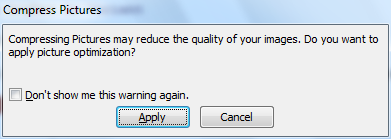
If you are trying to compress pictures, you will normally be doing using the following dialog:
 Compress Pictures Excel Dialog
 Compress Pictures Excel Dialog
The same dialog can be automated using Excel VBA and SendKeys as shown below:
Sub Compress_PIX()

Dim octl As CommandBarControl

With Selection
    Set octl = Application.CommandBars.FindControl(ID:=6382)
    Application.SendKeys "%e~"
    Application.SendKeys "%a~"
     octl.Execute
End With

End Sub
Supressing "Compressing Pictures May reduce the quality of your images.." dialog is also taken care by SendKeys
The code uses CommandBarControl to find the Command and then execute the dialog
See also: How to Increase / Decrease Size of Images in Word Document using VBA
How to add description to Macro Functions in Excel VBA
How to add argument description to Macros/User Defined Functions in Excel VBA
User-defined functions are created in Excel for helping the Excel users. It would be good to add descriptions of the arguments used in the functions. This can be done using Application.Macrooptions method
Let us assume a small User Defined Function that takes an argument:
The following code will add the UDF to information category
User-defined functions are created in Excel for helping the Excel users. It would be good to add descriptions of the arguments used in the functions. This can be done using Application.Macrooptions method
Let us assume a small User Defined Function that takes an argument:
Function A_Sample_UDF(ByVal sArg)

MsgBox "Sample UDF " & sArg

End Function
The following code will add the UDF to information category
Sub Add_UDF()

Dim ArgDes As Variant

ArgDes = Array("First Arg")

Application.MacroOptions Macro:="Personal.XLSB!A_Sample_UDF", Description:="Sample Function", Category:="Information", ArgumentDescriptions:=ArgDes

End Sub
How to Extract TextBox Contents from All Slides using Powerpoint VBA
Extract Text from Textboxes in Powerpoint slides using VBA
Dedicated to good blogger friend Rahul. This code snippet loops through the slides and extracts the contents of the Textboxes
Sub Extract_TextBox_Text_FromSlides()

Dim oPres As Presentation
Dim oSlide As Slide
Dim oShapes As Shapes
Dim oShape As Shape

Set oPres = ActivePresentation

' --------------------------------------------------
' coded by Shasur for http://vbadud.blogspot.com
' --------------------------------------------------

For Each oSlide In oPres.Slides
    Set oShapes = oSlide.Shapes
    For Each oShape In oShapes
        If oShape.Type = msoTextBox Then

            Debug.Print oSlide.Name & vbTab & oShape.TextFrame.TextRange.Text

        End If
    Next oShape
Next oSlide


End Sub
Wednesday, May 26, 2010
How to get OS Version using VBA
How to retrieve Operating System Information using Excel/Word VBA
The version information of OS can be retrieved using the WIN API functions given below
Private Type OSVERSIONINFO
    dwOSVersionInfoSize As Long
    dwMajorVersion As Long
    dwMinorVersion As Long
    dwBuildNumber As Long
    dwPlatformId As Long
    szCSDVersion As String * 128
End Type

Private Declare Function GetVersionEx Lib "kernel32" _
      Alias "GetVersionExA" (lpVersionInformation As _
      OSVERSIONINFO) As Long
The following sub uses GetVersionEx function to get the Major and Minor version of OS
Sub Get_OS_Version_VBA()

' -------------------------------------------------------------
' Code to Get Version of Operating System through VBA
' -------------------------------------------------------------

Dim oOSInfo As OSVERSIONINFO
oOSInfo.dwOSVersionInfoSize = Len(oOSInfo)


GetVersionEx oOSInfo

' -------------------------------------------------------------
' Coded for http://vbadud.blogspot.com
' -------------------------------------------------------------

MsgBox "Version of Current OS is " & oOSInfo.dwMajorVersion & "." & oOSInfo.dwMinorVersion

End Sub
Saturday, May 22, 2010
How to iterate through all Subdirectories till the last directory in VBA
List all Level SubDirectories using VBA
The following code lists all the directories under c:\Temp
You can call the function like shown below
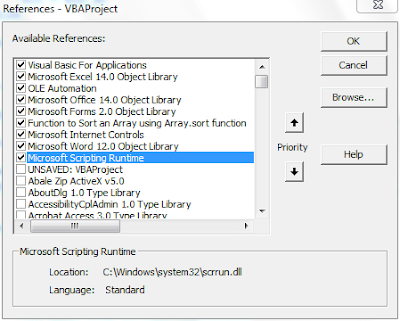
The code uses FileSystemObject from Microsoft Scripting RunTime. You need to add reference to this library (see figure below)
See also VBA Dir Function to Get Sub Directories
The following code lists all the directories under c:\Temp
Function GetSubDir(ByVal sDir)

    Dim oFS As New FileSystemObject
    Dim oDir

    Set oDir = oFS.GetFolder(sDir)
    For Each oSub In oDir.SubFolders
        MsgBox oSub.Path
        GetSubDir oSub.Path
    Next oSub
End Function
You can call the function like shown below
GetSubDir "C:\Temp\"
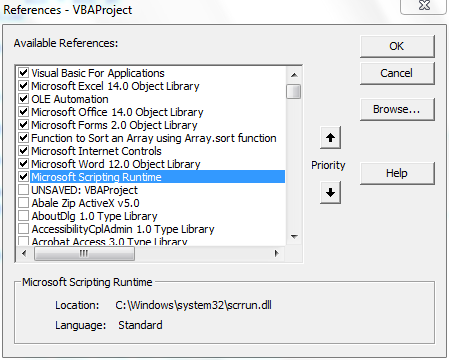
The code uses FileSystemObject from Microsoft Scripting RunTime. You need to add reference to this library (see figure below)
See also VBA Dir Function to Get Sub Directories
How to retrieve images of the Word document using VBA / Extract images in
How to Save Word Document as WebPage using VBA
I have some lazy friends who come up with strange requirements. One such guy wanted me to extract images from Word document into a separate folder, which he want to use later. I found that saving the Webpage creates the images in a folder and that would be enough for the sloth friend. Here is the code snippet of that.
This code Saves the given document in Temporary folder (See How to get Temp folder using VBA)
Then it deletes the file and folder from the location (See Different Ways to Delete Files in VBA) to be sure there is no clash.
It then saves the document and loops through the Images folder using Dir function (See Dir Function in VBA) and stores them in an array
I have some lazy friends who come up with strange requirements. One such guy wanted me to extract images from Word document into a separate folder, which he want to use later. I found that saving the Webpage creates the images in a folder and that would be enough for the sloth friend. Here is the code snippet of that.
This code Saves the given document in Temporary folder (See How to get Temp folder using VBA)
Then it deletes the file and folder from the location (See Different Ways to Delete Files in VBA) to be sure there is no clash.
It then saves the document and loops through the Images folder using Dir function (See Dir Function in VBA) and stores them in an array
Function Save_As_HTML(ByRef oTempWd As Document) As Boolean


Dim sDir
Dim iDir As Integer
Dim oShp As Word.Shape                      ' Word Shape Object

On Error GoTo Err_Save_As_HTML

sTempFolder = GetTempFolder()
sImageFolder = sTempFolder & "Save_As_HTML_files\"

Delete_File sTempFolder & "Save_As_HTML.html"
Delete_File sImageFolder & "*.*"
RmDir sImageFolder


oTempWd.SaveAs sTempFolder & "Save_As_HTML.html", FileFormat:= _
        wdFormatHTML, LockComments:=False, Password:="", AddToRecentFiles:=True, _
        WritePassword:="", ReadOnlyRecommended:=False, EmbedTrueTypeFonts:=False, _
         SaveNativePictureFormat:=False, SaveFormsData:=False, SaveAsAOCELetter:= _
        False


oTempWd.Close (False)
Erase arImageFiles

sDir = Dir(sImageFolder & "*.gif") ' You can also use PNG format
Do Until Len(sDir) = 0
    iDir = iDir + 1
    arImageFiles(iDir) = sDir
    sDir = Dir
Loop

Err_Save_As_HTML:
If Err <> 0 Then
   Debug.Assert Err = 0
   Debug.Print Err.Description
   Err.Clear
   Resume Next
End If

End Function
How to Increase / Decrease Size of Images in Word Document using VBA
Scaling of Pictures / Images using Word VBA
The following code scales all the pictures of the Word document
The following code scales all the pictures of the Word document
Function Scale_Pictures(ByRef oTempWd As Document) As Boolean


Dim oShp As Word.Shape                      ' Word Shape Object


' -------------------------------------
' Scale Shapes Height and Weight
' -------------------------------------
For Each oShp In oTempWd.Shapes
    oShp.ScaleHeight 0.6, msoFalse
    oShp.ScaleWidth 0.6, msoFalse
Next oShp

End Function
How to insert field in Word 2007/2010
To insert Field in a Word document, select the Quick Parts option from Insert tab

Click on the Field, which will throw the following dialog box

Select appropriate field and enter the values
How to Select a Web Page from Excel / Word using VBA
How to Select a Web Page from using Excel / Word VBA
The following code uses GetOpenFilename method to select the Webpage (HTML here)
The following code uses GetOpenFilename method to select the Webpage (HTML here)
Sub Select_A_HTMLPAGE()
Dim fHTML As Variant
fHTML = Application.GetOpenFilename("Webpage (*.htm*), *.htm*", _
  , "Select a HTML page:")
 If fHTML <> False Then
      MsgBox "Selected file is" & CStr(fHTML)
 End If
End Sub
How to Check Internet Connectivity using VBA
The following code snippet uses API functions to check Internet connectivity and also the type of connection
:
If you want to know just if it is connected or not you can use the following:
:
Public Declare Function InternetGetConnectedState _
                         Lib "wininet.dll" (lpdwFlags As Long, _
                                            ByVal dwReserved As Long) As Boolean

Private Declare Function InternetGetConnectedStateEx Lib "wininet.dll" Alias "InternetGetConnectedStateExA" ( _
ByRef lpdwFlags As Long, _
ByVal lpszConnectionName As String, _
ByVal dwNameLen As Long, _
ByVal dwReserved As Long) As Long


'Local system uses a modem to connect to the Internet.
Private Const INTERNET_CONNECTION_MODEM As Long = &H1

'Local system uses a LAN to connect to the Internet.
Private Const INTERNET_CONNECTION_LAN As Long = &H2

'Local system uses a proxy server to connect to the Internet.
Private Const INTERNET_CONNECTION_PROXY As Long = &H4
The following API functions are usedFunction IsConnected() As Boolean
Dim Stat As Long
IsConnected = (InternetGetConnectedState(Stat, 0&) <> 0)
If IsConnected And INTERNET_CONNECTION_LAN Then
MsgBox "Lan Connection"
ElseIf IsConnected And INTERNET_CONNECTION_MODEM Then
MsgBox "Modem Connection"
ElseIf IsConnected And INTERNET_CONNECTION_PROXY Then
MsgBox "Proxy"
End If
End Function
If you want to know just if it is connected or not you can use the following:
CBool(InternetGetConnectedStateEx(0, vbNullString, 512, 0&))
Saturday, May 08, 2010
How to Dynamically Change Userform's Control properties from Excel Sheet using Excel VBA
How to Draw Rectangle in VBA using Excel Data
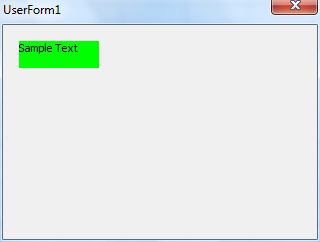
This is an exclusive request from Phil. If you find it interesting, I am more glad. The idea is to draw/resize a rectangle in userform based on values from Excel sheet.
I am using a label control for rectangle. Let us add a label control to userform and name it as LabelRect

To the WorkSheet_Change event of the required sheet add the following event
Private Sub Worksheet_Change(ByVal Target As Range)

Dim oLbl As MSForms.Label

Set oLbl = UserForm1.LabelRect

If Target.Address = "$B$1" Or Target.Address = "$B$2" Then

    If IsNumeric(Range("B1").Value) = True Then oLbl.Height = Range("B1").Value
    If IsNumeric(Range("B2").Value) = True Then oLbl.Width = Range("B2").Value
    oLbl.BackColor = vbGreen

    UserForm1.Show (False)

End If

End Sub
The code will get executed when there is a change in Value in column B1 and B2. Hence the label in the userform will be adjusted accordingly as shown below:
Saturday, April 24, 2010
How to Save Powerpoint Presentation with Password using VBA
How to Specify the Password in SaveAs option in PowerPoint VBA
Unlike SaveAs in Word/Excel, which takes the Password as part of the argument, Powerpoint SaveAs function doesn't specify it.
Here is a way to do it through VBA
See also
Unlike SaveAs in Word/Excel, which takes the Password as part of the argument, Powerpoint SaveAs function doesn't specify it.
Here is a way to do it through VBA
Sub Save_Presentation_With_Password()

Dim oPS As PowerPoint.Presentation
Dim sTempPath As String

Set oPS = Presentations.Add
oPS.Slides.Add 1, ppLayoutTitle

' ----------------------------
' Coded by Shasur for VBADUD.Blogspot.com
' ----------------------------

sTempPath = Environ("Temp") & "\"

oPS.Password = "PPTPWD"


oPS.SaveAs FileName:=sTempPath & "PPTSample1.pptx", FileFormat:=ppSaveAsDefault
oPS.Close


End Sub
See also
Run Excel Macro from Powerpoint VBA
Save Powerpoint Slides as Images using VBA
Add Controls Popup Menu using Powerpoint VBA
VBA - Creating PowerPoint Presentation
How to Convert Automatic Hyphens to Manual Hyphens using Word VBA
Word does automatic hyphenation at the end of line when the AutomaticHyphenation feature is turned on
For example, in the pic below, the word has hyphenated non-breaking automatically

You can test it by try selecting the Hyphen (which is not there physically)
The following code converts all automatic hyphens to manual ones
ActiveDocument.AutoHyphenation = True
For example, in the pic below, the word has hyphenated non-breaking automatically

You can test it by try selecting the Hyphen (which is not there physically)
The following code converts all automatic hyphens to manual ones
ActiveDocument.ConvertAutoHyphens
Friday, April 23, 2010
Unprotect and Protect Sheet using VBA code
How to write to protected Excel file using VBA
Here is a sample to unprotect a sheet and write some values and then protect the sheet again
Sub Unprotect_And_ThenProtect()

    ActiveSheet.Unprotect
    Range("A2").Value = Now()
    ActiveSheet.Protect DrawingObjects:=True, Contents:=True, Scenarios:=True

End Sub
Monday, March 29, 2010
How to clean Office Solution - .NET
How to clean Office Solution from Visual Studio / How to unistall Excel/Word addins using Visual Studio
Use the clean option in Build Menu to remove the Addin


Use the clean option in Build Menu to remove the Addin


Tuesday, February 16, 2010
Enable Developer Tab in Office 2010
How to enable Developer Tab in Office 2010
If the developer tab is not showing on your Ribbon UI, you can enable it from Application Options-->Customize Ribbon

If the developer tab is not showing on your Ribbon UI, you can enable it from Application Options-->Customize Ribbon

Subscribe to:
Posts (Atom)

Download Windows Live Toolbar and personalize your Web experience! Add custom buttons to get the information you care about most.


 Posts
Posts


