Use the clean option in Build Menu to remove the Addin


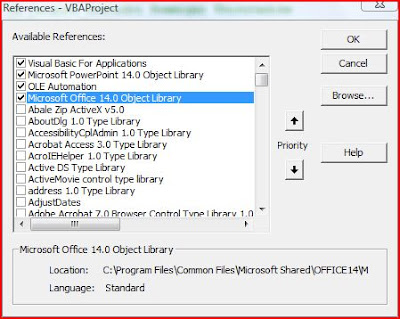 Powerpoint VBE Screen
 Excel Library in the References
Sub AnotherWrkBook_Macro()

MsgBox "I have Run!"


End Sub
Function Store_Value(ByVal sPPTName As String)

Sheet1.Range("A2").Value = sPPTName


End Function
Sub Run_Excel_Macro_From_PPT()

Dim oXL As Excel.Application            ' Excel Application Object
Dim oWB As Excel.Workbook               ' Excel Workbook Object
Dim sPName As String                    ' Variable - Active Presentation Name

On Error GoTo Err_PPXL

' -----------------------------------------------------------
' coded by Shasur for http://vbadud.blogspot.com
' -----------------------------------------------------------

Set oXL = New Excel.Application
Set oWB = oXL.Workbooks.Open("C:\Users\comp\Documents\CanBeDeleted.xlsm")

' Set Excel as Visibile - Turn Off if not needed
oXL.Visible = True

' Pass and Argument
sPName = ActivePresentation.Name

' Run the Macro without Argument
oXL.Application.Run "'CanBeDeleted.xlsm'!AnotherWrkBook_Macro"

' Run the Macro without Argument
oXL.Application.Run "'CanBeDeleted.xlsm'!Store_Value", sPName

' Save and Close the Workbook
oWB.Save
oWB.Close (False)


' Quit the Excel
oXL.Quit


' Release Objects - Good Practive
If Not oWB Is Nothing Then Set oWB = Nothing
If Not oXL Is Nothing Then Set oXL = Nothing


Err_PPXL:
If Err <> 0 Then
    MsgBox Err.Description
    Err.Clear
End If
End Sub
 Run-time Errror 445 Object doesn't support this action
How to check compatibility issues in an Office Document
Microsoft Office is getting polished rapidly. Upgrades from 2003 to 2010 saw sea change in functionality. If you are using 2010 and sending it to your friend who hasn’t upgraded, It is better to do a compatibility check


Application.DisplayCommentIndicator = xlCommentAndIndicator
Application.DisplayCommentIndicator = xlCommentIndicatorOnly
Excel 2003 | Excel 2007 and above | |
Maximum No of Rows | 65,536 | 10,48,576 |
Maximum No of Columns | 256 | 16,384 |

Conditional Formatting using Excel VBA
Here is a small snippet for FormatConditions.
Sub Format_Condition_Example()
Dim oFc As FormatCondition
Dim oRange As Range
Set oRange = Range("B2:B5")
Set oFc = oRange.FormatConditions.Add(xlCellValue, xlLess, "0.5")
oFc.Interior.ColorIndex = 3
Set oFc = oRange.FormatConditions.Add(xlCellValue, xlBetween, "0.5", "0.80")
oFc.Interior.ColorIndex = 6
Set oFc = oRange.FormatConditions.Add(xlCellValue, xlGreater, "0.80")
oFc.Interior.ColorIndex = 4
End Sub
 Excel Formatting Conditions
Excel VBA - Hide Pivot Table Fields List
If you are developing some pivot table as part of the report and feel the Pivot Fields list at the right corner is bit distracting, you can turn it off as shown below:
Sub Hide_PivotTable_Fields()
ActiveWorkbook.ShowPivotTableFieldList = False 'Dont Show the Pivot Table List
End Sub
 Pivot Table Fields List
 Pivot Table without Fields List
Excel Range to Word Template using VBA
Most often we maintain list of contacts in Excel workbook and it needs to be transferred to Word document (made from some template). Here is a simple snippet that can help:
The code is used to copy the content from Excel range shown below to a Word document:
Name | ContactNo | Address | Email |
Christina | 516 418 1234 | Cincinatti | |
Girish Kutty | 516 418 6752 | Cincinatti | |
Ravichand Koneru | 777 213 213 | Boston |
Sub CopY_Data_To_Word()
Dim oWA As Word.Application
Dim oWD As Word.Document
Set oWA = New Word.Application
Set oWD = oWA.Documents.Add("C:\Users\comp\Documents\Doc2.dot") ' Replace with your template here
For i1 = 2 To Cells.SpecialCells(xlCellTypeLastCell).Row
oWD.Bookmarks("Name").Range.Text = Cells(i1, 1)
oWD.Bookmarks("ContactNo").Range.Text = Cells(i1, 2)
oWD.Bookmarks("Address").Range.Text = Cells(i1, 3)
oWD.Bookmarks("Email").Range.Text = Cells(i1, 4)
'Code for saving the document
Next i1
' Releasing objects etc
End Sub
Bookmarks are added to the Word template and whenever a new document is created from the template, the document has those bookmarks.
The code above places the information from the Excel sheet to the specific Bookmark ranges
 Excel to Word using VBA
 Microsoft HTML Object Library- VBA Reference
 Microsoft Internet Controls - VBA Reference
How to configure Pivot Table source data externally through VBA
A Pivot Table is linked to a particular source data. If for some reasons, you need that to be configured by users the following code will give some hint:
Sub Change_Pivot_TableDataSource()
Dim oPT As PivotTable
Dim oPC As PivotCache
Dim ORange As Range
Set oPT = ActiveSheet.PivotTables(1)
Set oPC = oPT.PivotCache
Set ORange = Application.InputBox(Prompt:="Select the New DataRange", Type:=8)
oPC.SourceData = "Sheet1!" & Application.ConvertFormula(ORange.Address, xlA1, xlR1C1)
oPT.RefreshTable
If Not oPT Is Nothing Then Set oPT = Nothing
If Not oPC Is Nothing Then Set oPC = Nothing
End Sub
The code gets the new data range through Input Box and modifies the SourceData of the Pivot Table. Change the Sheet name accordingly before you use the code.
Excel VBA Check Pivot Source
The following snippet could help in getting the source type of the Pivot Table
Sub CheckSourceConnection()
Dim pvtCache As PivotCache
Set pvtCache = Application.ActiveWorkbook.PivotCaches.Item(1)
On Error GoTo No_Connection
If pvtCache.SourceType = xlDatabase Then
MsgBox "The data source connection is: " & _
pvtCache.SourceData, vbInformation, "Pivot Table Source"
ElseIf pvtCache.SourceType = xlExternal Then
MsgBox "The data source connection is: " & _
pvtCache.SourceDataFile, vbInformation, "Pivot Table Source"
End If
Exit Sub
No_Connection:
MsgBox "Pivot Table source cannot be determined.", vbInformation, "Pivot Table Source"
End Sub
Create Popup Menu (Right Click menu) using VBA
Here is a simple snippet that will add a menu item to the popup menu and assign a macro to it
Public Const APP_SHORTNAME = "VBADUD_POPUP"
Sub Add_To_Popup_Menu()
Dim ctlNewMenu As CommandBarControl
Dim ctlNewGroup As CommandBarControl
Dim ctlNewItem As CommandBarControl
On Error GoTo Err_Trap
On Error Resume Next
Application.CommandBars("Cell").Controls(APP_SHORTNAME).Delete
On Error GoTo 0
Set ctlNewMenu = Application.CommandBars("Cell").Controls.Add(Type:=msoControlPopup)
ctlNewMenu.Caption = APP_SHORTNAME
'--- Button - Load Raw Data ------------
Set ctlNewItem = ctlNewMenu.Controls.Add(Type:=msoControlButton)
ctlNewItem.Caption = "Process Data"
ctlNewItem.OnAction = "ProcessData"
Err_Trap:
If Err <> 0 Then
Err.Clear
Resume Next
End If
End Sub
The above will create a new Group and add the “Process Data” control to it.
Convert Word to PDF using VBA
Word 2007 has a new method - Document.ExportAsFixedFormat, which saves the document as PDF or XPS format
The following code will save the current document as PDF in the same path
Sub Convert_2_PDF()
ActiveDocument.ExportAsFixedFormat OutputFileName:= _
ActiveDocument.Path & "\" & ActiveDocument.Name & ".pdf", ExportFormat:= _
wdExportFormatPDF, OpenAfterExport:=False, OptimizeFor:= _
wdExportOptimizeForPrint, Range:=wdExportAllDocument, _
Item:=wdExportDocumentContent, IncludeDocProps:=True, KeepIRM:=True, _
CreateBookmarks:=wdExportCreateNoBookmarks, DocStructureTags:=True, _
BitmapMissingFonts:=True, UseISO19005_1:=False
End Sub


 Posts
All Comments
Posts
All Comments


