Showing posts sorted by relevance for query Instr. Sort by date Show all posts

Sunday, May 25, 2008

Google Search Using VBA

Search Webpages using VBA / Search Text in Google using Excel VBA / Programmaticaly search text in Google

This code requires Microsoft Internet Controls reference (Tools > References from code window)

The following function will search for given data in google and save the search as an HTML File. The Timeout parameter is set to 1 min.

Option Explicit

Private ieBrowser As InternetExplorer
Private Const sSite As String = "http://www.google.com/search?q=" ' Change this Appropriately
Private Const sProofPath As String = "d:\temp\" ' Path to Save Searched Pages


Sub Check_Data_From_Google(ByVal sData As String, ByRef sReturn As String, ByRef sSavePath As String)

'Requires Microsoft Internet Controls reference (Tools > References from code window)
Dim sSearchString As String ' Combination of Google Search String + Data
Dim dtStartTime As Date ' Start Time
Dim dtCurrentTime As Date ' Current Time
Dim iMaxWaitTime As Integer ' Maximum waiting time (in Secs)

Dim sDocText ' WebPage as Text
Dim sDocHTML ' WebPage as HTML

On Error GoTo Err_Clearer
' ---------------------------------
' Build the Search String
' ---------------------------------
sSearchString = sSite & sData

' ---------------------------------
' Start Time
' ---------------------------------
Init_IE
dtStartTime = Now
iMaxWaitTime = 60 'Seconds to be waited
ieBrowser.Navigate (sSearchString)

' ieBrowser.Visible = True


Do While ieBrowser.ReadyState <> READYSTATE_COMPLETE 'wait for page to load
DoEvents
dtCurrentTime = Now
' ---------------------------------
' Exit Process if it is taking long time
' ---------------------------------
If DateDiff("s", dtStartTime, dtCurrentTime) > iMaxWaitTime Then sReturn = "TimeOut": Exit Sub
Loop

' Assign the Webpage Results to Variable
sDocText = ieBrowser.Document.documentElement.innertext
sDocHTML = ieBrowser.Document.documentElement.innerhtml

If InStr(sDocText, "did not match any documents") <> 0 Then
sReturn = "NotFound"
Else
If InStr(1, sDocText, sData) <> 0 Then
sReturn = "Found"
Else
sReturn = "NotFound"
End If
End If

sSavePath = sProofPath & sData & "_" & sSpec & ".html"
sSavePath = ClearCharacters(sSavePath)
Open sSavePath For Output As 1
Print #1, sDocHTML
Close #1

Destroy_IE

' -----------------------------
' Error Handler
' -----------------------------
Err_Clearer:
If Err <> 0 Then
Err.Clear
Resume Next
End If

End Sub

Sub Destroy_IE()

On Error GoTo ReInit_IE
ieBrowser.Quit
If Not ieBrowser Is Nothing Then Set ieBrowser = Nothing

Exit Sub

ReInit_IE:

End Sub


Sub Init_IE()

On Error GoTo ReInit_IE

Set ieBrowser = GetObject(, "InternetExplorer.Application")
Exit Sub

ReInit_IE:

Set ieBrowser = CreateObject("internetexplorer.application")
Application.Wait DateAdd("n", 1, Now) ' Wait for one/Two minutes to Start the Browser
End Sub


Function ClearCharacters(ByVal sDirtyString As String) As String

Dim arUnWantedCharacter(1 To 6) As String
Dim IsClear As Boolean
Dim i As Integer
Dim strCleanString As String
Dim j As Integer

arUnWantedCharacter(1) = "/"
arUnWantedCharacter(2) = "/"
arUnWantedCharacter(3) = "?"
arUnWantedCharacter(4) = "*"
arUnWantedCharacter(5) = "["
arUnWantedCharacter(6) = "]"

IsClear = True

strCleanString = vbNullString
For i = 1 To UBound(arUnWantedCharacter)
If InStr(1, sDirtyString, arUnWantedCharacter(i)) Then
IsClear = False
For j = 1 To Len(sDirtyString)
If Mid$(sDirtyString, j, 1) <> arUnWantedCharacter(i) Then
strCleanString = strCleanString & Mid$(sDirtyString, j, 1)
End If
Next j
sDirtyString = strCleanString
End If
Next i

If IsClear = True Then strCleanString = sDirtyString

Finally:


ClearCharacters = strCleanString

End Function


Excel VBA save the search as an HTML File. The function uses innerhtml to get the searched webpage and saves it in the mentioned location

Save Webpage using VBA, VBA Save Webpage (without images) using Excel VBA


See also http://vbadud.blogspot.com/2009/08/how-to-login-to-website-using-vba.html

Monday, June 18, 2007

Show All Processes using VBA

Get All Processes using Win API Functions

'Declarations
Const TH32CS_SNAPHEAPLIST = &H1
Const TH32CS_SNAPPROCESS = &H2
Const TH32CS_SNAPTHREAD = &H4
Const TH32CS_SNAPMODULE = &H8
Const TH32CS_SNAPALL = (TH32CS_SNAPHEAPLIST Or TH32CS_SNAPPROCESS Or TH32CS_SNAPTHREAD Or TH32CS_SNAPMODULE)
Const TH32CS_INHERIT = &H80000000
Const MAX_PATH As Integer = 260
Private Type PROCESSENTRY32
dwSize As Long
cntUsage As Long
th32ProcessID As Long
th32DefaultHeapID As Long
th32ModuleID As Long
cntThreads As Long
th32ParentProcessID As Long
pcPriClassBase As Long
dwFlags As Long
szExeFile As String * MAX_PATH
End Type
Private Declare Function CreateToolhelp32Snapshot Lib "kernel32" (ByVal lFlags As Long, ByVal lProcessID As Long) As Long
Private Declare Sub CloseHandle Lib "kernel32" (ByVal hPass As Long)

' API Functions to get the processes
Private Declare Function Process32First Lib "kernel32" (ByVal hSnapShot As Long, uProcess As PROCESSENTRY32) As Long
Private Declare Function Process32Next Lib "kernel32" (ByVal hSnapShot As Long, uProcess As PROCESSENTRY32) As Long


Sub Load_Process_To_ListBox()


Dim hSnapShot As Long '* Handle
Dim uProcess As PROCESSENTRY32 '* Process
Dim lRet '* Return Val

On Error Resume Next

'Takes a snapshot of the running processes and the heaps, modules, and threads used by the processes
hSnapShot = CreateToolhelp32Snapshot(TH32CS_SNAPALL, 0&)

uProcess.dwSize = Len(uProcess)

'Retrieve information about the first process encountered in our system snapshot

lRet = Process32First(hSnapShot, uProcess)

Do While lRet
lRet = Process32Next(hSnapShot, uProcess)

' Trim the unwanted characters at the end of process
lstProcess.AddItem Left$(uProcess.szExeFile, IIf(InStr(1, uProcess.szExeFile, Chr$(0)) > 0, InStr(1, uProcess.szExeFile, Chr$(0)) - 1, 0))
Loop


CloseHandle hSnapShot

End Sub


Private Sub UserForm_Initialize()

' Call the Function

Load_Process_To_ListBox

End Sub

Add to Technorati Favorites

Companies House


Duport provide company formation, company credit reports and director reports.

Monday, July 05, 2010

GetObject Error with Internet Explorer

How to get active Internet Explorer Object using Getobject in VBA

Set IEBrowser = GetObject(, "InternetExplorer.Application")

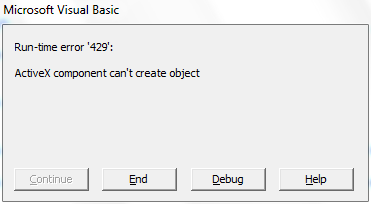
Using GetObject for Internet Explorer in VBA throws Runtime error 429 - ActiveX can't create object. The  solution for this is to use ShellWindows


Public Function IENavigate(ByRef IEBrowser) As Boolean

Dim theSHD As SHDocVw.ShellWindows
Dim IE As SHDocVw.InternetExplorer
Dim i As Long
Dim bIEFound As Boolean

On Error GoTo Err_IE
    
    Set theSHD = New SHDocVw.ShellWindows
    For i = 0 To theSHD.Count - 1
        Set IE = theSHD.Item(i)
        If Not IE Is Nothing Then
            If InStr(1, IE.LocationURL, "file://", vbTextCompare) = 0 And Len(IE.LocationURL) <> 0 Then
                If IE.Visible = True Then bIEFound = True: Exit For
                
            End If
        End If
    Next

    If bIEFound = True Then
        Set IEBrowser = IE
        IENavigate = True
    Else
        IENavigate = False
    End If
      
' -------------------------------------
' Error Handling
' -------------------------------------
Err_IE:
    If Err <> 0 Then
        Err.Clear
        Resume Next
    End If
End Function


The above code uses Microsoft Internet controls reference:


without which the following error might occur

---------------------------
Microsoft Visual Basic for Applications
---------------------------
Compile error:

User-defined type not defined
---------------------------
OK Help
---------------------------


Once you get the Internet Explorer object, you can use it as shown below:


Sub GEt_IE()

  Dim IEBrowser As InternetExplorer
  IENavigate IEBrowser
  If Not IEBrowser Is Nothing Then
    MsgBox IEBrowser.Document.Title
  End If


Monday, June 30, 2008

Check Presence of Comboboxes in Excel Sheet using Excel VBA

Programatically Check Dropdowns in Excel Sheet using VBA

The following code will help to check the presence of combo boxes on Excel sheet

Sub Check_DropDowns_Count()


If ActiveSheet.DropDowns.Count = 0 Then
MsgBox "No combo boxes"
End If
End Sub


Sub Check_DropDowns_Source()

Dim oDDwn As Object
If ActiveSheet.DropDowns.Count <> 0 Then
Set oDDwn = ActiveSheet.DropDowns(1)
If InStr(1, oDDwn.ListFillRange, "!") Then
MsgBox "Reference Another Sheet"
End If
End If
End Sub

The above code uses the Sheet - Range Separator to check if the Dropdown refers to current sheet or another sheet

Friday, August 06, 2010

How to Read Excel Sheet embedded in Word Document using VBA

How to edit Embedded Objects (Excel Workbook) using Word VBA

In our previous posts we have seen how to Embedd an Word Document in Excel Object . Now let us try to read Excel spreadsheet embedded in Word document.


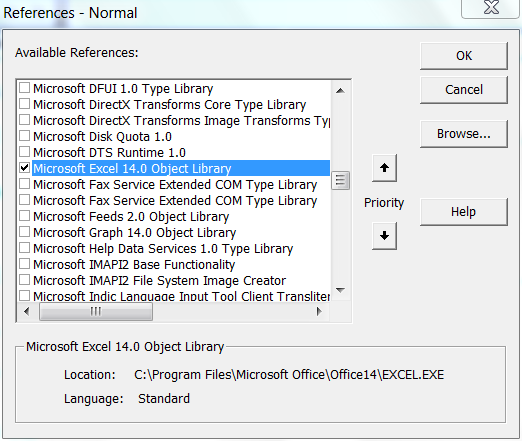
You need to add a reference to the Excel Object Libary as shown above from Tools --> References from Visual Basic Editor (VBE)


The code loops through the available InlineShapes and activates them if they are Excel Spreadsheet. Then it is assigned to an Excel workbook object, which can be programatically handled.

Sub Edit_Embedded_Excel_Objects()

Dim oWB As Excel.Workbook
Dim oIShape As InlineShape


For Each oIShape In ActiveDocument.InlineShapes
    If InStr(1, oIShape.OLEFormat.ProgID, "Excel") Then
        oIShape.OLEFormat.Activate
        Set oWB = oIShape.OLEFormat.Object
        oWB.Sheets(1).Range("A1").Value = "ProdID"
    End If
Next oIShape

End Sub


The code edits the value of the cell as shown below:


See how other Embedded objects are programmed

Tuesday, April 24, 2007

VBA Email Automation / VBA Mail Automation

VBA Email Automation / VBA Mail Automation

Sub Send_Mail_From_Excel()


' This is an automatic mail program. It takes the mail Id's from activeworkbook and uses outlook object to send mail
' The format of the workbook should be as follows
' 1. Data Should start from Row 2 - Sheet 1
' 2. Salutation in Col 1 -e.g., Mr, Ms, Dr etc
' 3. Name in Col 2 -e.g., Sheetal
' 4. Email in Col 4 -e.g., sheetal@vbadud.com
' Program will loop through the entire sheet and send mails to all


Dim oXlWkBk As Excel.Workbook ' Excel Work Book Object

Dim oOLApp As Outlook.Application
Dim oOLMail As MailItem

Dim lRow As Long
Dim olMailItem

Dim sMailID As String
Dim sSalutation As String
Dim sName As String
Dim sDetails As String
Dim sSubject As String
On Error GoTo Err_Trap


Set oXlWkBk = ActiveWorkbook

If oXlWkBk.Sheets(1).Cells.SpecialCells(xlCellTypeLastCell).Row < oolapp =" New" lrow =" 2" oolmail =" oOLApp.CreateItem(olMailItem)" ssalutation =" oXlWkBk.Sheets(1).Cells(lRow," sname =" oXlWkBk.Sheets(1).Cells(lRow," sdetails = "Hi"> 0 And LenB(Trim$(sSalutation)) <> 0) Then
sDetails = sSalutation & " " & sName
ElseIf LenB(Trim$(sName)) <> 0 Then
sDetails = sName
Else
sDetails = "Hi"
End If
sDetails = sDetails & vbNewLine & vbNewLine

sMailID = Trim$(oXlWkBk.Sheets(1).Cells(lRow, 3).Value)

' --- Validate EMail ID
If InStr(1, sMailID, "@") = 0 Then
GoTo TakeNextRow
End If

' Create Mail
With oOLMail
.To = sMailID
.Subject = sSubject
.Body = sDetails & "This is a test mail from VBA Tips & Tricks (http://vbadud.blogspot.com/)"
End With

oOLMail.Send

TakeNextRow:
Next lRow

oXlWkBk.Close (False)

'--------------------------------------------------------
' Coded by Shasur for http://vbadud.blogspot.com
'--------------------------------------------------------


Destroy_Objects:
'Destroy Objects
If Not oOLApp Is Nothing Then Set oOLApp = Nothing


Err_Trap:
' Error Handling
If Err <> 0 Then
MsgBox Err.Description, vbInformation, "VBADUD AutoMail"
Err.Clear
GoTo Destroy_Objects
End If

'------------------------------------------------------------------------------------
' Disclaimer: VBA Tips & Tricks (http://vbadud.blogspot.com) publishes this content
' for the intention of sharing technical knowledge. Any misuse of this program (e.g., spamming)
' will not be our responsibility.
'------------------------------------------------------------------------------------


End Sub


'Keywords: 'Keywords: Automate Email, VBA Email, Send Email from Excel, VBA Mail automation, Mail Automation, Outlook VBA, Automate Outlook, Send Mail from Outlook, Link Excel with Outlook,Microsoft Outlook Mail Automation, Excel VBA Mail, MAPI, Send Multiple eMails


If you want to try the same using Lotus Notes refer http://vbadud.blogspot.com/2007/10/automate-lotus-notes-email-using-visual.html

Sunday, May 25, 2008

Excel VBA - 1004 -- The file could not be accessed

Solution for 1004 -- The file could not be accessed while saving the File

1004 Microsoft Office Excel cannot access the file 'C:\temp'. There are several possible reasons:

• The file name or path does not exist.
• The file is being used by another program.
• The workbook you are trying to save has the same name as a currently open workbook.

1004 -- The file could not be accessed. Try one of the following:

• Make sure the specified folder exists.
• Make sure the folder that contains the file is not read-only.
• Make sure the file name does not contain any of the following characters: < > ? [ ] : or *
• Make sure the file/path name doesn't contain more than 218 characters.

This error occurs because of unwanted characters in the File. The following function would help in removing those characters:


Function ClearCharacters(ByVal sDirtyString As String) As String

Dim arUnWantedCharacter(1 To 6) As String
Dim IsClear As Boolean
Dim i As Integer
Dim strCleanString As String
Dim j As Integer

arUnWantedCharacter(1) = "\"
arUnWantedCharacter(2) = "/"
arUnWantedCharacter(3) = "?"
arUnWantedCharacter(4) = "*"
arUnWantedCharacter(5) = "["
arUnWantedCharacter(6) = "]"

IsClear = True

strCleanString = vbNullString
For i = 1 To UBound(arUnWantedCharacter)
If InStr(1, sDirtyString, arUnWantedCharacter(i)) Then
IsClear = False
For j = 1 To Len(sDirtyString)
If Mid$(sDirtyString, j, 1) <> arUnWantedCharacter(i) Then
strCleanString = strCleanString & Mid$(sDirtyString, j, 1)
End If
Next j
sDirtyString = strCleanString
End If
Next i

If IsClear = True Then strCleanString = sDirtyString

Finally:

ClearCharacters = strCleanString

End Function


See also :

Excel VBA - 1004 -- The file could not be accessed

Save and Reopen all Workbooks (Excel VBA)

Save copy of the workbook

SaveAs Dialog - Controlled Save

Save RTF document as word

Wednesday, August 25, 2010

How to edit Linked Objects using Word VBA

How to open and edit Linked Excel files from Word using VBA

One can insert an object in word by either linking or embedding. We have already seen How to Read and Edit Embedded objects using VBA, The following code will throw light on accessing a linked object from Word (Excel sheet) and editing the same.

Sub Edit_Linked_Excel_Objects()


Dim oXL As Excel.Application ' Excel App Object

Dim oWB As Excel.Workbook ' Workbook Object

Dim sWB As String ' Linked String

Dim oIShape As InlineShape ' Inline Shape Object


On Error GoTo Err_Report


Set oXL = New Excel.Application


For Each oIShape In ActiveDocument.InlineShapes

If InStr(1, oIShape.OLEFormat.ProgID, "Excel") Then


' Check if the Object is Linked

If oIShape.Type = wdInlineShapeLinkedOLEObject Then


' Get the Source Name of Linked Workbook

sWB = oIShape.LinkFormat.SourceFullName


If Len(Dir(sWB)) <> 0 Then

Set oWB = oXL.Workbooks.Open(sWB, , False)

oWB.Sheets(1).Range("A1").Value = "ID"

oWB.Save

oWB.Close False

oIShape.LinkFormat.Update

Else

MsgBox "Linked file not found"

End If

End If

End If


Next oIShape


Finally:


oXL.Quit

If Not oXL Is Nothing Then Set oXL = Nothing

If Not oWB Is Nothing Then Set oWB = Nothing

If Not oIShape Is Nothing Then Set oIShape = Nothing


Exit Sub

Err_Report:

MsgBox Err.Description & " - " & Err.Number

Err.Clear

GoTo Finally


End Sub


Sunday, April 08, 2007

Case in-sensitive comparison

Option Compare Text

If you do not worry about the case in comparisons, then use the Option Compare Text for string comparisons based on a case-insensitive text sort order determined by system's locale
Warning: This cannot be set for procedure level. When set, this will be for the entire module

Sub Option_Compare_Statement_Example()


Dim sStr1 As String ' String 1
Dim sStr2 As String ' String 2

' ---------------------------------------------------------------
' Written By Shanmuga Sundara Raman for http://vbadud.blogspot.com
' ---------------------------------------------------------------

sStr1 = "MixedCase"
sStr2 = "mixedcase"


If InStr(1, sStr1, sStr2) Then
MsgBox "Matching!!!"
End If

' ---------------------------------------------------------------
'
' ---------------------------------------------------------------

End Sub

Thursday, April 19, 2007

Browse a Folder / Select a Folder Thru Shell

Browse a Folder / Select a Folder Thru Shell

Public Type BROWSEINFO
hOwner As Long
pidlRoot As Long
pszDisplayName As String
lpszTitle As String
ulFlags As Long
lpfn As Long
lParam As Long
iImage As Long
End Type

'API declarations
Declare Function SHGetPathFromIDList Lib "shell32.dll" _
Alias "SHGetPathFromIDListA" (ByVal pidl As Long, ByVal pszPath As String) As Long

Declare Function SHBrowseForFolder Lib "shell32.dll" _
Alias "SHBrowseForFolderA" (lpBrowseInfo As BROWSEINFO) As Long

Here let us use the above shell functions to open the browse directory dialog

Sub Show_BrowseDirectory_Dialog()

' BrowseForFolder
' SHBrowseForFolder API Function Example

Dim dirInfo As BROWSEINFO
Dim path As String
Dim r As Long, x As Long, pos As Integer

' Set Default Root folder = Desktop
dirInfo.pidlRoot = 0&

dirInfo.lpszTitle = "Browse directory!"

' Type of directory
dirInfo.ulFlags = &H1

' Show the Browse Dialog
x = SHBrowseForFolder(dirInfo)

' Parse the result
path = Space$(512)
r = SHGetPathFromIDList(ByVal x, ByVal path)
If r Then
pos = InStr(path, Chr$(0))
MsgBox "You have selected :=" & Left(path, pos - 1)
Else
MsgBox "Browse a Directory..."
Show_BrowseDirectory_Dialog
End If

End Sub

SHBrowseForFolder Function displays a dialog box enabling the user to select a Shell folder

Friday, May 04, 2007

Drag & DRop Files to Text Box

Show File Name in Text Box using Drag & Drop

Private Sub TextBox1_OLEDragDrop(Data As DataObject, Effect As Long, Button As Integer, Shift As Integer, X As Single, Y As Single)
Dim i1 As Integer '* Files Counter

On Error GoTo Err_Trap

If Data.GetFormat(vbCFFiles) = True Then
i1 = Data.Files.Count
If i1 = 1 Then
If InStr(1, LCase$(Data.Files(i1)), ".xls") Then
txtExcel.Text = Data.Files(i1)
End If
End If
End If

' ------------------------------------------
' Error Handling
' ------------------------------------------
Err_Trap:
If Err <> 0 Then
Debug.Assert Err = 0
Err.Clear
End If
End Sub

This will be used to show the file name in the Text Box if a file is dragged and dropped into it

Sunday, April 08, 2007

Option Compare Text

If you do not worry about the case in comparisons, then use the Option Compare Text for string comparisons based on a case-insensitive text sort order determined by system's locale
Warning: This cannot be set for procedure level. When set, this will be for the entire module

Sub Option_Compare_Statement_Example()


Dim sStr1 As String ' String 1
Dim sStr2 As String ' String 2

' ---------------------------------------------------------------
' Written By Shanmuga Sundara Raman for http://vbadud.blogspot.com
' ---------------------------------------------------------------

sStr1 = "MixedCase"
sStr2 = "mixedcase"


If InStr(1, sStr1, sStr2) Then
MsgBox "Matching!!!"
End If

' ---------------------------------------------------------------
'
' ---------------------------------------------------------------

End Sub

Thursday, January 01, 2009

Expand Ranges in Word using VBA

Word VBA Expand Range function

Many times ranges like 1-4 needs to be expanded. Here is a simple function to do the same.

Function ExpandRanges(ByVal sNoRange As String) As String

Dim arTemp

Dim iLowVal As Integer

Dim iUpVal As Integer

Dim i1 As Integer

Dim sRet As String

If InStr(1, sNoRange, "-") = 0 Then MsgBox "Given No not a Range ": Exit Function

arTemp = Split(sNoRange, "-")

iLowVal = Val(arTemp(0))

iUpVal = Val(arTemp(1))

For i1 = iLowVal To iUpVal

sRet = sRet & "," & i1

Next i1

sRet = Right(sRet, Len(sRet) - 1)

ExpandRanges = sRet

End Function

Here is a sample output


Expand Ranges in Word

Wednesday, December 24, 2008

Convert Symbols to Entities using Word VBA

Word VBA Symbols to Entities Conversion Program


Symbols when converted to Text (Save as Text) seldom retain the original shape. It has been a practice to convert these symbols to entities (mostly the symbol name prefixed with an ampersand and followed by a semi colon), for example, α † etc


The following code expects a tab separated text file with symbol’s character code and its corresponding entity representation. For example


176 & degree;


945 & alpha;


To know about the corresponding character code for a symbol, you can use Alt + Symbol Key. For example Alt + 0151 will give an emdash etc


Or you can check from Insert -- > Symbol

Word Insert Symbol Dialog


We read the text file using FileSystemObject’s OpenTextFile (Refer )


Set oFil = oFS.OpenTextFile("c:\testasc.txt")


and uses the Split Function to convert each line to an array of two elements and iterate through the document


Sub Convert_Symbols2Entities()


Dim MyString


Dim arFindReplace


Dim oFS As Object


On Error GoTo Err_Found


Selection.HomeKey wdStory, wdMove


Set oFS = CreateObject("Scripting.FileSystemObject")


Set oFil = oFS.OpenTextFile("c:\testasc.txt")


Do Until oFil.AtEndOfStream ' Loop until end of file.


MyString = oFil.ReadLine


' Report if the Input is not Tab Separated


If InStr(1, MyString, Chr(9)) = 0 Then


Open ActiveDocument.Path & "\" & "SymbolsError.txt" For Append As 3


Print #3, MyString & " not replaced"


Close #3


GoTo TakeNext


End If


' Split the Input to Find & Replace Text


arFindReplace = Split(MyString, Chr(9))


' Report if ASCII Value is not valid


If Val(arFindReplace(0)) = 0) Then '' Then


Open ActiveDocument.Path & "\" & "SymbolsError.txt" For Append As 3


Print #3, MyString & " ASCII Value not valid"


Close #3


GoTo TakeNext


End If


Selection.Find.ClearFormatting


Selection.HomeKey wdStory, wdMove


With Selection.Find


.Text = ChrW(Val(arFindReplace(0)))


.Replacement.Text = arFindReplace(1)


End With


Selection.Find.Execute Replace:=wdReplaceAll


TakeNext:


Loop


LastCommands:


Close #1 ' Close file.


If Not oFS Is Nothing Then Set oFS = Nothing


Exit Sub


Err_Found:


' ----------------------------


' Error Handling


' ----------------------------


If Err <> 0 Then


Debug.Assert Err.Number <> 0


MsgBox Err.Number & " " & Err.Description & " has occurred", vbCritical, "ASCII Convert"


Err.Clear


GoTo LastCommands


End If


The code uses ChrW function, which returns a String containing the Unicode character except on platforms where Unicode is not supported


Monday, April 30, 2007

Visual Basic Function to Get Temporary Folder

Windows API Function to Get Temporary Folder

Private Declare Function GetTempPath Lib "kernel32" Alias _
"GetTempPathA" (ByVal nBufferLength As Long, ByVal _
lpBuffer As String) As Long

Const MAX_PATH = 260

' This function uses Windows API GetTempPath to get the temporary folder

Sub Get_Temporary_Folder()

sTempFolder = GetTmpPath

End Sub

' Keywords: Get Temporary Folder, Temporary Folder Visual Basic Code, VB Function Get Temp Folder, VBA Temporary Folder, VB6 Temporary Folder, GetTempPath, Windows API Functions


Private Function GetTmpPath()

Dim sFolder As String ' Name of the folder
Dim lRet As Long ' Return Value

sFolder = String(MAX_PATH, 0)
lRet = GetTempPath(MAX_PATH, sFolder)

If lRet <> 0 Then
GetTmpPath = Left(sFolder, InStr(sFolder, _
Chr(0)) - 1)
Else
GetTmpPath = vbNullString
End If

End Function

This function can be used to identify the Temporary folders for Windows XP kind of OS, where each login will have its own temp folder

Thursday, October 04, 2007

Automate Lotus Notes eMail using Visual Basic

How to send Lotus Notes mail messages with Microsoft Visual Basic

The following Visual Basic code will send a Notes e-mail message. The code includes examples of code to include an attachment and to save the sent message, which are both optional and can be removed if desired.

Dim Maildb As Object
Dim MailDoc As Object
Dim Body As Object
Dim Session As Object
'Start a session to notes
Set Session = CreateObject("Lotus.NotesSession")
'This line prompts for password of current ID noted in Notes.INI
Call Session.Initialize
'or use below to supply password of the current ID
'Call Session.Initialize("")
'Open the mail database in notes
Set Maildb = Session.GETDATABASE("", "c:\notes\data\mail\mymail.nsf")
If Not Maildb.IsOpen = True Then
Call Maildb.Open
End If
'Create the mail document
Set MailDoc = Maildb.CREATEDOCUMENT
Call MailDoc.ReplaceItemValue("Form", "Memo")
'Set the recipient
Call MailDoc.ReplaceItemValue("SendTo", "John Doe")
'Set subject
Call MailDoc.ReplaceItemValue("Subject", "Subject Text")
'Create and set the Body content
Set Body = MailDoc.CREATERICHTEXTITEM("Body")
Call Body.APPENDTEXT("Body text here")
'Example to create an attachment (optional)
Call Body.ADDNEWLINE(2)
Call Body.EMBEDOBJECT(1454, "", "C:\filename", "Attachment")
'Example to save the message (optional)
MailDoc.SAVEMESSAGEONSEND = True
'Send the document
'Gets the mail to appear in the Sent items folder
Call MailDoc.ReplaceItemValue("PostedDate", Now())
Call MailDoc.SEND(False)
'Clean Up
Set Maildb = Nothing
Set MailDoc = Nothing
Set Body = Nothing
Set Session = Nothing

Note: The Visual Basic programmer needs to set the Reference to use Lotus Domino objects prior to implementing this function. To enable the Lotus Notes classes to appear in the Visual Basic browser, you must execute the following within VB: Select Tools, References and select the checkbox for 'Lotus Notes Automation Classes'.

The above code is from the IBM support.
GETDATABASE given here is pointing to the sample MailDB; you need to change that to your DB.

You can do that by

UserName = Session.UserName
MailDbName = Left$(UserName, 1) & Right$(UserName, (Len(UserName) - InStr(1, UserName, " "))) & ".nsf"
'Open the mail database in notes
Set Maildb = Session.GETDATABASE("", MailDbName)

To send it through Microsoft Outlook refer http://vbadud.blogspot.com/2007/04/vba-email-automation-vba-mail.html

Automate Email, VBA Email, Send Email from Excel, VBA Mail automation, Mail Automation, Lotus Notes VBA, Automate Lotus Notes, Send Mail from Lotus Notes, Link Excel with Lotus Notes,Microsoft Lotus Notes Mail Automation, Excel VBA Mail, MAPI, Send Multiple eMails

Friday, December 08, 2006

Removing External Links in Microsoft Excel SpreadSheet

Removing External Links in Excel SpreadSheet:

Some Microsoft Excel Spreadsheet will have links to other workbooks. If this needs to be broken use the following code:

Sub Remove_External_Links_in_Cells()

Dim LinkCell
Dim FormulaCells As Range
Dim SheetsInWorkbook As Object

For Each SheetsInWorkbook In Sheets
SheetsInWorkbook.Activate
'*** Error trapping if no formulacells found
On Error Resume Next
'*** Select only formula cells
Set FormulaCells = Cells.SpecialCells(xlFormulas)
'*** Loop every formulacell in sheet
For Each LinkCell In FormulaCells
'*** If you want paste linked value as "normal value"
MsgBox LinkCell.Parent.Name
If InStr(1, LinkCell.Value, ".xls]") = 0 Then
LinkCell.Value = LinkCell
End If
Next
Next
End Sub


search engine submissionscholarships
online degrees, online colleges
scholarship information

online schools and colleges
Related Posts Plugin for WordPress, Blogger...
Download Windows Live Toolbar and personalize your Web experience! Add custom buttons to get the information you care about most.