Wednesday, February 29, 2012

How to Create Hyperlinks in multiple cells using EXcel VBA

How to Link Cells to Files/Folders using Excel VBA

There are many cases where we want to have a Hyperlink on a cell that opens a document / image etc.
In the following snippet we can see how that works

The sheet is the Master Sheet, which contains the list of Products that are compared. The comparison reports for these products are placed in separate files in the same folder.


The hyperlink uses Relative path - you can hardcode this to any particular folder

Sub Create_HyperLinks()

Dim i1 As Integer
Dim sA, sB As String

For i1 = 2 To Cells.SpecialCells(xlCellTypeLastCell).Row
    If LenB(Trim$(Cells(i1, 3).Value)) <> 0 Then
        sA = Trim$(Cells(i1, 1).Value)
        sB = Trim$(Cells(i1, 2).Value)
        sA = "Compared_" & sA & "_" & sB & ".xls"
        Sheets(1).Range("C" & i1).Hyperlinks.Add Cells(i1, 3), "CompareReports\" & sA
    End If
Next i1


End Sub

How to Split Text in a Cell to Multiple Cells using Excel VBA

Convert a Text to Range using Excel VBA

The following snippet converts the Text to an Array by splitting using SemiColon delimiter and uses the Transpose Function to place it in the Range


Sub ConvertText2Range()

Dim sText As String, arText

sText = Range("c16").Value

arText = Split(sText, ";")

Range("D16:D" & CStr(16 + UBound(arText))).Value = WorksheetFunction.Transpose(arText)
End Sub


Friday, February 03, 2012

How to convert Excel Text to Comments using VBA

Convert Excel Range to Comments using VBA

We have seen how to Copy Comments in an Excel Sheet to a Range; now let us see how to do the opposite

Our reference Excel has Text that needs to be converted as Comments on Column E, which needs to be placed as comments

Sub Convert_Text_To_Comments()

Dim sText As String     ' Comment String
Dim i1 As Long          ' Counter
Dim sUser As String     ' User Name

sUser = Application.UserName

For i1 = 1 To ActiveSheet.Cells.SpecialCells(xlCellTypeLastCell).Row
    
    sText = ActiveSheet.Cells(i1, 5).Value
       
    'Deletes Existing Comments
    Cells(i1, 3).ClearComments
    
    ' Creates Comment
    Cells(i1, 3).AddComment
    Cells(i1, 3).Comment.Text Text:=sUser & Chr(10) & sText
    
Next i1


End Sub


If you already have comments and try to AddComment then Runtime Error 1004 will be thrown. That is why it is better to Remove the existing comments (ClearComments) and proceed with Adding new comment

Monday, January 30, 2012

How to Extract Comment information from Word VBA

How to Extract Comments Text and Related Information from Word Document using VBA

Here is a hint of accessing the comments and related information using VBA

Sub Get_Comment_Information()

Dim oComment As Comment
Dim oCommentRange As Range

For i1 = 1 To ActiveDocument.Comments.Count
    Set oComment = ActiveDocument.Comments(i1)
    Set oCommentRange = oComment.Scope.Paragraphs(1).Range
    Debug.Print "Page : " & oCommentRange.Information(wdActiveEndPageNumber) & vbTab _
                     & "Line : " & oCommentRange.Information(wdFirstCharacterLineNumber) & vbTab


Next i1

End Sub

How to Identify and Tag Numbered Lists using VBA

How to Identify and Tag Bullet Lists using VBA

Following snippet identifies a Bulleted List and Tags all Bullet List items and the Bulletted List as a whole

Sub Tag_Lists()

Dim oBL As ListFormat
Dim oList As List
Dim oLI

    For Each oList In ActiveDocument.Lists
        If oList.Range.ListFormat.ListType = WdListType.wdListBullet Then
            For Each oLI In oList.ListParagraphs
                oLI.Range.InsertBefore "
  • " oLI.Range.InsertAfter "
  • " Next oLI oList.Range.InsertBefore "
      " oList.Range.InsertAfter "
    " End If Next oList End Sub

    Compare Word Documents with Headers and Footers using VBA

    How to Compare Word Documents Programatically using Word VBA

    Word Documents are everywhere .. proposals, tenders, notes, technical papers. In many cases there are more than one authors and more than five reviewers. There is a devil in everyone which comes out when reviewing the document. Suggest some changes.. boldface  some text, markup some paragraph and screw the document. If you are  the author it is your responsibility to ensure that the changes get reflected. There are many document management solutions that are available for parallel working.

    Just in case you get a document reviewed by your boss (and without track changes) and you want to know what he/she has done use the following

    Sub CompareDoc()
    
    Dim oDoc1 As Document
    Dim oDoc2 As Document
    
    Set oDoc1 = Documents.Open("D:\Changed Header.doc")
    Set oDoc2 = Documents.Open("D:\Original Header.doc")
    Application.CompareDocuments oDoc1, oDoc2, wdCompareDestinationNew, , , , , , True, True
    
    End Sub
    

    This compares two documents and creates a new document with Track Changes showing the changes.


    There are lot of parameters to CompareDocuments method. The notable being CompareFormatting, CompareHeaders, CompareFootnotes. The last two ones are used if you want to know the changes made in Headers and Footers. Who knows you would have kept the same header from the document you cloned and your boss would have noticed and changed it. Do you want to take risk of ignoring that

    See also
    Comparing two Word Documents using Word VBA
    Compare Files by Date

    How to Convert Word Table to PDF using VBA

    Export Word Table as PDF using VBA

    Anyone who is using Word for quite sometime will agree that Tables and Images are bit scary when it comes to viewing across versions or machines. A Table which looks great in your machine might not look so if he uses a different version of Word.

    In that case it is better to have the Table converted as PDF in your machine and circulate the same. In last post we saw how to export part of text to a new document using ExportFragment method. Here we export a Table as PDF using ExportAsFixedFormat method.

    The following snippet does exactly the same:

    Sub Table2PDF()
    
    Dim oTab As Word.Table
    Dim oRange As Word.Range
    
    Set oTab = ActiveDocument.Tables(1)
    
    oTab.Range.ExportAsFixedFormat "D:\Documents and Settings\Admin\My Documents\Tab_PDF.pdf", wdExportFormatPDF
    
    End Sub
    

    See also:
    Convert Word to PDF using VBA

    How to Export Parts of Document using Word VBA

    Copy Content with Formatting to New Document using Word VBA

    Not all the tens and hundreds of pages in a Word document interests you or matters to you. There are some documents, which we use for reference. All we need is a paragraph/section from the document. If it is a book we used to take a photo-copy of the same and keep it in a folder. How to do the same in a Word document - and in an automated way with all the formatting intact?

     ExportFragment method in Word VBA provides the solution. It creates a new document from the existing one for the Range of your choice.

    Here is an example where it exports eleventh paragraph of the document to a new one.

    Sub PartofText()
    
    Dim oWDRange As Word.Range
    
    Set oWDRange = ActiveDocument.Paragraphs(11).Range
    oWDRange.ExportFragment "D:\Documents and Settings\Admin\My Documents\Reference_11.docx", wdFormatDocumentDefault
    
    End Sub
    

    See also

    How to Format Part of Content Controls in Word VBA

    Word VBA - Format Some portion of Rich Text Content Control Programatically

    ContentControls have become ubiquitous with Word documents nowadays. Rich Text Content Control is used by many developers and authors to represent useful information.

    At times there is a necessity to highlight / format some part of the Text in that control. You can either search for the text and highlight it or Highlight them based on position

    The following example shows how to boldface certain portion of ContentControl

    Sub FormatContentControl()
    
    Dim oCC As ContentControl
    Dim oCCRange As Range
    Dim oCCRngFormat As Range
    Dim oChr As Range
    
    Set oCC = ActiveDocument.ContentControls(1)
    oCC.Type = wdContentControlRichText
    Set oCCRange = oCC.Range
    Set oCCRngFormat = oCCRange.Duplicate
    
    oCC.LockContentControl = False
    oCC.LockContents = False
    
    oCCRngFormat.Start = 20
    oCCRngFormat.End = oCCRange.End
    
    For Each oChr In oCCRngFormat.Characters
        oChr.Font.Bold = True
    Next oChr
    
    oCCRngFormat.Font.Bold = -1
    oCCRngFormat.Font.Underline = WdUnderline.wdUnderlineSingle
    
    oCCRngFormat.Start = oCCRange.End
    oCCRngFormat.Font.Bold = 0
    oCCRngFormat.Font.Underline = WdUnderline.wdUnderlineNone
    
    
    End Sub
    

    See also
    How to retrieve value from Content Controls using Word VBA
    How to add Content Controls using VBA

    Sunday, January 29, 2012

    How to Search and Highlight/Tag a string in Word VBA

    How to Search Content for Specific String/Text using Word VBA

    This action is performed often by programmers - there are couple of ways to do

    1. Selection.Find
    2. Content.Find

    We will have a look at how to search a string, highlight the string and tag the same using Word VBA. This needs document to be open

    Sub Highlight_Tag_Found_Word()
    
    Dim sFindText As String
    
    sFindText = "Olympics"
    
    Selection.ClearFormatting
    
    Selection.HomeKey wdStory, wdMove
    
    Selection.Find.ClearFormatting
    
    Selection.Find.Execute sFindText


    Do Until Selection.Find.Found = False
    
            Selection.Range.HighlightColorIndex = wdPink
            
            Selection.InsertBefore "< FoundWord >"
            
            Selection.InsertAfter < /FoundWord >
            
            Selection.MoveRight
            
            Selection.Find.Execute
    
    Loop


    End Sub


    Saturday, January 21, 2012

    How to create a Trendline Chart using Excel VBA

    Excel VBA - Trendline Charts

    Here are some snippets useful to create a TrendLine Chart in Excel

    Have used the entire data from the given sheet to create the chart. Have used the UsedRange function to get that.

    If you want to have a specified range you can pass that also

    Sub Create_TrendLine_Chart_Excel_2003(ByRef oRep As Worksheet, ByVal iLeft As Double, ByVal iTop As Double, ByVal sChartTitle As String, ByRef oSource As Range)
    Dim oChts As ChartObjects           '* Chart Object Collection
    Dim oCht As ChartObject             '* Chart Object

    On Error GoTo Err_Chart
        Set oChts = oRep.ChartObjects
        Set oCht = oChts.Add(iLeft, iTop, 400, 450)
       
        oCht.Chart.SetSourceData oSource, PlotBy:=xlColumns
        oCht.Chart.ChartType = xlLineMarkers
       
        oCht.Chart.HasTitle = True
        oCht.Chart.ChartTitle.Text = sChartTitle
       
        oCht.Chart.Legend.Position = xlLegendPositionRight
       
        oCht.Chart.HasAxis(XlAxisType.xlCategory) = True
        oCht.Chart.Axes(XlAxisType.xlCategory, xlPrimary).HasTitle = True
        oCht.Chart.Axes(XlAxisType.xlCategory, xlPrimary).AxisTitle.Characters.Text = ""
       
        oCht.Chart.HasAxis(XlAxisType.xlValue) = True
        oCht.Chart.Axes(XlAxisType.xlValue, xlPrimary).HasTitle = True
        oCht.Chart.Axes(xlValue, xlPrimary).AxisTitle.Text = "Percentage Done" '.Axes(Type:=XlAxisType.xlValue).AxisTitle.Text = "% Done"
        oCht.Chart.Axes(xlValue).MaximumScale = 1
       
        oCht.Chart.Axes(xlCategory).TickLabelSpacing = 1
        oCht.Chart.Axes(xlCategory).TickLabels.Font.Size = 8
       
        'oCht.Chart.SetElement (msoElementPrimaryCategoryGridLinesMajor)

        If Not oCht Is Nothing Then Set oCht = Nothing
        If Not oChts Is Nothing Then Set oChts = Nothing


    Err_Chart:
    If Err <> 0 Then
       Debug.Assert Err = 0
       Debug.Print Err.Description
       If Err.Number = 94 Then  'Invalid Use of Null Error
            Err.Clear
            Resume Next
       Else
            Err.Clear
            Resume Next
       End If
    End If


    End Sub

    For some reason the above was creating a problem in Excel 2007 and above. Hence created a separate snippet for it

    Sub Create_TrendLine_Chart_Excel_2007(ByRef oRep As Worksheet, ByVal iLeft As Double, ByVal iTop As Double, ByVal sChartTitle As String)
    Dim oChts As ChartObjects           '* Chart Object Collection
    Dim oCht As ChartObject             '* Chart Object

    On Error GoTo Err_Chart
        Set oChts = oRep.ChartObjects
        Set oCht = oChts.Add(iLeft, iTop, 400, 450)
       
        oCht.Chart.ChartWizard Source:=oRep.UsedRange
        oCht.Chart.ChartType = xlLineMarkers
       
        oCht.Chart.HasTitle = True
        oCht.Chart.ChartTitle.Text = sChartTitle
       
        oCht.Chart.Legend.Position = xlLegendPositionRight
       
       
        oCht.Chart.HasAxis(XlAxisType.xlCategory) = True
        oCht.Chart.Axes(XlAxisType.xlCategory, xlPrimary).HasTitle = True
        oCht.Chart.Axes(XlAxisType.xlCategory, xlPrimary).AxisTitle.Characters.Text = ""
       
        oCht.Chart.HasAxis(XlAxisType.xlValue) = True
        oCht.Chart.Axes(XlAxisType.xlValue, xlPrimary).HasTitle = True
        oCht.Chart.Axes(xlValue, xlPrimary).AxisTitle.Text = "Percentage Done" '.Axes(Type:=XlAxisType.xlValue).AxisTitle.Text = "% Done"
        oCht.Chart.Axes(xlValue).MaximumScale = 1

        'oCht.Chart.SetElement (msoElementPrimaryCategoryGridLinesMajor)

    Err_Chart:
    If Err <> 0 Then
       Debug.Assert Err = 0
       Debug.Print Err.Description
       If Err.Number = 94 Then  'Invalid Use of Null Error
            Err.Clear
            Resume Next
       Else
            Err.Clear
            Resume Next
       End If
    End If


    End Sub

    ChartType = xlLineMarkers makes this Chart a TrendLine. You can try your luck by selecting other types

    Sunday, November 06, 2011

    How to Extract Properties from Excel/Word without Opening File using VBA

    How to get CustomProperties from Excel Workbook/Word Document (VBA) without physically opening the file


    There are many cases where we need to get the document property without the file being opened in VBA.

    This can be achieved by using the objects available in DSOFile.dll. This file can be downloaded from http://support.microsoft.com/kb/224351

    Once this downloaded and installed. You need to add a reference to DSO Ole Document's property library (refer image below)


    Function GetPropFromDSO(ByVal sFile As String, ByVal sCP As String) As String
    
    Dim oFil As DSOFile.OleDocumentProperties
    Dim oCP As DSOFile.CustomProperties
    
    On Error GoTo Err_Tp
        
        Set oFil = New OleDocumentProperties
        
        oFil.Open sFile, True
        
        Set oCP = oFil.CustomProperties
        GetRevFromDSO = oCP(sCP)
    .Value    
        oFil.Close
    
    Err_Tp:
    If Err <> 0 Then
        Err.Clear
        Resume Next
    End If
    
    End Function
    

    The function gets the Filename and the Property to be extracted and returns the property value.

    Here are some important custom properties

    How to know if a Excel Workbook has Macro without opening it


    Tuesday, September 06, 2011

    How to link Excel Table to ListBox using VBA

    Fill a ListBox from Excel Table using VBA / Populate a ListBox from Excel Table using VBA

    Let us take a Excel table as shown below - a list of Top 10 All time hits .


    Let us assume that we need to populate the Listbox with values from Column 2


    The following code will help you populate the data

    Dim oWS As Worksheet
        Set oWS = ThisWorkbook.Sheets(3)
        Me.ListBox1.List = oWS.ListObjects(1).ListColumns("Title").DataBodyRange.Value
    End Sub
    

    Wednesday, May 25, 2011

    How to XCOPY files using VBA

    How to copy set of files from one folder to another using VBA / How to run DOS Commands in VBA

    After a long hibernation I am posting in this blog, thanks to Yaswi.

    There is nothing like using the command prompt. This gives a good satisfaction for any programmer / administrator as s/he moves around the files, typing the commands etc

    Here is a simple code that moves all the files from one folder to another using XCOPY. You can use all the options of XCOPY with VBA

    Sub Copy_Bunch_Of_Files()
    
    Shell "cmd /c xcopy /y c:\temp\*.* C:\Temp\Backup"
    
    End Sub
    

    Sunday, September 12, 2010

    How to copy RichTextBox contents to Word document

    How to insert Rich Text Box Content to Word document using VBA

    Let us have a form with a RichTextBox and a Command Button as shown below


    The following VBA code will copy the Contents of RichTextBox to the First Paragraph of the ActiveDocument

    Private Sub cmdCopyRTFContent_Click()
        
        Dim oRange As Word.Range            ' Word Range
        Dim sPath As String                 ' Temp Path
        
        Set oRange = ActiveDocument.Paragraphs(1).Range
        
        sPath = "c:\shasurdata\Temp.rtf"
        
        Open sPath For Output As 1
            Print #1, RichTextBox1.TextRTF
        Close #1
        
        oRange.ImportFragment sPath
        
    End Sub


    The program Exports the contents of RichTextBox to a RTF file and then imports to the Word document

    Wednesday, August 25, 2010

    How to edit Linked Objects using Word VBA

    How to open and edit Linked Excel files from Word using VBA

    One can insert an object in word by either linking or embedding. We have already seen How to Read and Edit Embedded objects using VBA, The following code will throw light on accessing a linked object from Word (Excel sheet) and editing the same.

    Sub Edit_Linked_Excel_Objects()


    Dim oXL As Excel.Application ' Excel App Object
    
    Dim oWB As Excel.Workbook ' Workbook Object
    
    Dim sWB As String ' Linked String
    
    Dim oIShape As InlineShape ' Inline Shape Object


    On Error GoTo Err_Report


    Set oXL = New Excel.Application


    For Each oIShape In ActiveDocument.InlineShapes
    
    If InStr(1, oIShape.OLEFormat.ProgID, "Excel") Then


    ' Check if the Object is Linked
    
    If oIShape.Type = wdInlineShapeLinkedOLEObject Then


    ' Get the Source Name of Linked Workbook
    
    sWB = oIShape.LinkFormat.SourceFullName


    If Len(Dir(sWB)) <> 0 Then
    
    Set oWB = oXL.Workbooks.Open(sWB, , False)
    
    oWB.Sheets(1).Range("A1").Value = "ID"
    
    oWB.Save
    
    oWB.Close False
    
    oIShape.LinkFormat.Update
    
    Else
    
    MsgBox "Linked file not found"
    
    End If
    
    End If
    
    End If


    Next oIShape


    Finally:


    oXL.Quit
    
    If Not oXL Is Nothing Then Set oXL = Nothing
    
    If Not oWB Is Nothing Then Set oWB = Nothing
    
    If Not oIShape Is Nothing Then Set oIShape = Nothing


    Exit Sub
    
    Err_Report:
    
    MsgBox Err.Description & " - " & Err.Number
    
    Err.Clear
    
    GoTo Finally


    End Sub


    Saturday, August 21, 2010

    Hide Sheet Tabs using VBA / Hide Excel Sheet Tabs (2007/2010)

    How to Hide Excel Sheet Names using VBA


    If you want to hide the Sheet Tab (as shown below) you can do that using Excel Options


    Uncheck the Show sheet tabs checkbox from Advanced Tab of Options Menu


    You can do the same through Excel VBA

    ActiveWindow.DisplayWorkbookTabs = False
    

    Friday, August 06, 2010

    How to Read Excel Sheet embedded in Word Document using VBA

    How to edit Embedded Objects (Excel Workbook) using Word VBA

    In our previous posts we have seen how to Embedd an Word Document in Excel Object . Now let us try to read Excel spreadsheet embedded in Word document.


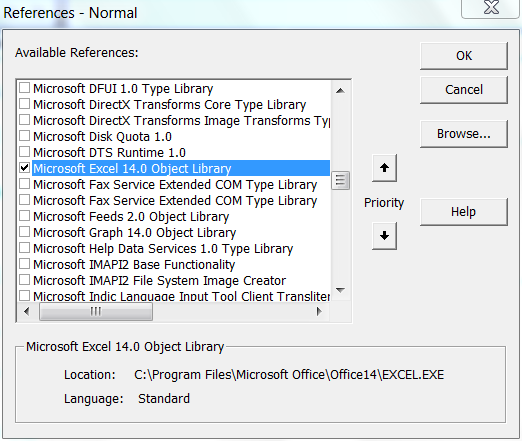
    You need to add a reference to the Excel Object Libary as shown above from Tools --> References from Visual Basic Editor (VBE)


    The code loops through the available InlineShapes and activates them if they are Excel Spreadsheet. Then it is assigned to an Excel workbook object, which can be programatically handled.

    Sub Edit_Embedded_Excel_Objects()
    
    Dim oWB As Excel.Workbook
    Dim oIShape As InlineShape
    
    
    For Each oIShape In ActiveDocument.InlineShapes
        If InStr(1, oIShape.OLEFormat.ProgID, "Excel") Then
            oIShape.OLEFormat.Activate
            Set oWB = oIShape.OLEFormat.Object
            oWB.Sheets(1).Range("A1").Value = "ProdID"
        End If
    Next oIShape
    
    End Sub


    The code edits the value of the cell as shown below:


    See how other Embedded objects are programmed

    How to Extract All Formula's in Excel Sheet using VBA

    Highlight all cells containing Formulas using Excel VBA

    The following snippet highlights all cells that contain formula

    Sub HighLight_Formula_Cells()
    
    Dim oWS As Worksheet
    Dim oCell As Range
    
    Set oWS = ActiveSheet
    
    For Each oCell In oWS.Cells.SpecialCells(xlCellTypeFormulas)
        oCell.Interior.ColorIndex = 36
        MsgBox oCell.Formula
    Next oCell
    
    
    End Sub


    Wednesday, August 04, 2010

    How to Connect XLSX file (Excel Workbook) through ADO

    Using Excel (Xlsx) file as a database using VBA (ActiveX Data Objects - ADO)

    In the past we have already seen how to Connect to an Excel file using ADO and query its contents. That was using Microsoft Excel 2003 or earlier. With Office 2007 the file formats haver changed to XLSX, which might create the following problems


    to solve that use the following Connection string:


    cN.ConnectionString = "Provider=Microsoft.ACE.OLEDB.12.0;Data Source=C:\Users\comp\documents\visual studio 2010\Projects\ExcelWorkbookDocLevel\ExcelWorkbookDocLevel\ExcelWorkbook1.xlsx;Extended Properties=Excel 12.0;Persist Security Info=False"
    Related Posts Plugin for WordPress, Blogger...
    Download Windows Live Toolbar and personalize your Web experience! Add custom buttons to get the information you care about most.