VBA Function to Logoff /VBA Function to Restart Windows
Option Explicit
' Win API Declarations
Const MF_BYPOSITION = &H400&
Private Const EWX_LOGOFF = 0
Private Const EWX_SHUTDOWN = 1
Private Const EWX_REBOOT = 2
Private Const EWX_FORCE = 4
Private Declare Function ExitWindowsEx Lib "user32.dll" ( _
ByVal uFlags As Long, _
ByVal dwReserved As Long) As Long
Use the function with atmost caution, you will not be warned by Windows for Shutdown / Restart. Save all your work before trying this example:)
Function Common_ShutDown_Logoff()
'Shutdown Windows
Call ExitWindowsEx(EWX_SHUTDOWN, 0)
'Restart Windows
Call ExitWindowsEx(EWX_REBOOT, 0)
'logoff Windows
Call ExitWindowsEx(EWX_LOGOFF, 0)
End Function
Tuesday, August 21, 2007


Disable Close Button in UserForm (VBA)
Disable Close Button in Userform (Visual Basic)
Option Explicit
'API Declarations
Const MF_BYPOSITION = &H400&
Private Declare Function GetSystemMenu Lib "user32" _
(ByVal hwnd As Long, _
ByVal bRevert As Long) As Long
Private Declare Function RemoveMenu Lib "user32" _
(ByVal hMenu As Long, _
ByVal nPosition As Long, _
ByVal wFlags As Long) As Long

Public Sub DisableCloseWindowButton(frm As Form)
Dim hSysMenu As Long
'Get the handle of the Window
hSysMenu = GetSystemMenu(frm.hwnd, 0)
'Disable the close button of the Form
RemoveMenu hSysMenu, 6, MF_BYPOSITION
'Remove the seperator bar
RemoveMenu hSysMenu, 5, MF_BYPOSITION
End Sub
Option Explicit
'API Declarations
Const MF_BYPOSITION = &H400&
Private Declare Function GetSystemMenu Lib "user32" _
(ByVal hwnd As Long, _
ByVal bRevert As Long) As Long
Private Declare Function RemoveMenu Lib "user32" _
(ByVal hMenu As Long, _
ByVal nPosition As Long, _
ByVal wFlags As Long) As Long

Public Sub DisableCloseWindowButton(frm As Form)
Dim hSysMenu As Long
'Get the handle of the Window
hSysMenu = GetSystemMenu(frm.hwnd, 0)
'Disable the close button of the Form
RemoveMenu hSysMenu, 6, MF_BYPOSITION
'Remove the seperator bar
RemoveMenu hSysMenu, 5, MF_BYPOSITION
End Sub
Sunday, August 12, 2007
Detecting duplicate values (Excel VBA)
Check presence of values in a column/range using Excel VBA
Most often a programmer would be given a job of Insert/Update scenarion in EXcel. That is, Insert a new row if a specific value does not exist; if it does then update some. So the process is to check for existence of a specific value
Here is a generic function ;
Sub CheckForExistence()
myVal = "Sample"
myRange = "A:A"
If Check_Val_Existence(myVal, myRange) = True Then
MsgBox "Value exists"
End If
End Sub
This used the Find Method. This method finds specific information in a range, and returns a Range object that represents the first cell where that information is found. Returns Nothing if no match is found.
Function Check_Val_Existence(ByVal sText, ByVal sRange) As Boolean
Dim rFnd As Range
Dim sText As String
Set rFnd = ActiveSheet.Range(sRange).Find(What:=sText, LookAt:=xlPart)
If Not rFnd Is Nothing Then
Check_Val_Existence = True
Else
Check_Val_Existence = False
End If
End Function
Most often a programmer would be given a job of Insert/Update scenarion in EXcel. That is, Insert a new row if a specific value does not exist; if it does then update some. So the process is to check for existence of a specific value
Here is a generic function ;
Sub CheckForExistence()
myVal = "Sample"
myRange = "A:A"
If Check_Val_Existence(myVal, myRange) = True Then
MsgBox "Value exists"
End If
End Sub
This used the Find Method. This method finds specific information in a range, and returns a Range object that represents the first cell where that information is found. Returns Nothing if no match is found.
Function Check_Val_Existence(ByVal sText, ByVal sRange) As Boolean
Dim rFnd As Range
Dim sText As String
Set rFnd = ActiveSheet.Range(sRange).Find(What:=sText, LookAt:=xlPart)
If Not rFnd Is Nothing Then
Check_Val_Existence = True
Else
Check_Val_Existence = False
End If
End Function
Automatically Event Repeat in Excel VBA (OnTime Method)
VBA Code that can run at a fixed time can be done using the OnTime Method.
OnTime Method schedules a procedure to be run at a specified time in the future (either at a specific time of day or after a specific amount of time has passed).
Application.OnTime TimeValue("11:00:00"), "StartProc"
Application.OnTime TimeValue("13:00:00"), "EndProc"
Assuming that you have two procedures called StartProc and EndProc the procedures would ne executed at the specified time
OnTime Method schedules a procedure to be run at a specified time in the future (either at a specific time of day or after a specific amount of time has passed).
expression.OnTime(EarliestTime, Procedure, LatestTime, Schedule)
expression Required. An expression that returns an Application object.
EarliestTime Required Variant. The time when you want this procedure to be run.
Procedure Required String. The name of the procedure to be run.
LatestTime Optional Variant. The latest time at which the procedure can be run. For example, if LatestTime is set to EarliestTime + 30 and Microsoft Excel is not in Ready, Copy, Cut, or Find mode at EarliestTime because another procedure is running, Microsoft Excel will wait 30 seconds for the first procedure to complete. If Microsoft Excel is not in Ready mode within 30 seconds, the procedure won’t be run. If this argument is omitted, Microsoft Excel will wait until the procedure can be run.
Schedule Optional Variant. True to schedule a new OnTime procedure. False to clear a previously set procedure. The default value is True.
Remarks
Use Now + TimeValue(time) to schedule something to be run when a specific amount of time (counting from now) has elapsed. Use TimeValue(time) to schedule something to be run a specific time.
Application.OnTime TimeValue("11:00:00"), "StartProc"
Application.OnTime TimeValue("13:00:00"), "EndProc"
Assuming that you have two procedures called StartProc and EndProc the procedures would ne executed at the specified time
Disable Cut & Copy from Popup menu (Excel VBA/Word VBA)
Here is a simple way to disable the Cut & Copy in the Popup menu
Sub Disable_Buttons()
Dim oC1 As CommandBar
Set oC1 = Application.CommandBars("CELL")
oC1.Controls("Cu&t").Enabled = False
oC1.Controls("&Copy").Enabled = False
End Sub
Other menu items can also be handled similarly
To disable the Insert & Delete in the Popup menu
oC1.Controls("&Insert...").Enabled = False
oC1.Controls("&Delete...").Enabled = False
Sub Disable_Buttons()
Dim oC1 As CommandBar
Set oC1 = Application.CommandBars("CELL")
oC1.Controls("Cu&t").Enabled = False
oC1.Controls("&Copy").Enabled = False
End Sub
Other menu items can also be handled similarly
To disable the Insert & Delete in the Popup menu
oC1.Controls("&Insert...").Enabled = False
oC1.Controls("&Delete...").Enabled = False
Wednesday, July 25, 2007
Excel Height of Row - RowHeight using Excel VBA
RowHeight property is used to get the Height
Returns the height of all the rows in the range specified, measured in points (point: Unit of measure referring to the height of a printed character. A point equals 1/72 of an inch, or approximately 1/28 of a centimeter.). Returns null if the rows in the specified range aren’t all the same height. Read/write Variant.
You can use the Height property to return the total height of a range of cells.
Differences between RowHeight and Height include the following:
Height is read-only.
If you return the RowHeight property of several rows, you will either get the row height of each of the rows (if all the rows are the same height) or null (if they’re different heights). If you return the Height property of several rows, you will get the total height of all the rows.
Range("A1").Height = 90
would give Object required 424 error
Technorati Profile
Returns the height of all the rows in the range specified, measured in points (point: Unit of measure referring to the height of a printed character. A point equals 1/72 of an inch, or approximately 1/28 of a centimeter.). Returns null if the rows in the specified range aren’t all the same height. Read/write Variant.
You can use the Height property to return the total height of a range of cells.
Sub Change_Header_Row_Height()


MsgBox "RowHeight = " & Range("A1").RowHeight _
& vbCrLf & "Height    = " & Range("A1").Height

Range("A1").RowHeight = 90

End Sub
Differences between RowHeight and Height include the following:
Height is read-only.
If you return the RowHeight property of several rows, you will either get the row height of each of the rows (if all the rows are the same height) or null (if they’re different heights). If you return the Height property of several rows, you will get the total height of all the rows.
Range("A1").Height = 90
would give Object required 424 error
Technorati Profile
Sunday, July 08, 2007
Get the Height & Width of Shapes / Figures in Word Document (Word VBA)
Height & Width of Shapes / InlineShapes in Word Document (Word VBA)
Figures are embedded in the word document and when they move they are a nemesis. Programmers are often given the job of aligning, resizing etc. Here is a simple example to get the height of the Shapes. Here you will notice that a particular inline shape has been singled out. You will get to know this if you run this in the document:)
Sub Figure_Attributes()
Dim sRep
sRep = ""
For I = 1 To ActiveDocument.InlineShapes.Count
If ((ActiveDocument.InlineShapes(I).Type > 0 And ActiveDocument.InlineShapes(I).Type <> 7 And ActiveDocument.InlineShapes(I).Type < 18)) Then
Height = ActiveDocument.InlineShapes(I).Height
Width1 = ActiveDocument.InlineShapes(I).Width
ActiveDocument.InlineShapes(I).Select
If Selection.Fields.Count = 0 Then
sRep = sRep & fname & vbTab & Height & vbTab & Width1 & vbCr
End If
End If
Next I
For I = 1 To ActiveDocument.Shapes.Count
Height = ActiveDocument.Shapes(I).Height
Width1 = ActiveDocument.Shapes(I).Width
ActiveDocument.Shapes(I).Select
sRep = sRep & fname & vbTab & Height & vbTab & Width1 & vbCr
Next I
MsgBox "Attributes of all the shapes in " & ActiveDocument.Name & vbCrLf & sRep
End Sub
Figures are embedded in the word document and when they move they are a nemesis. Programmers are often given the job of aligning, resizing etc. Here is a simple example to get the height of the Shapes. Here you will notice that a particular inline shape has been singled out. You will get to know this if you run this in the document:)
Sub Figure_Attributes()
Dim sRep
sRep = ""
For I = 1 To ActiveDocument.InlineShapes.Count
If ((ActiveDocument.InlineShapes(I).Type > 0 And ActiveDocument.InlineShapes(I).Type <> 7 And ActiveDocument.InlineShapes(I).Type < 18)) Then
Height = ActiveDocument.InlineShapes(I).Height
Width1 = ActiveDocument.InlineShapes(I).Width
ActiveDocument.InlineShapes(I).Select
If Selection.Fields.Count = 0 Then
sRep = sRep & fname & vbTab & Height & vbTab & Width1 & vbCr
End If
End If
Next I
For I = 1 To ActiveDocument.Shapes.Count
Height = ActiveDocument.Shapes(I).Height
Width1 = ActiveDocument.Shapes(I).Width
ActiveDocument.Shapes(I).Select
sRep = sRep & fname & vbTab & Height & vbTab & Width1 & vbCr
Next I
MsgBox "Attributes of all the shapes in " & ActiveDocument.Name & vbCrLf & sRep
End Sub
Paragraph & Character Styles in Word Document (Word VBA)
Export Character Styles from Word Document / Export Paragraph Styles from Word Document
Here is the simple macro for extracting character & paragraph styles from a Word document. This exports the styles to a new word document
Here is the simple macro for extracting character & paragraph styles from a Word document. This exports the styles to a new word document
Sub Export_Styles_In_Document()

  Dim oSource As Document
  Dim oRep As Document
  Dim oPara As Paragraph

  Set oRep = Documents.Add


  Set oSource = ActiveDocument
  For I = 1 To oSource.Styles.Count
      If oSource.Styles(I).Type = wdStyleTypeParagraph Then
          SType = "Para"
          oRep.Bookmarks("\EndOfDoc").Select
          Set oPara = oRep.Paragraphs.Add
          Set oPara = oRep.Paragraphs.Add
          oPara.Range.Text = SType & ": " & oSource.Styles(I).NameLocal
      Else
          SType = "Char"
      End If
  Next I
  For I = 1 To oSource.Styles.Count
      If oSource.Styles(I).Type = wdStyleTypeParagraph Then
          SType = "Para"
      Else
          SType = "Char"
          oRep.Bookmarks("\EndOfDoc").Select
          Set oPara = oRep.Paragraphs.Add
          Set oPara = oRep.Paragraphs.Add
          oPara.Range.Text = SType & ": " & oSource.Styles(I).NameLocal
      End If
  Next I
  oRep.Activate
End Sub
Tuesday, June 19, 2007
Visual Basic Common Dialog
Opening Files with Common Dialog
Common Dialog not only replaces three controls (Drive, Directory and FileList), but also is easier to program. It is supported in Visual Basic and VBA as well. The new VB.NET has the same functionality in the OpenFileDialog class
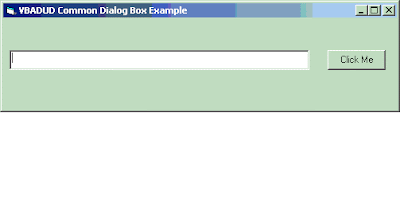
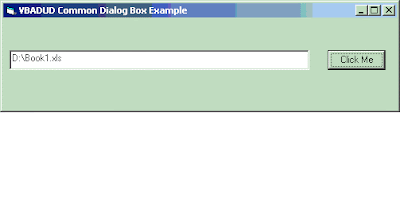
Let us have a small form created for explaining CommonDialog. Let us have a small form with a Text Box and a Command Button. On Clicking the Command Button, the selected file should be displayed in the Text Box
Sample Form:
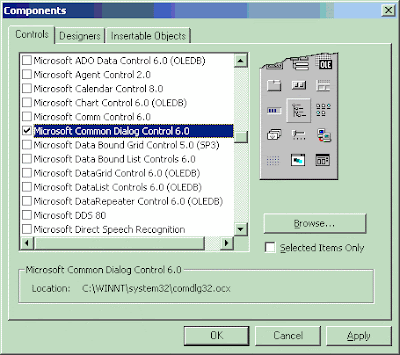
To use the CommonDialog you need to include the component to your project. You can do so as follows:
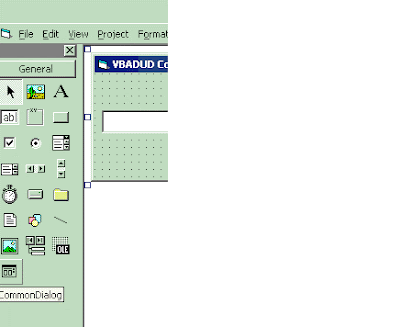
Once The component is included, the CommonDialog will be displayed in the ToolBox
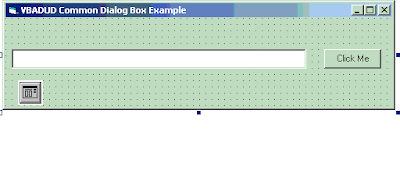
Drag the CommonDialog to the form. You will see a small rectangle there. CommonDialog is visible in the Design time only (it is not visible during runtime)
Add the following code to show the CommonDialog box and show the selected file in the text box
Private Sub Command1_Click()
CommonDialog1.DialogTitle = "Select the File..."
CommonDialog1.Flags = cdlOFNFileMustExist
CommonDialog1.Filter = "Microsoft Excel Workbooks (*.xls)*.xls"
CommonDialog1.ShowOpen
If Len(CommonDialog1.FileName) <> 0 Then
Text1.Text = CommonDialog1.FileName
End If
You can restrict the type of files to be selected using the filter Command. Some common filters are
Selecting Microsoft Word Documents
CommonDialog1.Filter = "Microsoft Word Documents (*.doc)*.docMicrosoft Word Documents (*.rtf)*.rtf"
Selecting Image Files
CommonDialog1.Filter = "Image Files(*.BMP;*.JPG;*.GIF)*.BMP;*.JPG;*.GIF"
Selecting Microsoft Word Documents (Including RTF Files)
CommonDialog1.Filter = "Microsoft Word Documents (*.doc;*.rtf)*.doc;*.rtf"
Selecting Microsoft Excel Workbooks
CommonDialog1.Filter = "Microsoft Excel Workbooks (*.xls)*.xls"
Selecting Excel Addins
CommonDialog1.Filter = "Microsoft Excel Addins (*.xla;*.xll)*.xla;*.xll"
Selecting Any files
CommonDialog1.Filter = "All files (*.*)*.*"
Selecting Text files
CommonDialog1.Filter = "Text files (*.txt)*.txt"
Selecting ASCII files
CommonDialog1.Filter = "ASCII files (*.txt;*.log)*.txt;*.log"
See also:
OpenFileDialog in Visual Basic .Net
Search and Open Files using Excel VBA (FileSearch)
Open Excel Files - Open Dialog - GetOpenFilename Method
Selecting a Folder in VB.Net
Browse a Folder / Select a Folder Thru Shell
SaveAs Dialog - Controlled Save
Common Dialog not only replaces three controls (Drive, Directory and FileList), but also is easier to program. It is supported in Visual Basic and VBA as well. The new VB.NET has the same functionality in the OpenFileDialog class
Let us have a small form created for explaining CommonDialog. Let us have a small form with a Text Box and a Command Button. On Clicking the Command Button, the selected file should be displayed in the Text Box
Sample Form:

To use the CommonDialog you need to include the component to your project. You can do so as follows:

Once The component is included, the CommonDialog will be displayed in the ToolBox

Drag the CommonDialog to the form. You will see a small rectangle there. CommonDialog is visible in the Design time only (it is not visible during runtime)

Add the following code to show the CommonDialog box and show the selected file in the text box
Private Sub Command1_Click()
CommonDialog1.DialogTitle = "Select the File..."
CommonDialog1.Flags = cdlOFNFileMustExist
CommonDialog1.Filter = "Microsoft Excel Workbooks (*.xls)*.xls"
CommonDialog1.ShowOpen
If Len(CommonDialog1.FileName) <> 0 Then
Text1.Text = CommonDialog1.FileName
End If

You can restrict the type of files to be selected using the filter Command. Some common filters are
Selecting Microsoft Word Documents
CommonDialog1.Filter = "Microsoft Word Documents (*.doc)*.docMicrosoft Word Documents (*.rtf)*.rtf"
Selecting Image Files
CommonDialog1.Filter = "Image Files(*.BMP;*.JPG;*.GIF)*.BMP;*.JPG;*.GIF"
Selecting Microsoft Word Documents (Including RTF Files)
CommonDialog1.Filter = "Microsoft Word Documents (*.doc;*.rtf)*.doc;*.rtf"
Selecting Microsoft Excel Workbooks
CommonDialog1.Filter = "Microsoft Excel Workbooks (*.xls)*.xls"
Selecting Excel Addins
CommonDialog1.Filter = "Microsoft Excel Addins (*.xla;*.xll)*.xla;*.xll"
Selecting Any files
CommonDialog1.Filter = "All files (*.*)*.*"
Selecting Text files
CommonDialog1.Filter = "Text files (*.txt)*.txt"
Selecting ASCII files
CommonDialog1.Filter = "ASCII files (*.txt;*.log)*.txt;*.log"
See also:
OpenFileDialog in Visual Basic .Net
Search and Open Files using Excel VBA (FileSearch)
Open Excel Files - Open Dialog - GetOpenFilename Method
Selecting a Folder in VB.Net
Browse a Folder / Select a Folder Thru Shell
SaveAs Dialog - Controlled Save
Monday, June 18, 2007
Excel VBA - install an Excel Add-in (XLA or XLL)
Adding Addins Automatically using VBA
Most of today's Excel VBA code are as Addins (XLA or XLL). As an organization progresses there comes many revisions for the Addin - hence the need to update the program.
Here is a simple way to add a new addin:
Sub Add_an_Addin()
Dim oAddin As AddIn
Dim oTempBk As Workbook
Set oTempBk = Workbooks.Add
Set oAddin = AddIns.Add("E:\CostBenefit1.0.xla", True)
oAddin.Installed = True
oTempBk.Close
End Sub
If you wonder why a temporary workbooks is added - it is because to avoid the Run-time error '1004': Unable to get the Add property of the AddIns class or Run-time error '1004': Add method of addins class failed exceptions that are raised when there are no workbooks. Just be safe!!
Most of today's Excel VBA code are as Addins (XLA or XLL). As an organization progresses there comes many revisions for the Addin - hence the need to update the program.
Here is a simple way to add a new addin:
Sub Add_an_Addin()
Dim oAddin As AddIn
Dim oTempBk As Workbook
Set oTempBk = Workbooks.Add
Set oAddin = AddIns.Add("E:\CostBenefit1.0.xla", True)
oAddin.Installed = True
oTempBk.Close
End Sub
If you wonder why a temporary workbooks is added - it is because to avoid the Run-time error '1004': Unable to get the Add property of the AddIns class or Run-time error '1004': Add method of addins class failed exceptions that are raised when there are no workbooks. Just be safe!!
Show All Processes using VBA
Get All Processes using Win API Functions
'Declarations
Const TH32CS_SNAPHEAPLIST = &H1
Const TH32CS_SNAPPROCESS = &H2
Const TH32CS_SNAPTHREAD = &H4
Const TH32CS_SNAPMODULE = &H8
Const TH32CS_SNAPALL = (TH32CS_SNAPHEAPLIST Or TH32CS_SNAPPROCESS Or TH32CS_SNAPTHREAD Or TH32CS_SNAPMODULE)
Const TH32CS_INHERIT = &H80000000
Const MAX_PATH As Integer = 260
Private Type PROCESSENTRY32
dwSize As Long
cntUsage As Long
th32ProcessID As Long
th32DefaultHeapID As Long
th32ModuleID As Long
cntThreads As Long
th32ParentProcessID As Long
pcPriClassBase As Long
dwFlags As Long
szExeFile As String * MAX_PATH
End Type
Private Declare Function CreateToolhelp32Snapshot Lib "kernel32" (ByVal lFlags As Long, ByVal lProcessID As Long) As Long
Private Declare Sub CloseHandle Lib "kernel32" (ByVal hPass As Long)
' API Functions to get the processes
Private Declare Function Process32First Lib "kernel32" (ByVal hSnapShot As Long, uProcess As PROCESSENTRY32) As Long
Private Declare Function Process32Next Lib "kernel32" (ByVal hSnapShot As Long, uProcess As PROCESSENTRY32) As Long
Sub Load_Process_To_ListBox()
Dim hSnapShot As Long '* Handle
Dim uProcess As PROCESSENTRY32 '* Process
Dim lRet '* Return Val
On Error Resume Next
'Takes a snapshot of the running processes and the heaps, modules, and threads used by the processes
hSnapShot = CreateToolhelp32Snapshot(TH32CS_SNAPALL, 0&)
uProcess.dwSize = Len(uProcess)
'Retrieve information about the first process encountered in our system snapshot
lRet = Process32First(hSnapShot, uProcess)
Do While lRet
lRet = Process32Next(hSnapShot, uProcess)
' Trim the unwanted characters at the end of process
lstProcess.AddItem Left$(uProcess.szExeFile, IIf(InStr(1, uProcess.szExeFile, Chr$(0)) > 0, InStr(1, uProcess.szExeFile, Chr$(0)) - 1, 0))
Loop
CloseHandle hSnapShot
End Sub
Private Sub UserForm_Initialize()
' Call the Function
Load_Process_To_ListBox
End Sub

'Declarations
Const TH32CS_SNAPHEAPLIST = &H1
Const TH32CS_SNAPPROCESS = &H2
Const TH32CS_SNAPTHREAD = &H4
Const TH32CS_SNAPMODULE = &H8
Const TH32CS_SNAPALL = (TH32CS_SNAPHEAPLIST Or TH32CS_SNAPPROCESS Or TH32CS_SNAPTHREAD Or TH32CS_SNAPMODULE)
Const TH32CS_INHERIT = &H80000000
Const MAX_PATH As Integer = 260
Private Type PROCESSENTRY32
dwSize As Long
cntUsage As Long
th32ProcessID As Long
th32DefaultHeapID As Long
th32ModuleID As Long
cntThreads As Long
th32ParentProcessID As Long
pcPriClassBase As Long
dwFlags As Long
szExeFile As String * MAX_PATH
End Type
Private Declare Function CreateToolhelp32Snapshot Lib "kernel32" (ByVal lFlags As Long, ByVal lProcessID As Long) As Long
Private Declare Sub CloseHandle Lib "kernel32" (ByVal hPass As Long)
' API Functions to get the processes
Private Declare Function Process32First Lib "kernel32" (ByVal hSnapShot As Long, uProcess As PROCESSENTRY32) As Long
Private Declare Function Process32Next Lib "kernel32" (ByVal hSnapShot As Long, uProcess As PROCESSENTRY32) As Long
Sub Load_Process_To_ListBox()
Dim hSnapShot As Long '* Handle
Dim uProcess As PROCESSENTRY32 '* Process
Dim lRet '* Return Val
On Error Resume Next
'Takes a snapshot of the running processes and the heaps, modules, and threads used by the processes
hSnapShot = CreateToolhelp32Snapshot(TH32CS_SNAPALL, 0&)
uProcess.dwSize = Len(uProcess)
'Retrieve information about the first process encountered in our system snapshot
lRet = Process32First(hSnapShot, uProcess)
Do While lRet
lRet = Process32Next(hSnapShot, uProcess)
' Trim the unwanted characters at the end of process
lstProcess.AddItem Left$(uProcess.szExeFile, IIf(InStr(1, uProcess.szExeFile, Chr$(0)) > 0, InStr(1, uProcess.szExeFile, Chr$(0)) - 1, 0))
Loop
CloseHandle hSnapShot
End Sub
Private Sub UserForm_Initialize()
' Call the Function
Load_Process_To_ListBox
End Sub
Duport provide company formation, company credit reports and director reports.
Wednesday, June 13, 2007
Run a VB6.0 Executable from Excel/Word
Run an Executable from Excel VBA / Word VBA
If you need to use some grid for showing data / use the feautres in Visual Basic 6.0 that arenot available in VBA, you can create the application in VB6.0 or anyother program and show the User Interface in VBA code
The above program will show the MyFile executable till the user clicks OK/Cancel. Once the application is closed the control will return to the calling VBA program
This used WinAPI Functions
Public Declare Function GetExitCodeProcess Lib "kernel32" (ByVal hProcess As Long, lpExitCode As Long) As Long
Public Declare Function OpenProcess Lib "kernel32" (ByVal dwDesiredAccess As Long, ByVal bInheritHandle As Long, ByVal dwProcessId As Long) As Long
Now it depends on how you use the external application. The most often used scenario will be to store the output from the called application (External App) to Registry or Database
If you need to use some grid for showing data / use the feautres in Visual Basic 6.0 that arenot available in VBA, you can create the application in VB6.0 or anyother program and show the User Interface in VBA code
Sub Run_VB6App_FromWord()

--- Some VBA Code here

sCmd = "C:\Program Files\MyFile.exe"
vntResult = OpenProcess(PROCESS_QUERY_INFORMATION, False, Shell(sCmd, 1))
GetExitCodeProcess vntResult, lngExitCode

' -----------------------------------------------------------
' Coded by Shasur for http://vbadud.blogspot.com
' -----------------------------------------------------------

Do
   GetExitCodeProcess vntResult, lngExitCode
   DoEvents
Loop While lngExitCode = STILL_ACTIVE

--- some more VBA Code

End Sub
The above program will show the MyFile executable till the user clicks OK/Cancel. Once the application is closed the control will return to the calling VBA program
This used WinAPI Functions
Public Declare Function GetExitCodeProcess Lib "kernel32" (ByVal hProcess As Long, lpExitCode As Long) As Long
Public Declare Function OpenProcess Lib "kernel32" (ByVal dwDesiredAccess As Long, ByVal bInheritHandle As Long, ByVal dwProcessId As Long) As Long
Now it depends on how you use the external application. The most often used scenario will be to store the output from the called application (External App) to Registry or Database
VBA Read Text Files (With Leading & Trailing Spaces)
Read Data frm Text Files (VBA)
Reading Text Files using VBA is one of the major development activity of programmers. There are multiple ways to read a file
1. Input # Statement
2. Input Function
3. Get Function
4. File System Object Functions
Input # Statement
However, the bug here is Input # does not take the leading or trailing spaces with it. That is, ' My Name is ' becomes 'My Name is'. This will not be the correct one as we need to get the spaces also
Then Input function comes handy
The obvious option is File system object
Happy reading files:)
Reading Text Files using VBA is one of the major development activity of programmers. There are multiple ways to read a file
1. Input # Statement
2. Input Function
3. Get Function
4. File System Object Functions
Input # Statement
Dim MyString, MyNumber
Open "c:\test.txt" For Input As #1    ' Open file for input.
Do While Not EOF(1)    ' Loop until end of file.
 Input #1, MyString, MyNumber    ' Read data into two variables.
 Debug.Print MyString, MyNumber    ' Print data to the Immediate window.
Loop
Close #1    ' Close file.
However, the bug here is Input # does not take the leading or trailing spaces with it. That is, ' My Name is ' becomes 'My Name is'. This will not be the correct one as we need to get the spaces also
Then Input function comes handy
Dim MyChar
Open "c:\test.txt" For Input As #1    ' Open file.
Do While Not EOF(1)    ' Loop until end of file.
  MyChar = Input(1, #1)    ' Get one character.
  Debug.Print MyChar    ' Print to the Immediate window.
Loop
Close #1    ' Close file.
The obvious option is File system object
Sub Read_text_File()

Dim oFSO As New FileSystemObject
Dim oFS


Set oFS = oFSO.OpenTextFile("c:\textfile.TXT")

Do Until oFS.AtEndOfStream
   sText = oFS.ReadLine
Loop


End Sub
Happy reading files:)
Extract Procedure Names from all Modules - VBA
Count No of Programs in a Workbook
Workbooks have Macros, If you need to know if the Workbook contains macros and then the following proc will get you the macros in the workbook
Sub Extract_Program()
Dim VBP As VBProject
Dim VBModule As CodeModule
Dim VBProc As VBComponent
Dim sLastProcName As String
Dim arProcName() As String
Dim iProcCount As Integer
Set VBP = ThisWorkbook.VBProject
For Each VBM In VBP.VBComponents
Set VBModule = VBM.CodeModule
i = 1
Do Until i >= VBModule.CountOfLines
procname = VBModule.ProcOfLine(i, vbext_pk_Proc)
i = i + 1
If LenB(procname) <> 0 Then
If procname <> sLastProcName Then
iProcCount = iProcCount + 1
ReDim Preserve arProcName(iProcCount)
arProcName(iProcCount) = procname
sLastProcName = procname
End If
End If
Loop
Next
' List all procedures
For i = 1 To UBound(arProcName)
MsgBox arProcName(i)
Next i
End Sub
Workbooks have Macros, If you need to know if the Workbook contains macros and then the following proc will get you the macros in the workbook
Sub Extract_Program()
Dim VBP As VBProject
Dim VBModule As CodeModule
Dim VBProc As VBComponent
Dim sLastProcName As String
Dim arProcName() As String
Dim iProcCount As Integer
Set VBP = ThisWorkbook.VBProject
For Each VBM In VBP.VBComponents
Set VBModule = VBM.CodeModule
i = 1
Do Until i >= VBModule.CountOfLines
procname = VBModule.ProcOfLine(i, vbext_pk_Proc)
i = i + 1
If LenB(procname) <> 0 Then
If procname <> sLastProcName Then
iProcCount = iProcCount + 1
ReDim Preserve arProcName(iProcCount)
arProcName(iProcCount) = procname
sLastProcName = procname
End If
End If
Loop
Next
' List all procedures
For i = 1 To UBound(arProcName)
MsgBox arProcName(i)
Next i
End Sub
ColorIndex - Coloring Excel Sheet Cells
Highlight Color in Excel Cells
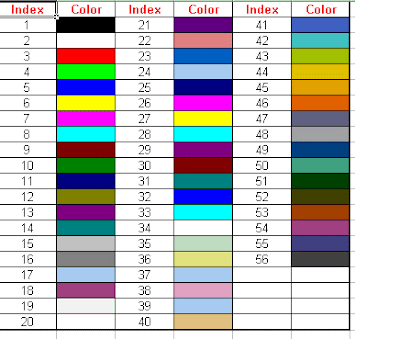
Colorindex is used to color the background of Excel Cells
Cells(1, 2).Interior.ColorIndex = 30
etc
Here is the entire list of colors you can use:
RSS Feeds Submission Directory
Colorindex is used to color the background of Excel Cells
Cells(1, 2).Interior.ColorIndex = 30
etc
Here is the entire list of colors you can use:

RSS Feeds Submission Directory
Excel VBA - Delete Empty Rows
Delete Rows without Values
Here is a primitive simple function to delete rows that does not contain any value (I have taken Cols 1 to 10) for consideration.
Sub Delete_UnWanted_Rows()
For Each SHT In Sheets
SHT.Activate
iMax = SHT.Cells.SpecialCells(xlCellTypeLastCell).Row
For i2 = 2 To iMax
For i1 = 1 To 10
If LenB(SHT.Cells(i2, i1)) <> 0 Then
GoTo TakeNextRow
End If
Next i1
SHT.Rows(i2).EntireRow.Delete
TakeNextRow:
Application.StatusBar = SHT.Name & " " & i2
Next i2
TakeNextSht:
Next SHT
Application.StatusBar = False
End Sub
You can do the same with Special Cells - LastCell also
Here is a primitive simple function to delete rows that does not contain any value (I have taken Cols 1 to 10) for consideration.
Sub Delete_UnWanted_Rows()
For Each SHT In Sheets
SHT.Activate
iMax = SHT.Cells.SpecialCells(xlCellTypeLastCell).Row
For i2 = 2 To iMax
For i1 = 1 To 10
If LenB(SHT.Cells(i2, i1)) <> 0 Then
GoTo TakeNextRow
End If
Next i1
SHT.Rows(i2).EntireRow.Delete
TakeNextRow:
Application.StatusBar = SHT.Name & " " & i2
Next i2
TakeNextSht:
Next SHT
Application.StatusBar = False
End Sub
You can do the same with Special Cells - LastCell also
Friday, June 08, 2007
Setting Default & Cancel Buttons in VBA/Visual Basic
VB/ VBA Setting Default & Cancel Buttons through code
Private Sub Form_Load()
'Sets cmdOK as the button control that is clicked when the user presses the Enter key.
cmdOK.Default = True
'Sets cmdCancel as the button control that is clicked when the user presses the ESC key.
cmdCancel.Cancel = True
End Sub
For doing the same in VB.Net Refer : http://dotnetdud.blogspot.com/2007/06/vbnet-setting-default-cancel-buttons.html
Private Sub Form_Load()
'Sets cmdOK as the button control that is clicked when the user presses the Enter key.
cmdOK.Default = True
'Sets cmdCancel as the button control that is clicked when the user presses the ESC key.
cmdCancel.Cancel = True
End Sub
For doing the same in VB.Net Refer : http://dotnetdud.blogspot.com/2007/06/vbnet-setting-default-cancel-buttons.html
Saturday, June 02, 2007
Assigning Shortcut Keys - Excel Macros
Shortcut Key Assignment for Subroutines
It is always nice to have keyboard shortcuts for executing functions/subroutines rather than having to click the menu and its command
One way will to link the macro to a command button and assign the shortcut for the button. The other one is to assign the shortcut to the function using Application.OnKey
OnKey method executes a specified procedure when a particular key or key combination is pressed
Application.OnKey "%b", "ToWord"
is used to trigger the "ToWord" subroutine whenever Alt+b is pressed . Percentage symbol is used to substitute Alt key
Use the Caret (^) to symbol for Ctrl key and plus (+) for Shiftkey
Application.OnKey "^b", "ToWord"
Is for Ctrl + b
Other keys are :
To deassign/release the shortcut leave the Procedure empty
Application.OnKey "%b", ""
Disable Save (Ctrl S)
Application.OnKey "^s", ""

It is always nice to have keyboard shortcuts for executing functions/subroutines rather than having to click the menu and its command
One way will to link the macro to a command button and assign the shortcut for the button. The other one is to assign the shortcut to the function using Application.OnKey
OnKey method executes a specified procedure when a particular key or key combination is pressed
Application.OnKey "%b", "ToWord"
is used to trigger the "ToWord" subroutine whenever Alt+b is pressed . Percentage symbol is used to substitute Alt key
Use the Caret (^) to symbol for Ctrl key and plus (+) for Shiftkey
Application.OnKey "^b", "ToWord"
Is for Ctrl + b
Other keys are :
| Key | Code |
|---|---|
| BACKSPACE | {BACKSPACE} or {BS} |
| BREAK | {BREAK} |
| CAPS LOCK | {CAPSLOCK} |
| CLEAR | {CLEAR} |
| DELETE or DEL | {DELETE} or {DEL} |
| DOWN ARROW | {DOWN} |
| END | {END} |
| ENTER (numeric keypad) | {ENTER} |
| ENTER | ~ (tilde) |
| ESC | {ESCAPE} or {ESC} |
| HELP | {HELP} |
| HOME | {HOME} |
| INS | {INSERT} |
| LEFT ARROW | {LEFT} |
| NUM LOCK | {NUMLOCK} |
| PAGE DOWN | {PGDN} |
| PAGE UP | {PGUP} |
| RETURN | {RETURN} |
| RIGHT ARROW | {RIGHT} |
| SCROLL LOCK | {SCROLLLOCK} |
| TAB | {TAB} |
| UP ARROW | {UP} |
| F1 through F15 | {F1} through {F15} |
To deassign/release the shortcut leave the Procedure empty
Application.OnKey "%b", ""
Disable Save (Ctrl S)
Application.OnKey "^s", ""
Using Function Keys in Visual Basic Forms
Function keys as Shortcut Keys in VB
Function keys are a boon for assigning shortcuts. They have more advantage than the regular Alt + or Ctrl + combination.
Function keys can be assigned to command buttons using simple tricks as explained below. For that we need to instuct the VB to handle them in t he Keydown event by setting the Keypreview = True

Then you can have the necessary shortcut keys on the form

In the Form_KeyDown event redirect to necessary functions/procs based on the key
Private Sub Form_KeyDown(KeyCode As Integer, Shift As Integer)
Select Case KeyCode
Case vbKeyF2
Call Proc_Fund_Transfer
Case vbKeyF3
Call Proc_Credit_Card
End Select
End Sub
Function keys are a boon for assigning shortcuts. They have more advantage than the regular Alt +
Function keys can be assigned to command buttons using simple tricks as explained below. For that we need to instuct the VB to handle them in t

Then you can have the necessary shortcut keys on the form

In the Form_KeyDown event redirect to necessary functions/procs based on the key
Private Sub Form_KeyDown(KeyCode As Integer, Shift As Integer)
Select Case KeyCode
Case vbKeyF2
Call Proc_Fund_Transfer
Case vbKeyF3
Call Proc_Credit_Card
End Select
End Sub
Sunday, May 27, 2007
Save copy of the workbook
Sub Saving_A_Copy_Of_Workbook()
'Saves a copy of the workbook to a file but doesn't modify the open workbook in memory
Dim bAchievedTarget As Boolean
If bAchievedTarget = True Then
ActiveWorkbook.SaveCopyAs "c:\Completed\FinalCopy.xls"
End If
' This function can be used to take the copy of the file while working on it. The current file remains the same however
End Sub
See also :
Excel VBA - 1004 -- The file could not be accessed
Save and Reopen all Workbooks (Excel VBA)
Save copy of the workbook
SaveAs Dialog - Controlled Save
Save RTF document as word
'Saves a copy of the workbook to a file but doesn't modify the open workbook in memory
Dim bAchievedTarget As Boolean
If bAchievedTarget = True Then
ActiveWorkbook.SaveCopyAs "c:\Completed\FinalCopy.xls"
End If
' This function can be used to take the copy of the file while working on it. The current file remains the same however
End Sub
See also :
Excel VBA - 1004 -- The file could not be accessed
Save and Reopen all Workbooks (Excel VBA)
Save copy of the workbook
SaveAs Dialog - Controlled Save
Save RTF document as word
Subscribe to:
Comments (Atom)

Download Windows Live Toolbar and personalize your Web experience! Add custom buttons to get the information you care about most.


 Posts
Posts


