Showing posts with label Powerpoint VBA. Show all posts

Thursday, May 27, 2010

How to Extract TextBox Contents from All Slides using Powerpoint VBA

Extract Text from Textboxes in Powerpoint slides using VBA

Dedicated to good blogger friend Rahul. This code snippet loops through the slides and extracts the contents of the Textboxes

Sub Extract_TextBox_Text_FromSlides()

Dim oPres As Presentation
Dim oSlide As Slide
Dim oShapes As Shapes
Dim oShape As Shape

Set oPres = ActivePresentation

' --------------------------------------------------
' coded by Shasur for http://vbadud.blogspot.com
' --------------------------------------------------

For Each oSlide In oPres.Slides
    Set oShapes = oSlide.Shapes
    For Each oShape In oShapes
        If oShape.Type = msoTextBox Then
        
            Debug.Print oSlide.Name & vbTab & oShape.TextFrame.TextRange.Text
            
        End If
    Next oShape
Next oSlide


End Sub

Monday, February 15, 2010

Run Excel Macro from Powerpoint VBA


How to Run an Excel Macro from PowerPoint

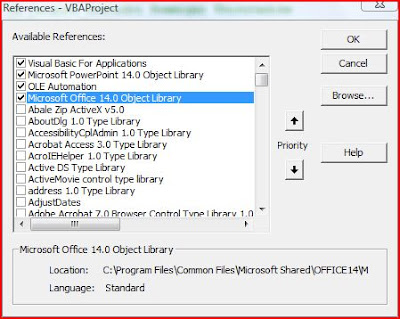
Before writing code for doing it you need to add Excel Library to the PowerPoint VBE Project

Excel VBA and Power Point VBAPowerpoint VBE Screen

EXcel VBA and Powerpoint VBAExcel Library in the References

This can be done from Powerpoint VBE-->Tools-->References -->Browse for the particular reference and add them.

We have the Excel macros embedded in a workbook (CanBeDeleted.xlsm)


Sub AnotherWrkBook_Macro()

MsgBox "I have Run!"


End Sub


Above code is a simple message box. The code below, however, accepts an argument and stores the same in the workbook


Function Store_Value(ByVal sPPTName As String)

Sheet1.Range("A2").Value = sPPTName


End Function


The following Powerpoint VBA code uses Application.Run method of Excel VBA to execute a particular macro.

Multiple arguments can be passed to Application.Run method


Sub Run_Excel_Macro_From_PPT()

Dim oXL As Excel.Application ' Excel Application Object
Dim oWB As Excel.Workbook ' Excel Workbook Object
Dim sPName As String ' Variable - Active Presentation Name

On Error GoTo Err_PPXL

' -----------------------------------------------------------
' coded by Shasur for http://vbadud.blogspot.com
' -----------------------------------------------------------

Set oXL = New Excel.Application
Set oWB = oXL.Workbooks.Open("C:\Users\comp\Documents\CanBeDeleted.xlsm")

' Set Excel as Visibile - Turn Off if not needed
oXL.Visible = True

' Pass and Argument
sPName = ActivePresentation.Name

' Run the Macro without Argument
oXL.Application.Run "'CanBeDeleted.xlsm'!AnotherWrkBook_Macro"

' Run the Macro without Argument
oXL.Application.Run "'CanBeDeleted.xlsm'!Store_Value", sPName

' Save and Close the Workbook
oWB.Save
oWB.Close (False)


' Quit the Excel
oXL.Quit


' Release Objects - Good Practive
If Not oWB Is Nothing Then Set oWB = Nothing
If Not oXL Is Nothing Then Set oXL = Nothing


Err_PPXL:
If Err <> 0 Then
MsgBox Err.Description
Err.Clear
End If
End Sub


The macro saves and closes the workbook and quits Excel

See also:


Execute a macro in a different workbook

Run a Automatic Macro in Word Document

Wednesday, May 20, 2009

Save Powerpoint Slides as Images using VBA

VBA Code to Convert Ppwerpoint Slide to Image (JPEG)

Here is a simple code that will Export all slides in a powerpoint presentation to Jpeg files

Sub Save_PowerPoint_Slide_as_Images()

Dim sImagePath As String
Dim sImageName As String
Dim oSlide As Slide '* Slide Object
Dim lScaleWidth As Long '* Scale Width
Dim lScaleHeight As Long '* Scale Height

On Error GoTo Err_ImageSave

sImagePath = "C:\ForBlogger\"
For Each oSlide In ActivePresentation.Slides
sImageName = oSlide.Name & ".jpg"
oSlide.Export sImagePath & sImageName, "JPG"

Next oSlide

Err_ImageSave:
If Err <> 0 Then
MsgBox Err.Description
End If

End Sub


Wednesday, September 17, 2008

Add Controls Popup Menu using Powerpoint VBA

Powerpoint Application - Create Popup menu using VBA

The following code is a simple one to create popup menu in Powerpoint using VBA

Sub Add_Ctrl_To_Popup(ByVal sControlName As String, ByVal sMacroName As String)

On Error GoTo DisplayErr

' ---------------------------------------------------------------'
Written By Shasur for http://vbadud.blogspot.com
'---------------------------------------------------------------
Dim ctlCB As CommandBarDim ctlCommand As CommandBarControl

Set ctlCB = Application.CommandBars("Shapes")

If ctlCB Is Nothing Then Exit Sub

Set ctlCommand = ctlCB.Controls.Add

ctlCommand.Caption = sControlName

ctlCommand.OnAction = sMacroName

DisplayErr:


If Err <> 0 Then

MsgBox Err.Description

Err.Clear
Resume Next

End If
End Sub

Following sub will call the function

Sub Drive_Add_Ctrl_To_Poppup()
Add_Ctrl_To_Poppup "NewMenu", "Test"
End Sub


The above function will add an item to popup menu using VBA and assign a macro to it

See also:

Creating Menu’s and CommandBars in Powerpoint using VBA

Disable Cut & Copy from Popup menu (Excel VBA/Word VBA)

enable popup menu

Disable Right Click using VBA

Add Control To PopupMenu

Sunday, July 20, 2008

Creating Menu’s and CommandBars in Powerpoint using VBA

Add a powerpoint menu item using VBA

The following code helps in creating a menu in active menu bar.

Sub Add_New_Menu_ITem_Powerpoint()

Dim oMenuBar

Dim oMenu As CommandBarPopup

Dim oCtrl As CommandBarControl

oMenuBar = Application.CommandBars.ActiveMenuBar

oMenu = oMenuBar.Controls.Add(Type:=msoControlPopup, Temporary:=True)

oMenu.Caption = "VBADUD Menu"

oMenu.Enabled = True

oMenu.DescriptionText = "Sample Menu Created for VBADud Example"

oCtrl = oMenu.Controls.Add(Type:=msoControlButton)

oCtrl.Caption = "Set Font"

End Sub

oMenu As CommandBarPopup represents a pop-up control on a command bar. The use of CommandBars in some Microsoft Office applications has been superseded by the new Ribbon user interface.

Saturday, July 08, 2006

VBA - Creating PowerPoint Presentation

Most often we will come across a scenario where powerpoint slides need to be created automatically.

Here is a sample & simple code to do that. This code is created using VBA (Excel 2000)

Sub Create_PowerPoint_Slides()

On Error GoTo Err_PPT

Dim oPA As PowerPoint.Application
Dim oPP As PowerPoint.Presentation
Dim oPS As PowerPoint.Slide
Dim oShape As PowerPoint.Shape
Dim sPath As String
Dim sFile As String
Dim i1 As Integer


sPath = "C:\"
sFile = "MyfileName"

Set oPA = New PowerPoint.Application
oPA.Visible = msoTrue

Set oPP = oPA.Presentations.Add(msoTrue)

For i1 = 1 To 10
oPP.Slides.Add 1, ppLayoutBlank
Next i1

Set oPS = oPP.Slides(1)
Set oShape = oPS.Shapes.AddTextbox(msoTextOrientationHorizontal, 140#, 246#, 400#, 36#)
oShape.TextFrame.WordWrap = msoTrue

oShape.TextFrame.TextRange.Text = "Comments For File : " & sFile
With oShape
.Fill.Visible = msoTrue
.Fill.Solid
.Fill.ForeColor.RGB = RGB(204, 255, 255)
.Line.Weight = 3#
.Line.Visible = msoTrue
.Line.ForeColor.SchemeColor = ppForeground
.Line.BackColor.RGB = RGB(255, 255, 255)
End With


oPP.SaveAs sPath & sFile & ".ppt"
oPP.Close
oPA.Quit

If Not oPS Is Nothing Then Set oPS = Nothing
If Not oPP Is Nothing Then Set oPP = Nothing
If Not oPA Is Nothing Then Set oPA = Nothing


Err_PPT:
If Err <> 0 Then
MsgBox Err.Description
Err.Clear
Resume Next
End If

End Sub
Related Posts Plugin for WordPress, Blogger...
Download Windows Live Toolbar and personalize your Web experience! Add custom buttons to get the information you care about most.