Identify Error Cells in a Sheet using Excel VBA
The following code can be used to identify cells that contains error because of some formula
Sub Rows_Wt_Number_Errors()
Dim oNOCells
On Error GoTo Err_Hdlr
Set oNOCells = Range("A1:B5").Cells.SpecialCells(xlCellTypeFormulas, xlErrors)
For Each ocell In oNOCells
MsgBox ocell.Address
Next ocell
Err_Hdlr:
If Err <> 0 Then
If Err.Description = "No cells were found." Then
MsgBox "No cells with number in forumula found"
End If
Err.Clear
End If
End Sub
The above code will be useful to identify errors like #DIV/0! Error in Excel VBA, #N/A Error in Excel VBA
Monday, June 30, 2008


Extract Cells containing Numeric Formula Result
Identify cells containing numeric result of a formula
Sub Rows_Wt_Number_Formula()
Dim oNOCells
On Error GoTo Err_Hdlr
Set oNOCells = Range("B1:B5").Cells.SpecialCells(xlCellTypeFormulas, xlNumbers)
For Each ocell In oNOCells
MsgBox ocell.Address
Next ocell
Err_Hdlr:
If Err <> 0 Then
If Err.Description = "No cells were found." Then
MsgBox "No cells with number in forumula found"
End If
Err.Clear
End If
End Sub
Sub Rows_Wt_Number_Formula()
Dim oNOCells
On Error GoTo Err_Hdlr
Set oNOCells = Range("B1:B5").Cells.SpecialCells(xlCellTypeFormulas, xlNumbers)
For Each ocell In oNOCells
MsgBox ocell.Address
Next ocell
Err_Hdlr:
If Err <> 0 Then
If Err.Description = "No cells were found." Then
MsgBox "No cells with number in forumula found"
End If
Err.Clear
End If
End Sub
If Type is either xlCellTypeConstants or xlCellTypeFormulas, this argument is used to determine which types of cells to include in the result. These values can be added together to return more than one type. The default is to select all constants or formulas, no matter what the type. Can be one of the following XlSpecialCellsValue constants:
Extract Cells Containing Numbers alone using Excel VBA
Identify cells with Numerals/Numbers using Excel VBA
Many times some text values create problem for which should be a numeric column. In those cases one can use the specialcells method to extract the cells containing numbers alone
Sub Rows_Wt_Numbers()
Dim oNOCells
On Error GoTo Err_Hdlr
Set oNOCells = Range("A1:A5").Cells.SpecialCells(xlCellTypeConstants, xlNumbers)
For Each ocell In oNOCells
MsgBox ocell.Address
Next ocell
Err_Hdlr:
If Err <> 0 Then
If Err.Description = "No cells were found." Then
MsgBox "No cells with number found"
End If
Err.Clear
End If
End Sub
Many times some text values create problem for which should be a numeric column. In those cases one can use the specialcells method to extract the cells containing numbers alone
Sub Rows_Wt_Numbers()
Dim oNOCells
On Error GoTo Err_Hdlr
Set oNOCells = Range("A1:A5").Cells.SpecialCells(xlCellTypeConstants, xlNumbers)
For Each ocell In oNOCells
MsgBox ocell.Address
Next ocell
Err_Hdlr:
If Err <> 0 Then
If Err.Description = "No cells were found." Then
MsgBox "No cells with number found"
End If
Err.Clear
End If
End Sub
If Type is either xlCellTypeConstants or xlCellTypeFormulas, this argument is used to determine which types of cells to include in the result. These values can be added together to return more than one type. The default is to select all constants or formulas, no matter what the type. Can be one of the following XlSpecialCellsValue constants:
Search and Open Files using Excel VBA (FileSearch)
Sort Files By Date using Excel VBA File Search
Sub App_FileSearch_Example()
Dim OWB As Workbook
With Application.FileSearch
.NewSearch
.LookIn = "c:\vbadud\delivered_files\"
.FileName = "*.xls"
If .Execute(SortBy:=msoSortByLastModified, SortOrder:=msoSortOrderDescending) > 0 Then
For i1 = 1 To .FoundFiles.Count
Set OWB = Workbooks.Open(.FoundFiles(i1))
OWB.Save
OWB.Close
Next i1
End If
End With
End Sub
Use the FileSearch property to return the FileSearch object. The following example searches for files and displays the number of files found and the name of each file.
Sub App_FileSearch_Example()
Dim OWB As Workbook
With Application.FileSearch
.NewSearch
.LookIn = "c:\vbadud\delivered_files\"
.FileName = "*.xls"
If .Execute(SortBy:=msoSortByLastModified, SortOrder:=msoSortOrderDescending) > 0 Then
For i1 = 1 To .FoundFiles.Count
Set OWB = Workbooks.Open(.FoundFiles(i1))
OWB.Save
OWB.Close
Next i1
End If
End With
End Sub
Use the NewSearch method to reset the search criteria to the default settings. All property values are retained after each search is run, and by using the NewSearch method you can selectively set properties for the next file search without manually resetting previous property values. The following example resets the search criteria to the default settings before beginning a new search.
The above example will search for all excel files in a particular folder and opens the latest file. This method can also be used to Identify the last-modified or latest file using Excel VBA.
See also:
Open Excel Files - Open Dialog - GetOpenFilename Method
Browse a Folder / Select a Folder Thru Shell
Check Presence of Comboboxes in Excel Sheet using Excel VBA
Programatically Check Dropdowns in Excel Sheet using VBA
The following code will help to check the presence of combo boxes on Excel sheet
Sub Check_DropDowns_Count()
If ActiveSheet.DropDowns.Count = 0 Then
MsgBox "No combo boxes"
End If
End Sub
Sub Check_DropDowns_Source()
Dim oDDwn As Object
If ActiveSheet.DropDowns.Count <> 0 Then
Set oDDwn = ActiveSheet.DropDowns(1)
If InStr(1, oDDwn.ListFillRange, "!") Then
MsgBox "Reference Another Sheet"
End If
End If
End Sub
The above code uses the Sheet - Range Separator to check if the Dropdown refers to current sheet or another sheet
The following code will help to check the presence of combo boxes on Excel sheet
Sub Check_DropDowns_Count()
If ActiveSheet.DropDowns.Count = 0 Then
MsgBox "No combo boxes"
End If
End Sub
Sub Check_DropDowns_Source()
Dim oDDwn As Object
If ActiveSheet.DropDowns.Count <> 0 Then
Set oDDwn = ActiveSheet.DropDowns(1)
If InStr(1, oDDwn.ListFillRange, "!") Then
MsgBox "Reference Another Sheet"
End If
End If
End Sub
The above code uses the Sheet - Range Separator to check if the Dropdown refers to current sheet or another sheet
Sunday, June 01, 2008
Check if Code is Trusted Outlook VBA
Check if Code is Trusted Outlook VBA
Function IsCodeTrusted() As Boolean
IsCodeTrusted = Application.IsTrusted
End Function
For out-of-process callers that have instantiated the Application object, IsTrusted always returns False. For Outlook add-ins, IsTrusted returns True if and only if the add-in is considered trusted by Outlook.
See also:
Creating Digital Signature for VBA Project (Outlook VBA / Excel VBA/ Word VBA)
Explorers Collection in Outlook
The Explorers collection contains views of all open folders.
Each open folder view is an Explorer object and has a CurrentFolder object, which is the folder
whose data is currently being displayed in the Explorer. The currently active Explorer object
is also available as the ActiveExplorer object.
Sub OL_Explorer_Collection()
Dim oExpo As Explorer
For Each oExpo In Explorers
MsgBox(oExpo.Caption)
Next
End Sub
When you open Outlook using code Explorers will be not be there and the count will be zero. Normally opening outlook will have one Explorer, which is the active explorer
An explorer need not be visible to be included in the Explorers collection.
Use the Explorers property to return the Explorers object from the Application object.Sunday, May 25, 2008
Google Search Using VBA
Search Webpages using VBA / Search Text in Google using Excel VBA / Programmaticaly search text in Google
This code requires Microsoft Internet Controls reference (Tools > References from code window)
The following function will search for given data in google and save the search as an HTML File. The Timeout parameter is set to 1 min.
Option Explicit
Private ieBrowser As InternetExplorer
Private Const sSite As String = "http://www.google.com/search?q=" ' Change this Appropriately
Private Const sProofPath As String = "d:\temp\" ' Path to Save Searched Pages
Sub Check_Data_From_Google(ByVal sData As String, ByRef sReturn As String, ByRef sSavePath As String)
'Requires Microsoft Internet Controls reference (Tools > References from code window)
Dim sSearchString As String ' Combination of Google Search String + Data
Dim dtStartTime As Date ' Start Time
Dim dtCurrentTime As Date ' Current Time
Dim iMaxWaitTime As Integer ' Maximum waiting time (in Secs)
Dim sDocText ' WebPage as Text
Dim sDocHTML ' WebPage as HTML
On Error GoTo Err_Clearer
' ---------------------------------
' Build the Search String
' ---------------------------------
sSearchString = sSite & sData
' ---------------------------------
' Start Time
' ---------------------------------
Init_IE
dtStartTime = Now
iMaxWaitTime = 60 'Seconds to be waited
ieBrowser.Navigate (sSearchString)
' ieBrowser.Visible = True
Do While ieBrowser.ReadyState <> READYSTATE_COMPLETE 'wait for page to load
DoEvents
dtCurrentTime = Now
' ---------------------------------
' Exit Process if it is taking long time
' ---------------------------------
If DateDiff("s", dtStartTime, dtCurrentTime) > iMaxWaitTime Then sReturn = "TimeOut": Exit Sub
Loop
' Assign the Webpage Results to Variable
sDocText = ieBrowser.Document.documentElement.innertext
sDocHTML = ieBrowser.Document.documentElement.innerhtml
If InStr(sDocText, "did not match any documents") <> 0 Then
sReturn = "NotFound"
Else
If InStr(1, sDocText, sData) <> 0 Then
sReturn = "Found"
Else
sReturn = "NotFound"
End If
End If
sSavePath = sProofPath & sData & "_" & sSpec & ".html"
sSavePath = ClearCharacters(sSavePath)
Open sSavePath For Output As 1
Print #1, sDocHTML
Close #1
Destroy_IE
' -----------------------------
' Error Handler
' -----------------------------
Err_Clearer:
If Err <> 0 Then
Err.Clear
Resume Next
End If
End Sub
Sub Destroy_IE()
On Error GoTo ReInit_IE
ieBrowser.Quit
If Not ieBrowser Is Nothing Then Set ieBrowser = Nothing
Exit Sub
ReInit_IE:
End Sub
Sub Init_IE()
On Error GoTo ReInit_IE
Set ieBrowser = GetObject(, "InternetExplorer.Application")
Exit Sub
ReInit_IE:
Set ieBrowser = CreateObject("internetexplorer.application")
Application.Wait DateAdd("n", 1, Now) ' Wait for one/Two minutes to Start the Browser
End Sub
Function ClearCharacters(ByVal sDirtyString As String) As String
Dim arUnWantedCharacter(1 To 6) As String
Dim IsClear As Boolean
Dim i As Integer
Dim strCleanString As String
Dim j As Integer
arUnWantedCharacter(1) = "/"
arUnWantedCharacter(2) = "/"
arUnWantedCharacter(3) = "?"
arUnWantedCharacter(4) = "*"
arUnWantedCharacter(5) = "["
arUnWantedCharacter(6) = "]"
IsClear = True
strCleanString = vbNullString
For i = 1 To UBound(arUnWantedCharacter)
If InStr(1, sDirtyString, arUnWantedCharacter(i)) Then
IsClear = False
For j = 1 To Len(sDirtyString)
If Mid$(sDirtyString, j, 1) <> arUnWantedCharacter(i) Then
strCleanString = strCleanString & Mid$(sDirtyString, j, 1)
End If
Next j
sDirtyString = strCleanString
End If
Next i
If IsClear = True Then strCleanString = sDirtyString
Finally:
ClearCharacters = strCleanString
End Function
Excel VBA save the search as an HTML File. The function uses innerhtml to get the searched webpage and saves it in the mentioned location
Save Webpage using VBA, VBA Save Webpage (without images) using Excel VBA
See alsohttp://vbadud.blogspot.com/2009/08/how-to-login-to-website-using-vba.html
This code requires Microsoft Internet Controls reference (Tools > References from code window)
The following function will search for given data in google and save the search as an HTML File. The Timeout parameter is set to 1 min.
Option Explicit
Private ieBrowser As InternetExplorer
Private Const sSite As String = "http://www.google.com/search?q=" ' Change this Appropriately
Private Const sProofPath As String = "d:\temp\" ' Path to Save Searched Pages
Sub Check_Data_From_Google(ByVal sData As String, ByRef sReturn As String, ByRef sSavePath As String)
'Requires Microsoft Internet Controls reference (Tools > References from code window)
Dim sSearchString As String ' Combination of Google Search String + Data
Dim dtStartTime As Date ' Start Time
Dim dtCurrentTime As Date ' Current Time
Dim iMaxWaitTime As Integer ' Maximum waiting time (in Secs)
Dim sDocText ' WebPage as Text
Dim sDocHTML ' WebPage as HTML
On Error GoTo Err_Clearer
' ---------------------------------
' Build the Search String
' ---------------------------------
sSearchString = sSite & sData
' ---------------------------------
' Start Time
' ---------------------------------
Init_IE
dtStartTime = Now
iMaxWaitTime = 60 'Seconds to be waited
ieBrowser.Navigate (sSearchString)
' ieBrowser.Visible = True
Do While ieBrowser.ReadyState <> READYSTATE_COMPLETE 'wait for page to load
DoEvents
dtCurrentTime = Now
' ---------------------------------
' Exit Process if it is taking long time
' ---------------------------------
If DateDiff("s", dtStartTime, dtCurrentTime) > iMaxWaitTime Then sReturn = "TimeOut": Exit Sub
Loop
' Assign the Webpage Results to Variable
sDocText = ieBrowser.Document.documentElement.innertext
sDocHTML = ieBrowser.Document.documentElement.innerhtml
If InStr(sDocText, "did not match any documents") <> 0 Then
sReturn = "NotFound"
Else
If InStr(1, sDocText, sData) <> 0 Then
sReturn = "Found"
Else
sReturn = "NotFound"
End If
End If
sSavePath = sProofPath & sData & "_" & sSpec & ".html"
sSavePath = ClearCharacters(sSavePath)
Open sSavePath For Output As 1
Print #1, sDocHTML
Close #1
Destroy_IE
' -----------------------------
' Error Handler
' -----------------------------
Err_Clearer:
If Err <> 0 Then
Err.Clear
Resume Next
End If
End Sub
Sub Destroy_IE()
On Error GoTo ReInit_IE
ieBrowser.Quit
If Not ieBrowser Is Nothing Then Set ieBrowser = Nothing
Exit Sub
ReInit_IE:
End Sub
Sub Init_IE()
On Error GoTo ReInit_IE
Set ieBrowser = GetObject(, "InternetExplorer.Application")
Exit Sub
ReInit_IE:
Set ieBrowser = CreateObject("internetexplorer.application")
Application.Wait DateAdd("n", 1, Now) ' Wait for one/Two minutes to Start the Browser
End Sub
Function ClearCharacters(ByVal sDirtyString As String) As String
Dim arUnWantedCharacter(1 To 6) As String
Dim IsClear As Boolean
Dim i As Integer
Dim strCleanString As String
Dim j As Integer
arUnWantedCharacter(1) = "/"
arUnWantedCharacter(2) = "/"
arUnWantedCharacter(3) = "?"
arUnWantedCharacter(4) = "*"
arUnWantedCharacter(5) = "["
arUnWantedCharacter(6) = "]"
IsClear = True
strCleanString = vbNullString
For i = 1 To UBound(arUnWantedCharacter)
If InStr(1, sDirtyString, arUnWantedCharacter(i)) Then
IsClear = False
For j = 1 To Len(sDirtyString)
If Mid$(sDirtyString, j, 1) <> arUnWantedCharacter(i) Then
strCleanString = strCleanString & Mid$(sDirtyString, j, 1)
End If
Next j
sDirtyString = strCleanString
End If
Next i
If IsClear = True Then strCleanString = sDirtyString
Finally:
ClearCharacters = strCleanString
End Function
Excel VBA save the search as an HTML File. The function uses innerhtml to get the searched webpage and saves it in the mentioned location
Save Webpage using VBA, VBA Save Webpage (without images) using Excel VBA
See also
Excel VBA - 1004 -- The file could not be accessed
Solution for 1004 -- The file could not be accessed while saving the File
1004 Microsoft Office Excel cannot access the file 'C:\temp'. There are several possible reasons:
• The file name or path does not exist.
• The file is being used by another program.
• The workbook you are trying to save has the same name as a currently open workbook.
1004 -- The file could not be accessed. Try one of the following:
• Make sure the specified folder exists.
• Make sure the folder that contains the file is not read-only.
• Make sure the file name does not contain any of the following characters: < > ? [ ] : or *
• Make sure the file/path name doesn't contain more than 218 characters.
This error occurs because of unwanted characters in the File. The following function would help in removing those characters:

Function ClearCharacters(ByVal sDirtyString As String) As String
Dim arUnWantedCharacter(1 To 6) As String
Dim IsClear As Boolean
Dim i As Integer
Dim strCleanString As String
Dim j As Integer
arUnWantedCharacter(1) = "\"
arUnWantedCharacter(2) = "/"
arUnWantedCharacter(3) = "?"
arUnWantedCharacter(4) = "*"
arUnWantedCharacter(5) = "["
arUnWantedCharacter(6) = "]"
IsClear = True
strCleanString = vbNullString
For i = 1 To UBound(arUnWantedCharacter)
If InStr(1, sDirtyString, arUnWantedCharacter(i)) Then
IsClear = False
For j = 1 To Len(sDirtyString)
If Mid$(sDirtyString, j, 1) <> arUnWantedCharacter(i) Then
strCleanString = strCleanString & Mid$(sDirtyString, j, 1)
End If
Next j
sDirtyString = strCleanString
End If
Next i
If IsClear = True Then strCleanString = sDirtyString
Finally:
ClearCharacters = strCleanString
End Function

See also :
Excel VBA - 1004 -- The file could not be accessed
Save and Reopen all Workbooks (Excel VBA)
Save copy of the workbook
SaveAs Dialog - Controlled Save
Save RTF document as word
1004 Microsoft Office Excel cannot access the file 'C:\temp'. There are several possible reasons:
• The file name or path does not exist.
• The file is being used by another program.
• The workbook you are trying to save has the same name as a currently open workbook.
1004 -- The file could not be accessed. Try one of the following:
• Make sure the specified folder exists.
• Make sure the folder that contains the file is not read-only.
• Make sure the file name does not contain any of the following characters: < > ? [ ] : or *
• Make sure the file/path name doesn't contain more than 218 characters.
This error occurs because of unwanted characters in the File. The following function would help in removing those characters:

Function ClearCharacters(ByVal sDirtyString As String) As String
Dim arUnWantedCharacter(1 To 6) As String
Dim IsClear As Boolean
Dim i As Integer
Dim strCleanString As String
Dim j As Integer
arUnWantedCharacter(1) = "\"
arUnWantedCharacter(2) = "/"
arUnWantedCharacter(3) = "?"
arUnWantedCharacter(4) = "*"
arUnWantedCharacter(5) = "["
arUnWantedCharacter(6) = "]"
IsClear = True
strCleanString = vbNullString
For i = 1 To UBound(arUnWantedCharacter)
If InStr(1, sDirtyString, arUnWantedCharacter(i)) Then
IsClear = False
For j = 1 To Len(sDirtyString)
If Mid$(sDirtyString, j, 1) <> arUnWantedCharacter(i) Then
strCleanString = strCleanString & Mid$(sDirtyString, j, 1)
End If
Next j
sDirtyString = strCleanString
End If
Next i
If IsClear = True Then strCleanString = sDirtyString
Finally:
ClearCharacters = strCleanString
End Function

See also :
Excel VBA - 1004 -- The file could not be accessed
Save and Reopen all Workbooks (Excel VBA)
Save copy of the workbook
SaveAs Dialog - Controlled Save
Save RTF document as word
Saturday, May 10, 2008
Using Excel as Database using VBA (Excel ADO)
VBA ADO Code for using Excel as Database
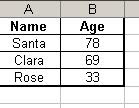
Though many database systems have come , still there is a need to use Excel as Backend database. The reasons might be many -- you get Excel sheets as a Report and do not want to import that into Access or SQL Server
Here is a simple code that will allow you to do exactly that
Sub Excel_ADO()
Dim cN As ADODB.Connection '* Connection String
Dim RS As ADODB.Recordset '* Record Set
Dim sQuery As String '* Query String
Dim i1 As Long
Dim lMaxRow As Long '* Last Row in the Sheet
Dim iRevCol As Integer '*
Dim i3 As Integer
On Error GoTo ADO_ERROR
Set cN = New ADODB.Connection
cN.ConnectionString = "Provider=Microsoft.Jet.OLEDB.4.0;Data Source=D:\Orginal.xls;Extended Properties=Excel 8.0;Persist Security Info=False"
cN.ConnectionTimeout = 40
cN.Open
Set RS = New ADODB.Recordset
lMaxRow = ActiveSheet.Cells.SpecialCells(xlCellTypeLastCell).Row
iRevCol = 2
For i1 = 2 To lMaxRow
Application.StatusBar = i1
sQuery = "Select * From [Sheet1$]"
RS.ActiveConnection = cN
RS.Source = sQuery
RS.Open
If RS.EOF = True And RS.BOF = True Then
GoTo TakeNextRecord
End If
RS.MoveFirst
Do Until RS.EOF = True
sName = Trim$(RS("Name").Value)
sAge = Trim$(RS("Age").Value)
' Do some operations
RS.MoveNext
Loop
TakeNextRecord:
If RS.State <> adStateClosed Then
RS.Close
End If
Next i1
If Not RS Is Nothing Then Set RS = Nothing
If Not cN Is Nothing Then Set cN = Nothing
ADO_ERROR:
If Err <> 0 Then
Debug.Assert Err = 0
MsgBox Err.Description
Resume Next
End If
End Sub
All the code remains the same as Access ADO code except the change in connection string. cN.ConnectionString = "Provider=Microsoft.Jet.OLEDB.4.0;Data Source=D:\Orginal.xls;Extended Properties=Excel 8.0;Persist Security Info=False"

Though many database systems have come , still there is a need to use Excel as Backend database. The reasons might be many -- you get Excel sheets as a Report and do not want to import that into Access or SQL Server
Here is a simple code that will allow you to do exactly that
Sub Excel_ADO()
Dim cN As ADODB.Connection '* Connection String
Dim RS As ADODB.Recordset '* Record Set
Dim sQuery As String '* Query String
Dim i1 As Long
Dim lMaxRow As Long '* Last Row in the Sheet
Dim iRevCol As Integer '*
Dim i3 As Integer
On Error GoTo ADO_ERROR
Set cN = New ADODB.Connection
cN.ConnectionString = "Provider=Microsoft.Jet.OLEDB.4.0;Data Source=D:\Orginal.xls;Extended Properties=Excel 8.0;Persist Security Info=False"
cN.ConnectionTimeout = 40
cN.Open
Set RS = New ADODB.Recordset
lMaxRow = ActiveSheet.Cells.SpecialCells(xlCellTypeLastCell).Row
iRevCol = 2
For i1 = 2 To lMaxRow
Application.StatusBar = i1
sQuery = "Select * From [Sheet1$]"
RS.ActiveConnection = cN
RS.Source = sQuery
RS.Open
If RS.EOF = True And RS.BOF = True Then
GoTo TakeNextRecord
End If
RS.MoveFirst
Do Until RS.EOF = True
sName = Trim$(RS("Name").Value)
sAge = Trim$(RS("Age").Value)
' Do some operations
RS.MoveNext
Loop
TakeNextRecord:
If RS.State <> adStateClosed Then
RS.Close
End If
Next i1
If Not RS Is Nothing Then Set RS = Nothing
If Not cN Is Nothing Then Set cN = Nothing
ADO_ERROR:
If Err <> 0 Then
Debug.Assert Err = 0
MsgBox Err.Description
Resume Next
End If
End Sub
All the code remains the same as Access ADO code except the change in connection string. cN.ConnectionString = "Provider=Microsoft.Jet.OLEDB.4.0;Data Source=D:\Orginal.xls;Extended Properties=Excel 8.0;Persist Security Info=False"
See also:
Opening Comma Separate File (CSV) through ADOQuery Table with Excel as Data Source
Create Database with ADO / ADO Create Database
ADO connection string for Excel
Tuesday, May 06, 2008
Create Additional Pivot Table using Excel VBA (from Existing PivotCache)
Macro to Create a Pivot Table from Existing Pivot Cache
See also:
Create Additional Pivot Table using Excel VBA (from Existing PivotCache)
Create Pivot Table using Excel VBA
Create Pivot Table from VBA using Wizard
 a Pivot Table from Existing Pivot Cache
Many times you will have a Pivot Table created from a pivot cache and you have a requirment to create another pivot table from the same data. In such cases, instead of creating a new cache, you can use the existing pivot cache to create another pivot table. This will save a good amount of memory too.
Sub Create_Pivot_Table_From_Existing_Cache()
Dim oPC As PivotCache
Dim oPT As PivotTable
Dim oWS As Worksheet
oWS = ActiveSheet
If oWS.PivotTables.Count <>Then Exit Sub
oPC = oWS.PivotTables(1).PivotCache
oPT = oPC.CreatePivotTable(oWS.[J1], "Pivot From Existing Cache", True)
oPT.AddFields(oPT.PivotFields("Item").Name)
oPT.AddDataField(oPT.PivotFields("Customer"), "Quantity", xlCount)
End Sub
 Here we are checking if any Pivot Table exist in that particular sheet; if it exists we are using the same cache of the pivot table to create another pivot table
See also:
Create Additional Pivot Table using Excel VBA (from Existing PivotCache)
Create Pivot Table using Excel VBA
Create Pivot Table from VBA using Wizard
Create Pivot Table using Excel VBA

Macro to Create a Pivot Table from New Pivot Cache
Sub Create_Pivot_Table_From_Cache()
Dim oPC As PivotCache
Dim oPT As PivotTable
Dim oWS As Worksheet
oWS = ActiveSheet
oPC = ActiveWorkbook.PivotCaches.Create(xlDatabase, oWS.UsedRange)
oPT = oPC.CreatePivotTable(oWS.[D20], "Pivot From Cache", True)
oPT.AddFields(oPT.PivotFields("Item").Name, oPT.PivotFields("Customer").Name)
oPT.AddDataField(oPT.PivotFields("Qty"), "Quantity", xlSum)

End Sub
PivotCache represents the collection of memory caches from the PivotTable reports in a workbook. Each memory cache is represented by a PivotCache object. The above example creates a pivotcache from existing data and then using the cache a pivot table is created
See also:
Create Additional Pivot Table using Excel VBA (from Existing PivotCache)
Create Pivot Table using Excel VBA
Create Pivot Table from VBA using Wizard
Create Pivot Table from VBA using Wizard
Use PivotTable Wizard Programmatically using Excel VBA
You can use PivotTableWizard method of Worksheet object to create a new PivotTable report. This method doesn’t display the PivotTable Wizard. This method isn’t available for OLE DB data sources. Use the Add method to add a PivotTable cache, and then create a PivotTable report based on the cache
Sub Create_Pivot_Table_Using_Wizard()
Dim oPT As PivotTable
Dim oWS As Worksheet
On Error GoTo Err_PT
If ActiveSheet.Type = xlWorksheet Then
oWS = ActiveSheet
oPT = oWS.PivotTableWizard(xlDatabase, oWS.UsedRange, oWS.Range("A20"), "PivotFromWizard")
oPT.AddFields("Item", , "Qty")
oPT.AddDataField(oPT.PivotFields("Qty"), "Quanity", xlSum)
oPT.TableRange1.Select()
End If
Exit Sub
Err_PT:
MsgBox(Err.Description)
Err.Clear()
End Sub
See also:
Create Additional Pivot Table using Excel VBA (from Existing PivotCache)
Create Pivot Table using Excel VBA
Create Pivot Table from VBA using Wizard
Creating a Command Button on Sheet using Excel VBA
Sub Create_Command_Button_2007()
'
' Creates a Command button and Positions it
' Written by Shasur for http://vbadud.blogspot.com
Dim oOLE As OLEObject
' Add a Command Button
oOLE = ActiveSheet.OLEObjects.Add(ClassType:="Forms.CommandButton.1", Left:=220, Top:=40, Height:=30, Width:=120)
oOLE.Interior.Color = vbRed
' Move and Size with cells
oOLE.Placement = XlPlacement.xlMoveAndSize
oOLE.Object.Caption = "Click Me..."
End Sub
Each OLEObject object represents an ActiveX control or a linked or embedded OLE object.
An ActiveX control on a sheet has two names: the name of the shape that contains the control, which you can see in the Name box when you view the sheet, and the code name for the control, which you can see in the cell to the right of (Name) in the Properties window. When you first add a control to a sheet, the shape name and code name match. However, if you change either the shape name or code name, the other is not automatically changed to match.
Sunday, April 27, 2008
Document Variables in Outlook using VBA
Add Hidden Data using StorageItem in Outlook VBA
There are multiple ways to have a template in Outlook for achieving tasks. Sometimes, you will require to hold some document variable in outlook like you do with Microsoft Word. The following example shows a simple way to add some text in drafts folder. This will not be visible to user.
Sub Create_Hidden_Data()
Dim oNs As Outlook.NameSpace
Dim oFld As Outlook.Folder
Dim oSItem As Outlook.StorageItem
On Error GoTo OL_Error
oNs = Application.GetNamespace("MAPI")
oFld = oNs.GetDefaultFolder(olFolderDrafts)
oSItem = oFld.GetStorage("My Appt Template", olIdentifyBySubject)
oSItem.UserProperties.Add("My Footer", olText)
oSItem.UserProperties("My Footer").Value = "VBADud - Samples & Tips on VBA"
oSItem.UserProperties.Add("My Body", olText)
oSItem.UserProperties("My Body").Value = "Hi" & vbCrLf & "Requesting a appointment with you for discussing..."
oSItem.Save()
Exit Sub
OL_Error:
MsgBox(Err.Description)
Err.Clear()
End Sub
Sub GetData_From_StorageItem()
Dim oNs As Outlook.NameSpace
Dim oFL As Outlook.Folder
Dim oItem As Outlook.StorageItem
On Error GoTo OL_Error
oNs = Application.GetNamespace("MAPI")
oFld = oNs.GetDefaultFolder(olFolderDrafts)
oItem = oFld.GetStorage("My Appt Template", olIdentifyBySubject)
If oItem.Size <> 0 Then
MsgBox(oItem.UserProperties("My Footer"))
MsgBox(oItem.UserProperties("My Body"))
End If
Exit Sub
OL_Error:
MsgBox(Err.Description)
Err.Clear()
End Sub
'StorageItem is a message object in MAPI that is always saved as a hidden item in the parent folder and stores private data for Outlook solutions.
'
'A StorageItem object is stored at the folder level, allowing it to roam with the account and be available online or offline.
'
'The Outlook object model does not provide any collection object for StorageItem objects. However, you can use Folder.GetTable to obtain a Table with all the hidden items in a Folder, when you specify the TableContents parameter as olHiddenItems. If keeping your data private is of a high concern, you should encrypt the data before storing it.
'
'Once you have obtained a StorageItem object, you can do the following to store solution data:
'
'Add attachments to the item for storage.
'Use explicit built-in properties of the item such as Body to store custom data.
'Add custom properties to the item using UserProperties.Add method. Note that in this case, the optional AddToFolderFields and DisplayFormat arguments of the UserProperties.Add method will be ignored.
'Use the PropertyAccessor object to get or set custom properties.
'
How to use .Net Array.Sort Function in VBA
Using Vb.Net Function in VBA


How to use a VB.Net DLL/TLB in Excel VBA
Here is an example for using the customized .NET Function in Excel VBA. Unfortunately EXcel VBA doesn't have a Array.Sort function. To overcome the shortcomings, we create our own function here in .Net and use the same in Excel VBA
Here are the steps:
- Create a class library project in Visual Studio
- Add a COM Class item (DND_SortArray in this example)
- In the assembly information edit the title, company and provide a meaningful description. This would be seen in the References dialog in Excel
- Add the code shown below:
Public Class DotNetDud_SortArray
#Region "COM GUIDs"
' These GUIDs provide the COM identity for this class
' and its COM interfaces. If you change them, existing
' clients will no longer be able to access the class.
Public Const ClassId As String = "93534c94-9fc1-4a54-b022-338fa7d454c1"
Public Const InterfaceId As String = "03787ed3-bc65-41a1-9053-d37f390ff94b"
Public Const EventsId As String = "34d12c14-8afd-44b7-a987-fc2f909724b6"
#End Region
' A creatable COM class must have a Public Sub New()
' with no parameters, otherwise, the class will not be
' registered in the COM registry and cannot be created
' via CreateObject.
Public Sub New()
MyBase.New()
End Sub
Public Sub SortArray(ByRef arTemp() As String)
Array.Sort(arTemp)
End Sub
End Class
Now open the Excel VBA Editor and add the TLB file to References.
The following code will now use the SortArray .NET Function created
Sub Use_DotNet_Sort()
Dim Cls1 As DotNetDud_SortArray.DotNetDud_SortArray
Set Cls1 = New DotNetDud_SortArray.DotNetDud_SortArray
Dim arTemp(0 To 2) As String
arTemp(0) = "Bottle"
arTemp(1) = "Apple"
arTemp(2) = "Aaron"
Cls1.SortArray arTemp
Set Cls1 = Nothing
End Sub


Thursday, April 17, 2008
Creating Digital Signature for VBA Project (Outlook VBA / Excel VBA/ Word VBA)


How to digitally sign a VBA Project


To create a code-signing certificate, follow these steps:
From Programs menu, choose Microsoft Office -> Microsoft Office Tools -> Digital Certificate for VBA Projects
(or)
Navigate to the folder where your
 Office applications are installed, usually C:\Program
Files\Microsoft Office\Office12 for Office 2007 and run the Selfcert.exe program.
<>
SelfCert.exe is provided with Office 2000 and later. If it is not installed on your system, run Office Setup and install Office Tools Digital Signature for VBA Projects.
Type a name for your certificate - just use your own name or product name and click OK to create your personal code-signing certificate.
<>
Now open the VBA project using Alt+F11 and select Tools ➪ Digital Signature
to open the dialog shown below. In this dialog, click the Choose button and select the
certificate and click OK twice to choose your certificate and
sign your code project with that certificate.
Save your VBA project; then exit and restart Application (Excel / Word / Outlook).
When you open your VBA project next time, you will be prompted to enable your macros in
the dialog shown below
You can use this dialog to trust your certificate by selecting the option to "Always trust macros from this publisher", which prevents this dialog from appearing again, or you can just enable the macros for that session.
Click the Trust All Documents from This Publisher button to trust your code-signing certificate
and add it to the trusted publishers list. If you open the Trust Center dialog shown
again and click the Trusted Publishers area, you will now see your code-signing certificate listed
as a trusted publisher.
The same certificate can be used for multiple projects.
Subscribe to:
Posts (Atom)

Download Windows Live Toolbar and personalize your Web experience! Add custom buttons to get the information you care about most.


 Posts
Posts


