Query Table for Text / CSV Files
If you update some Excel frequently, you can keep it as shared and then ask your fellow colleagues to check if often (refresh)
One of the good option is to have them as CSV file and use query table to update it regularly
Sub TXT_QueryTable()
Dim ConnString As String
Dim qt As QueryTable
ConnString = "TEXT;C:\Temp.txt"
Set qt = Worksheets(1).QueryTables.Add(Connection:=ConnString, _
Destination:=Range("B1"))
qt.Refresh
End Sub
The Refresh method causes Microsoft Excel to connect to the query table’s data source, execute the SQL query, and return data to the query table destination range. Until this method is called, the query table doesn’t communicate with the data source.
Tuesday, December 04, 2007


Query Table with Excel as Data Source
Query tables can be of great help if you need to extract particular data from a data source
It represents a worksheet table built from data returned from an external data source, such as an SQL server or a Microsoft Access database. The QueryTable object is a member of the QueryTables collection
However, it need to be SQL server or a Microsoft Access database always. You can use CSV file or our fellow Microsoft Excel spreadsheet as a data source for QueryTable
Here is one such example, which extracts data from MS Excel sheet
Sub Excel_QueryTable()
Dim oCn As ADODB.Connection
Dim oRS As ADODB.Recordset
Dim ConnString As String
Dim SQL As String
Dim qt As QueryTable
ConnString = "Provider=Microsoft.Jet.OLEDB.4.0;Data Source=c:\SubFile.xls;Extended Properties=Excel 8.0;Persist Security Info=False"
Set oCn = New ADODB.Connection
oCn.ConnectionString = ConnString
oCn.Open
SQL = "Select * from [Sheet1$]"
Set oRS = New ADODB.Recordset
oRS.Source = SQL
oRS.ActiveConnection = oCn
oRS.Open
Set qt = Worksheets(1).QueryTables.Add(Connection:=oRS, _
Destination:=Range("B1"))
qt.Refresh
If oRS.State <> adStateClosed Then
oRS.Close
End If
If Not oRS Is Nothing Then Set oRS = Nothing
If Not oCn Is Nothing Then Set oCn = Nothing
End Sub
Use the Add method to create a new query table and add it to the QueryTables collection.
You can loop through the QueryTables collection and Refresh / Delete Query Tables
If you use the above code for Excel 2010, you need to change the connection string to the following
ConnString = "Provider=Microsoft.ACE.OLEDB.12.0;Data Source=C:\Users\Om\Documents\SubFile.xlsx;Extended Properties=Excel 12.0;Persist Security Info=False"
Else it will thrown an 3706 Provider cannot be found. It may not be properly installed. error

See also:
Opening Comma Separate File (CSV) through ADO
Using Excel as Database using VBA (Excel ADO)
Create Database with ADO / ADO Create Database
ADO connection string for Excel
It represents a worksheet table built from data returned from an external data source, such as an SQL server or a Microsoft Access database. The QueryTable object is a member of the QueryTables collection
However, it need to be SQL server or a Microsoft Access database always. You can use CSV file or our fellow Microsoft Excel spreadsheet as a data source for QueryTable
Here is one such example, which extracts data from MS Excel sheet
Sub Excel_QueryTable()
Dim oCn As ADODB.Connection
Dim oRS As ADODB.Recordset
Dim ConnString As String
Dim SQL As String
Dim qt As QueryTable
ConnString = "Provider=Microsoft.Jet.OLEDB.4.0;Data Source=c:\SubFile.xls;Extended Properties=Excel 8.0;Persist Security Info=False"
Set oCn = New ADODB.Connection
oCn.ConnectionString = ConnString
oCn.Open
SQL = "Select * from [Sheet1$]"
Set oRS = New ADODB.Recordset
oRS.Source = SQL
oRS.ActiveConnection = oCn
oRS.Open
Set qt = Worksheets(1).QueryTables.Add(Connection:=oRS, _
Destination:=Range("B1"))
qt.Refresh
If oRS.State <> adStateClosed Then
oRS.Close
End If
If Not oRS Is Nothing Then Set oRS = Nothing
If Not oCn Is Nothing Then Set oCn = Nothing
End Sub
Use the Add method to create a new query table and add it to the QueryTables collection.
You can loop through the QueryTables collection and Refresh / Delete Query Tables
If you use the above code for Excel 2010, you need to change the connection string to the following
ConnString = "Provider=Microsoft.ACE.OLEDB.12.0;Data Source=C:\Users\Om\Documents\SubFile.xlsx;Extended Properties=Excel 12.0;Persist Security Info=False"
Else it will thrown an 3706 Provider cannot be found. It may not be properly installed. error

See also:
Opening Comma Separate File (CSV) through ADO
Using Excel as Database using VBA (Excel ADO)
Create Database with ADO / ADO Create Database
ADO connection string for Excel
Combining Text Files using VBA
Visual Basic Application to Merge Text Files
Multiple utilities are available to split & merge text files. However, here is a simple one my friend uses to merge around 30 ascii files into one
It uses File System Object and you need to add a reference of Microsoft Scripting Runtime
Sub Append_Text_Files()
Dim oFS As FileSystemObject
Dim oFS1 As FileSystemObject
Dim oTS As TextStream
Dim oTS1 As TextStream
Dim vTemp
Set oFS = New FileSystemObject
Set oFS1 = New FileSystemObject
For i1 = 1 To 30
Set oTS = oFS.OpenTextFile("c:\Sheet" & i1 & ".txt", ForReading)
vTemp = oTS.ReadAll
Set oTS1 = oFS.OpenTextFile("c:\CombinedTemp.txt", ForAppending, True)
oTS1.Write (vTemp)
Next i1
End Sub
The code is simple.. it searches for files from Sheet1.txt ...Sheet30.txt and copies the content into one variable. Then it appends the content to CombinedTemp.txt
Multiple utilities are available to split & merge text files. However, here is a simple one my friend uses to merge around 30 ascii files into one
It uses File System Object and you need to add a reference of Microsoft Scripting Runtime
Sub Append_Text_Files()
Dim oFS As FileSystemObject
Dim oFS1 As FileSystemObject
Dim oTS As TextStream
Dim oTS1 As TextStream
Dim vTemp
Set oFS = New FileSystemObject
Set oFS1 = New FileSystemObject
For i1 = 1 To 30
Set oTS = oFS.OpenTextFile("c:\Sheet" & i1 & ".txt", ForReading)
vTemp = oTS.ReadAll
Set oTS1 = oFS.OpenTextFile("c:\CombinedTemp.txt", ForAppending, True)
oTS1.Write (vTemp)
Next i1
End Sub
The code is simple.. it searches for files from Sheet1.txt ...Sheet30.txt and copies the content into one variable. Then it appends the content to CombinedTemp.txt
Open XML File in Excel
Here are the primitive commands to open an XML file in Microsoft Excel.
Sub Open_XML_File()
Dim oWX As Workbook
Set oWX = Workbooks.OpenXML("c:\sample.xml")
End Sub
Sub Open_XML_File_As_List()
Dim oWX As Workbook
Set oWX = Workbooks.OpenXML(Filename:="c:\sample.xml", LoadOption:=XlXmlLoadOption.xlXmlLoadImportToList)
End Sub
This option will work for Excel 2003 and above
Sub Open_XML_File()
Dim oWX As Workbook
Set oWX = Workbooks.OpenXML("c:\sample.xml")
End Sub
Sub Open_XML_File_As_List()
Dim oWX As Workbook
Set oWX = Workbooks.OpenXML(Filename:="c:\sample.xml", LoadOption:=XlXmlLoadOption.xlXmlLoadImportToList)
End Sub
This option will work for Excel 2003 and above
Monday, December 03, 2007
Visual Basic - Special Folders (Temp Folder , System Folder)
Here is a simple routine to get special folders like temporary folder etc:
Sub Get_Special_Folders()
' Uses File System Object
' Need to have reference to Microsoft Scripting Runtime
On Error GoTo Show_Err
Dim oFS As FileSystemObject
Dim sSystemFolder As String
Dim sTempFolder As String
Dim sWindowsFolder As String
Set oFS = New FileSystemObject
' System Folder - Windows\System32
sSystemFolder = oFS.GetSpecialFolder(SystemFolder)
' Temporary Folder Path
sTempFolder = oFS.GetSpecialFolder(TemporaryFolder)
' Windows Folder Path
sWindowsFolder = oFS.GetSpecialFolder(WindowsFolder)
Dim a
a = oFS.GetFolder("m:\9.3 BulkLoad\BLT1_Base15.6\Reports\08-Nov-2007\Output\")
If Not oFS Is Nothing Then Set oFS = Nothing
Show_Err:
If Err <> 0 Then
MsgBox Err.Number & " - " & Err.Description
Err.Clear
End If
End Sub
You need to have reference to Microsoft Scripting Runtime to execute the above code
Sub Get_Special_Folders()
' Uses File System Object
' Need to have reference to Microsoft Scripting Runtime
On Error GoTo Show_Err
Dim oFS As FileSystemObject
Dim sSystemFolder As String
Dim sTempFolder As String
Dim sWindowsFolder As String
Set oFS = New FileSystemObject
' System Folder - Windows\System32
sSystemFolder = oFS.GetSpecialFolder(SystemFolder)
' Temporary Folder Path
sTempFolder = oFS.GetSpecialFolder(TemporaryFolder)
' Windows Folder Path
sWindowsFolder = oFS.GetSpecialFolder(WindowsFolder)
Dim a
a = oFS.GetFolder("m:\9.3 BulkLoad\BLT1_Base15.6\Reports\08-Nov-2007\Output\")
If Not oFS Is Nothing Then Set oFS = Nothing
Show_Err:
If Err <> 0 Then
MsgBox Err.Number & " - " & Err.Description
Err.Clear
End If
End Sub
You need to have reference to Microsoft Scripting Runtime to execute the above code
Array Dimensioning in Visual Basic
Dimensioning Arrays in Visual Basic
Sub Array_Dimensioning()
Dim arPreserved() As Integer ' Preserved Array
Dim arErased() As Integer ' Array without Preserve
ReDim Preserve arPreserved(1, 1)
ReDim arErased(1, 1)
arPreserved(1, 1) = 1
ReDim Preserve arPreserved(1, 2)
arPreserved(1, 2) = 2
ReDim Preserve arPreserved(1, 3)
arPreserved(1, 3) = 3
ReDim Preserve arPreserved(2, 3) ' This statement will throw and error
' whereas the following statement will not as the Array is not preserved (Erased)
ReDim arErased(2, 1)
End Sub
If you use the Preserve keyword, you can resize only the last array dimension and you can't change the number of dimensions at all. For example, if your array has only one dimension, you can resize that dimension because it is the last and only dimension. However, if your array has two or more dimensions, you can change the size of only the last dimension and still preserve the contents of the array. The arPreserved falls under this category. However, arErased you can redimension the array in any dimension, but the contents will be erased with every Redim statement
The ReDim statement is used to size or resize a dynamic array that has already been formally declared using a Private, Public, or Dim statement with empty parentheses (without dimension subscripts).
You can use the ReDim statement repeatedly to change the number of elements and dimensions in an array. However, you can't declare an array of one data type and later use ReDim to change the array to another data type, unless the array is contained in a Variant. If the array is contained in a Variant, the type of the elements can be changed using an As type clause, unless you’re using the Preserve keyword, in which case, no changes of data type are permitted.
If you use the Preserve keyword, you can resize only the last array dimension and you can't change the number of dimensions at all. For example, if your array has only one dimension, you can resize that dimension because it is the last and only dimension. However, if your array has two or more dimensions, you can change the size of only the last dimension and still preserve the contents of the array. The following example shows how you can increase the size of the last dimension of a dynamic array without erasing any existing data contained in the array.
Here is an example of Array redimensioningSub Array_Dimensioning()
Dim arPreserved() As Integer ' Preserved Array
Dim arErased() As Integer ' Array without Preserve
ReDim Preserve arPreserved(1, 1)
ReDim arErased(1, 1)
arPreserved(1, 1) = 1
ReDim Preserve arPreserved(1, 2)
arPreserved(1, 2) = 2
ReDim Preserve arPreserved(1, 3)
arPreserved(1, 3) = 3
ReDim Preserve arPreserved(2, 3) ' This statement will throw and error
' whereas the following statement will not as the Array is not preserved (Erased)
ReDim arErased(2, 1)
End Sub
If you use the Preserve keyword, you can resize only the last array dimension and you can't change the number of dimensions at all. For example, if your array has only one dimension, you can resize that dimension because it is the last and only dimension. However, if your array has two or more dimensions, you can change the size of only the last dimension and still preserve the contents of the array. The arPreserved falls under this category. However, arErased you can redimension the array in any dimension, but the contents will be erased with every Redim statement
Comparing two Word Documents using Word VBA
Compare Word Documents using VBA
Here is a simple routine, which will compare two Microsoft Word documents and return the status.
Sub IsDocument_Equal()
Dim oDoc1 As Word.Document
Dim oResDoc As Word.Document
' Delete the tables from both the document
' Delete the images from both the document
' Replace Paragraphs etc
Set oDoc1 = ActiveDocument
' comparing Document 1 with New 1.doc
oDoc1.Compare Name:="C:\New 1.doc", CompareTarget:=wdCompareTargetNew, DetectFormatChanges:=True
'This will be the result document
Set oResDoc = ActiveDocument
If oResDoc.Revisions.Count <> 0 Then
'Some changes are done
MsgBox "There are Changes "
Else
MsgBox "No Changes"
End If
End Sub
Here is a simple routine, which will compare two Microsoft Word documents and return the status.
Sub IsDocument_Equal()
Dim oDoc1 As Word.Document
Dim oResDoc As Word.Document
' Delete the tables from both the document
' Delete the images from both the document
' Replace Paragraphs etc
Set oDoc1 = ActiveDocument
' comparing Document 1 with New 1.doc
oDoc1.Compare Name:="C:\New 1.doc", CompareTarget:=wdCompareTargetNew, DetectFormatChanges:=True
'This will be the result document
Set oResDoc = ActiveDocument
If oResDoc.Revisions.Count <> 0 Then
'Some changes are done
MsgBox "There are Changes "
Else
MsgBox "No Changes"
End If
End Sub
Convert URLs to Hyperlinks using VBA
Automatically create Hyperlinks for all URLs in a document
Microsoft Word has in-built intelligence to convert the URLs or Web Addresses to Hyperlinks automatically. This functionality is executed when you type some website/email address in word document.
For some reason, if you want to be done on the Word document at a later stage you can do the following:
Sub Make_URLs_as_HyperLinks()
Options.AutoFormatReplaceHyperlinks = True
ActiveDocument.Select
Selection.Range.AutoFormat
Selection.Collapse
Options.AutoFormatReplaceSymbols
End Sub
Warning: I have set only AutoFormatReplaceHyperlinks = True and not set/reset others. You need to check all options as autocorrect/autoformat can cause undesirable changes that might go unnoticed
Microsoft Word has in-built intelligence to convert the URLs or Web Addresses to Hyperlinks automatically. This functionality is executed when you type some website/email address in word document.
For some reason, if you want to be done on the Word document at a later stage you can do the following:
Sub Make_URLs_as_HyperLinks()
Options.AutoFormatReplaceHyperlinks = True
ActiveDocument.Select
Selection.Range.AutoFormat
Selection.Collapse
Options.AutoFormatReplaceSymbols
End Sub
Warning: I have set only AutoFormatReplaceHyperlinks = True and not set/reset others. You need to check all options as autocorrect/autoformat can cause undesirable changes that might go unnoticed
Run a Automatic Macro in Word Document
Execute Word Macro on File Open
There are numerous instances where one stores the word document format as a Microsoft Word template. When the user opens the document (using the template), some macro needs to be executed. This can be achieved by RunAutoMacro Method of Word VBA
Sub Run_Macro_In_WordDocument()
Dim oWD As Word.Document
Set oWD = Documents.Add("c:\dcomdemo\sample.dot")
oWD.RunAutoMacro wdAutoOpen
End Sub
Here a new document is open based on the Sample.dot template and once the document is open the AutoOpen macro is fired
RunAutoMacro Method can be used to execute an auto macro that's stored in the specified document. If the specified auto macro doesn't exist, nothing happens
On the other hand, if a normal macro (not auto open etc) needs to be executed, Run method can be used
There are numerous instances where one stores the word document format as a Microsoft Word template. When the user opens the document (using the template), some macro needs to be executed. This can be achieved by RunAutoMacro Method of Word VBA
Sub Run_Macro_In_WordDocument()
Dim oWD As Word.Document
Set oWD = Documents.Add("c:\dcomdemo\sample.dot")
oWD.RunAutoMacro wdAutoOpen
End Sub
Here a new document is open based on the Sample.dot template and once the document is open the AutoOpen macro is fired
RunAutoMacro Method can be used to execute an auto macro that's stored in the specified document. If the specified auto macro doesn't exist, nothing happens
On the other hand, if a normal macro (not auto open etc) needs to be executed, Run method can be used
Application.Run "Normal.FormatBorders"
Monday, November 19, 2007
Create Database with ADO / ADO Create Database
Create Microsoft Access Database programmatically using ADO
Programmers who have used DAO will definitely miss the CreateDatabase in ADO. Here is one method to do the same using ADO.
For doing this you need to include the ADO Extensions library in the project reference.

This library consists of classes and methods to handle the Schema related activities like creation of database, table etc
The following code uses the Catalog object of the ADOX to create a new Microsoft Access database
Sub Create_DB_and_Table_Using_ADOX()
Dim oDB As ADOX.Catalog
Dim sDBPAth As String
Dim sConStr As String
Dim oCn As ADODB.Connection
Dim oCM As ADODB.Command
' ------------------------
' Set the Path and Connection String
' ------------------------
sDBPAth = "c:\Temp\MyAccounts.mdb"
sConStr = "Provider=Microsoft.Jet.OLEDB.4.0;Data Source=" & sDBPAth & ";"
' ------------------------
' Create New ADOX Object
' ------------------------
Set oDB = New ADOX.Catalog
oDB.Create sConStr
Set oCn = New ADODB.Connection
oCn.ConnectionString = sConStr
oCn.Open
Set oCM = New ADODB.Command
oCM.ActiveConnection = oCn
oCM.CommandText = "Create Table Users (" & _
"[EmpNo] Decimal(6), " & _
"[EmpName] Text(150), " & _
"[JoinDate] Date " & _
")"
oCM.Execute
' ------------------------
' Release / Destroy Objects
' ------------------------
If Not oCM Is Nothing Then Set oCM = Nothing
If Not oCn Is Nothing Then Set oCn = Nothing
If Not oDB Is Nothing Then Set oDB = Nothing
' ------------------------
' Error Handling
' ------------------------
Err_Handler:
If Err <> 0 Then
Err.Clear
Resume Next
End If
End Sub
Though I used the ADODB Query deliberately to create a Table in the new database, you can try it with the Table object in ADOX
Programmers who have used DAO will definitely miss the CreateDatabase in ADO. Here is one method to do the same using ADO.
For doing this you need to include the ADO Extensions library in the project reference.

This library consists of classes and methods to handle the Schema related activities like creation of database, table etc
The following code uses the Catalog object of the ADOX to create a new Microsoft Access database
Sub Create_DB_and_Table_Using_ADOX()
Dim oDB As ADOX.Catalog
Dim sDBPAth As String
Dim sConStr As String
Dim oCn As ADODB.Connection
Dim oCM As ADODB.Command
' ------------------------
' Set the Path and Connection String
' ------------------------
sDBPAth = "c:\Temp\MyAccounts.mdb"
sConStr = "Provider=Microsoft.Jet.OLEDB.4.0;Data Source=" & sDBPAth & ";"
' ------------------------
' Create New ADOX Object
' ------------------------
Set oDB = New ADOX.Catalog
oDB.Create sConStr
Set oCn = New ADODB.Connection
oCn.ConnectionString = sConStr
oCn.Open
Set oCM = New ADODB.Command
oCM.ActiveConnection = oCn
oCM.CommandText = "Create Table Users (" & _
"[EmpNo] Decimal(6), " & _
"[EmpName] Text(150), " & _
"[JoinDate] Date " & _
")"
oCM.Execute
' ------------------------
' Release / Destroy Objects
' ------------------------
If Not oCM Is Nothing Then Set oCM = Nothing
If Not oCn Is Nothing Then Set oCn = Nothing
If Not oDB Is Nothing Then Set oDB = Nothing
' ------------------------
' Error Handling
' ------------------------
Err_Handler:
If Err <> 0 Then
Err.Clear
Resume Next
End If
End Sub
Though I used the ADODB Query deliberately to create a Table in the new database, you can try it with the Table object in ADOX
Saturday, October 06, 2007
Excel VBA - FindAll Method
One out of two code module in Excel VBA will have cells.Find or Findnext method. Here is a generic function - FindAll that can be used to retrieve information of all matching cells.
Function FindAll(ByVal sText As String, ByRef oSht As Worksheet, ByRef sRange As String, ByRef arMatches() As String) As Boolean
' --------------------------------------------------------------------------------------------------------------
' FindAll - To find all instances of the1 given string and return the row numbers.
' If there are not any matches the function will return false
' --------------------------------------------------------------------------------------------------------------
On Error GoTo Err_Trap
Dim rFnd As Range ' Range Object
Dim iArr As Integer ' Counter for Array
Dim rFirstAddress ' Address of the First Find
' -----------------
' Clear the Array
' -----------------
Erase arMatches
Set rFnd = oSht.Range(sRange).Find(What:=sText, LookIn:=xlValues, LookAt:=xlPart)
If Not rFnd Is Nothing Then
rFirstAddress = rFnd.Address
Do Until rFnd Is Nothing
iArr = iArr + 1
ReDim Preserve arMatches(iArr)
arMatches(iArr) = rFnd.Address ' rFnd.Row ' Store the Row where the text is found
Set rFnd = oSht.Range(sRange).FindNext(rFnd)
If rFnd.Address = rFirstAddress Then Exit Do ' Do not allow wrapped search
Loop
FindAll = True
Else
' ----------------------
' No Value is Found
' ----------------------
FindAll = False
End If
' -----------------------
' Error Handling
' -----------------------
Err_Trap:
If Err <> 0 Then
MsgBox Err.Number & " " & Err.Description, vbInformation, "Find All"
Err.Clear
FindAll = False
Exit Function
End If
End Function
The functions accepts three input parameters - Text To be searched, Worksheet, Search Range and one output Array parameter
The function searches the occurrence of that particular text in the specified range of the Excel Sheet and returns address(es) of all occurrences. The Search is by default part of Excel Cells and not whole cell
Here is a way to implement the function:
Case I : Get Addresses of all matching cells
Sub Drive_The_FindAll_Function()
' Sample Sub to Drive the Function
Dim arTemp() As String 'Temp Array
Dim bFound As Boolean 'Flag
Dim i1 As Integer 'Array Counter
bFound = FindAll("SampleText", ActiveSheet, "B1:C41", arTemp())
If bFound = True Then
For i1 = 1 To UBound(arTemp)
' The Address Can be used for extracting data
MsgBox arTemp(i1)
Next i1
Else
MsgBox "Search Text Not Found"
End If
End Sub
Case II : Modify Data according to Find
In the example shown below, FindAll function is used to search 'SampleText' in column C and if the text is found a Flag 'X' is set against column D
Sub Fill_Based_on_FindAll()
' For All Matching Values in Second Column
' Add 'X' to Column D
Dim arTemp() As String 'Temp Array
Dim bFound As Boolean 'Flag
Dim i1 As Integer 'Array Counter
bFound = FindAll("SampleText", ActiveSheet, "C:C", arTemp())
If bFound = True Then
For i1 = 1 To UBound(arTemp)
' The Row Number Can be used for extracting data
ActiveSheet.Range(arTemp(i1)).Offset(0, 1).Value = "X"
Next i1
Else
MsgBox "Search Text Not Found"
End If
End Sub
Case III : Get the Number of Occurrences
A simple one though; number of occurrences of the text in particular range
Sub Instances_Based_on_FindAll()
' Get the Number of Instances
Dim arTemp() As String 'Temp Array
Dim bFound As Boolean 'Flag
Dim i1 As Integer 'Array Counter
bFound = FindAll("SampleText", ActiveSheet, "C:C", arTemp())
If bFound = True Then
MsgBox "No of instances : " & UBound(arTemp)
Else
MsgBox "Search Text Not Found"
End If
End Sub
Function FindAll(ByVal sText As String, ByRef oSht As Worksheet, ByRef sRange As String, ByRef arMatches() As String) As Boolean
' --------------------------------------------------------------------------------------------------------------
' FindAll - To find all instances of the1 given string and return the row numbers.
' If there are not any matches the function will return false
' --------------------------------------------------------------------------------------------------------------
On Error GoTo Err_Trap
Dim rFnd As Range ' Range Object
Dim iArr As Integer ' Counter for Array
Dim rFirstAddress ' Address of the First Find
' -----------------
' Clear the Array
' -----------------
Erase arMatches
Set rFnd = oSht.Range(sRange).Find(What:=sText, LookIn:=xlValues, LookAt:=xlPart)
If Not rFnd Is Nothing Then
rFirstAddress = rFnd.Address
Do Until rFnd Is Nothing
iArr = iArr + 1
ReDim Preserve arMatches(iArr)
arMatches(iArr) = rFnd.Address ' rFnd.Row ' Store the Row where the text is found
Set rFnd = oSht.Range(sRange).FindNext(rFnd)
If rFnd.Address = rFirstAddress Then Exit Do ' Do not allow wrapped search
Loop
FindAll = True
Else
' ----------------------
' No Value is Found
' ----------------------
FindAll = False
End If
' -----------------------
' Error Handling
' -----------------------
Err_Trap:
If Err <> 0 Then
MsgBox Err.Number & " " & Err.Description, vbInformation, "Find All"
Err.Clear
FindAll = False
Exit Function
End If
End Function
The functions accepts three input parameters - Text To be searched, Worksheet, Search Range and one output Array parameter
The function searches the occurrence of that particular text in the specified range of the Excel Sheet and returns address(es) of all occurrences. The Search is by default part of Excel Cells and not whole cell
Here is a way to implement the function:
Case I : Get Addresses of all matching cells
Sub Drive_The_FindAll_Function()
' Sample Sub to Drive the Function
Dim arTemp() As String 'Temp Array
Dim bFound As Boolean 'Flag
Dim i1 As Integer 'Array Counter
bFound = FindAll("SampleText", ActiveSheet, "B1:C41", arTemp())
If bFound = True Then
For i1 = 1 To UBound(arTemp)
' The Address Can be used for extracting data
MsgBox arTemp(i1)
Next i1
Else
MsgBox "Search Text Not Found"
End If
End Sub
Case II : Modify Data according to Find
In the example shown below, FindAll function is used to search 'SampleText' in column C and if the text is found a Flag 'X' is set against column D
Sub Fill_Based_on_FindAll()
' For All Matching Values in Second Column
' Add 'X' to Column D
Dim arTemp() As String 'Temp Array
Dim bFound As Boolean 'Flag
Dim i1 As Integer 'Array Counter
bFound = FindAll("SampleText", ActiveSheet, "C:C", arTemp())
If bFound = True Then
For i1 = 1 To UBound(arTemp)
' The Row Number Can be used for extracting data
ActiveSheet.Range(arTemp(i1)).Offset(0, 1).Value = "X"
Next i1
Else
MsgBox "Search Text Not Found"
End If
End Sub
Case III : Get the Number of Occurrences
A simple one though; number of occurrences of the text in particular range
Sub Instances_Based_on_FindAll()
' Get the Number of Instances
Dim arTemp() As String 'Temp Array
Dim bFound As Boolean 'Flag
Dim i1 As Integer 'Array Counter
bFound = FindAll("SampleText", ActiveSheet, "C:C", arTemp())
If bFound = True Then
MsgBox "No of instances : " & UBound(arTemp)
Else
MsgBox "Search Text Not Found"
End If
End Sub
Disabling Macros in a Workbook (Excel VBA)
Many workbooks will have macros embedded with it. When you open the Workbook in Excel, you would have noticed the Dialog with options Enable Macros / Disable Macros
The following code snippet (Excel 2003) uses Application.FileDialog method to open a Workbook and disables the macros in it:
Sub Open_File_With_Macros_Disabled()
Dim i1 As Integer
Dim secAutomation As MsoAutomationSecurity
secAutomation = Application.AutomationSecurity
Application.AutomationSecurity = msoAutomationSecurityForceDisable
With Application.FileDialog(msoFileDialogOpen)
.Show
For i1 = 1 To .SelectedItems.Count
MsgBox .SelectedItems(i1)
Workbooks.Open .SelectedItems(i1)
Next i1
End With
Application.AutomationSecurity = secAutomation
End Sub
The following code snippet (Excel 2003) uses Application.FileDialog method to open a Workbook and disables the macros in it:
Sub Open_File_With_Macros_Disabled()
Dim i1 As Integer
Dim secAutomation As MsoAutomationSecurity
secAutomation = Application.AutomationSecurity
Application.AutomationSecurity = msoAutomationSecurityForceDisable
With Application.FileDialog(msoFileDialogOpen)
.Show
For i1 = 1 To .SelectedItems.Count
MsgBox .SelectedItems(i1)
Workbooks.Open .SelectedItems(i1)
Next i1
End With
Application.AutomationSecurity = secAutomation
End Sub
Thursday, October 04, 2007
Automate Lotus Notes eMail using Visual Basic
How to send Lotus Notes mail messages with Microsoft Visual Basic
The following Visual Basic code will send a Notes e-mail message. The code includes examples of code to include an attachment and to save the sent message, which are both optional and can be removed if desired.
Dim Maildb As Object
Dim MailDoc As Object
Dim Body As Object
Dim Session As Object
'Start a session to notes
Set Session = CreateObject("Lotus.NotesSession")
'This line prompts for password of current ID noted in Notes.INI
Call Session.Initialize
'or use below to supply password of the current ID
'Call Session.Initialize("")
'Open the mail database in notes
Set Maildb = Session.GETDATABASE("", "c:\notes\data\mail\mymail.nsf")
If Not Maildb.IsOpen = True Then
Call Maildb.Open
End If
'Create the mail document
Set MailDoc = Maildb.CREATEDOCUMENT
Call MailDoc.ReplaceItemValue("Form", "Memo")
'Set the recipient
Call MailDoc.ReplaceItemValue("SendTo", "John Doe")
'Set subject
Call MailDoc.ReplaceItemValue("Subject", "Subject Text")
'Create and set the Body content
Set Body = MailDoc.CREATERICHTEXTITEM("Body")
Call Body.APPENDTEXT("Body text here")
'Example to create an attachment (optional)
Call Body.ADDNEWLINE(2)
Call Body.EMBEDOBJECT(1454, "", "C:\filename", "Attachment")
'Example to save the message (optional)
MailDoc.SAVEMESSAGEONSEND = True
'Send the document
'Gets the mail to appear in the Sent items folder
Call MailDoc.ReplaceItemValue("PostedDate", Now())
Call MailDoc.SEND(False)
'Clean Up
Set Maildb = Nothing
Set MailDoc = Nothing
Set Body = Nothing
Set Session = Nothing
Note: The Visual Basic programmer needs to set the Reference to use Lotus Domino objects prior to implementing this function. To enable the Lotus Notes classes to appear in the Visual Basic browser, you must execute the following within VB: Select Tools, References and select the checkbox for 'Lotus Notes Automation Classes'.
The above code is from the IBM support. GETDATABASE given here is pointing to the sample MailDB; you need to change that to your DB.
You can do that by
UserName = Session.UserName
MailDbName = Left$(UserName, 1) & Right$(UserName, (Len(UserName) - InStr(1, UserName, " "))) & ".nsf"
'Open the mail database in notes
Set Maildb = Session.GETDATABASE("", MailDbName)
To send it through Microsoft Outlook refer http://vbadud.blogspot.com/2007/04/vba-email-automation-vba-mail.html
Automate Email, VBA Email, Send Email from Excel, VBA Mail automation, Mail Automation, Lotus Notes VBA, Automate Lotus Notes, Send Mail from Lotus Notes, Link Excel with Lotus Notes,Microsoft Lotus Notes Mail Automation, Excel VBA Mail, MAPI, Send Multiple eMails
The following Visual Basic code will send a Notes e-mail message. The code includes examples of code to include an attachment and to save the sent message, which are both optional and can be removed if desired.
Dim Maildb As Object
Dim MailDoc As Object
Dim Body As Object
Dim Session As Object
'Start a session to notes
Set Session = CreateObject("Lotus.NotesSession")
'This line prompts for password of current ID noted in Notes.INI
Call Session.Initialize
'or use below to supply password of the current ID
'Call Session.Initialize("
'Open the mail database in notes
Set Maildb = Session.GETDATABASE("", "c:\notes\data\mail\mymail.nsf")
If Not Maildb.IsOpen = True Then
Call Maildb.Open
End If
'Create the mail document
Set MailDoc = Maildb.CREATEDOCUMENT
Call MailDoc.ReplaceItemValue("Form", "Memo")
'Set the recipient
Call MailDoc.ReplaceItemValue("SendTo", "John Doe")
'Set subject
Call MailDoc.ReplaceItemValue("Subject", "Subject Text")
'Create and set the Body content
Set Body = MailDoc.CREATERICHTEXTITEM("Body")
Call Body.APPENDTEXT("Body text here")
'Example to create an attachment (optional)
Call Body.ADDNEWLINE(2)
Call Body.EMBEDOBJECT(1454, "", "C:\filename", "Attachment")
'Example to save the message (optional)
MailDoc.SAVEMESSAGEONSEND = True
'Send the document
'Gets the mail to appear in the Sent items folder
Call MailDoc.ReplaceItemValue("PostedDate", Now())
Call MailDoc.SEND(False)
'Clean Up
Set Maildb = Nothing
Set MailDoc = Nothing
Set Body = Nothing
Set Session = Nothing
Note: The Visual Basic programmer needs to set the Reference to use Lotus Domino objects prior to implementing this function. To enable the Lotus Notes classes to appear in the Visual Basic browser, you must execute the following within VB: Select Tools, References and select the checkbox for 'Lotus Notes Automation Classes'.
The above code is from the IBM support. GETDATABASE given here is pointing to the sample MailDB; you need to change that to your DB.
You can do that by
UserName = Session.UserName
MailDbName = Left$(UserName, 1) & Right$(UserName, (Len(UserName) - InStr(1, UserName, " "))) & ".nsf"
'Open the mail database in notes
Set Maildb = Session.GETDATABASE("", MailDbName)
To send it through Microsoft Outlook refer http://vbadud.blogspot.com/2007/04/vba-email-automation-vba-mail.html
Automate Email, VBA Email, Send Email from Excel, VBA Mail automation, Mail Automation, Lotus Notes VBA, Automate Lotus Notes, Send Mail from Lotus Notes, Link Excel with Lotus Notes,Microsoft Lotus Notes Mail Automation, Excel VBA Mail, MAPI, Send Multiple eMails
Wednesday, September 26, 2007
Reducing Size of Microsoft Access Database (Compact Database)
Compact MS Access Database using VBA (ADO Code)
If the DB Size is huge the compact DB utility [Compact & Repair Database (Tools-->Database utilities-->Compact and Repair Database) should reduce the DB Size.
Here is the code for doing the same using VB/VBA (ADO)
Public Sub CompactDB()
'Microsoft Jet and Replication objects
Dim objJE As New JRO.JetEngine, strSource As String, strTarget As String
DoEvents
Busy True
strSource = " "
strTarget = " "
objJE.CompactDatabase "Provider=Microsoft.Jet.OLEDB.4.0;Data Source=" & strSource & ";", "Provider=Microsoft.Jet.OLEDB.4.0;Data Source=" & strTarget & ";Jet OLEDB:Engine Type=4;"
Busy False
'Engine type:
'Access 97 = 4
'Access 2000 = 5
End Sub
If the DB Size is huge the compact DB utility [Compact & Repair Database (Tools-->Database utilities-->Compact and Repair Database) should reduce the DB Size.
Here is the code for doing the same using VB/VBA (ADO)
Public Sub CompactDB()
'Microsoft Jet and Replication objects
Dim objJE As New JRO.JetEngine, strSource As String, strTarget As String
DoEvents
Busy True
strSource = " "
strTarget = " "
objJE.CompactDatabase "Provider=Microsoft.Jet.OLEDB.4.0;Data Source=" & strSource & ";", "Provider=Microsoft.Jet.OLEDB.4.0;Data Source=" & strTarget & ";Jet OLEDB:Engine Type=4;"
Busy False
'Engine type:
'Access 97 = 4
'Access 2000 = 5
End Sub
Saturday, September 15, 2007
Excel VBA - Change Font Color for Part of Text
Formatting Text (Cell Contents) Partially using Excel VBA
Sometimes, you need to differentiate some parts of text in an Excel cell. This can be done using formatting those characters.
Here is the way that can be done using VBA using the Characters property
Sub Color_Part_of_Cell()
'Print ActiveCell.Characters.Count
With ActiveCell.Characters(2).Font
.Color = RGB(36, 182, 36)
End With
With ActiveCell.Characters(2, 2).Font
.Color = RGB(36, 182, 36)
End With
With ActiveCell.Characters(, 2).Font
.Color = RGB(36, 182, 36)
End With
End Sub
The output of the above is

The same characters object can be used to make a character Bold / Italic
Sometimes, you need to differentiate some parts of text in an Excel cell. This can be done using formatting those characters.
Here is the way that can be done using VBA using the Characters property
Sub Color_Part_of_Cell()
'Print ActiveCell.Characters.Count
With ActiveCell.Characters(2).Font
.Color = RGB(36, 182, 36)
End With
With ActiveCell.Characters(2, 2).Font
.Color = RGB(36, 182, 36)
End With
With ActiveCell.Characters(, 2).Font
.Color = RGB(36, 182, 36)
End With
End Sub
The output of the above is

Syntax
expression.Characters(Start, Length)
expression Required. An expression that returns an object in the Applies To list.
Start Optional Variant. The first character to be returned. If this argument is either 1 or omitted, this property returns a range of characters starting with the first character.
Length Optional Variant. The number of characters to be returned. If this argument is omitted, this property returns the remainder of the string (everything after the Start character)
The same characters object can be used to make a character Bold / Italic
Orientation of Cell Through Excel VBA
Almost most of the Excel VBA programmers would have the requirement to change the orientation of the cell.
Here is an example
Sub Orientations()
ActiveCell.Orientation = xlHorizontal
ActiveCell.Orientation = xlVertical
ActiveCell.Orientation = xlUpward
ActiveCell.Orientation = xlDownward
ActiveCell.Orientation = 45
ActiveCell.Orientation = -45
End Sub
The orientation of the cell in Excel would be as follows:
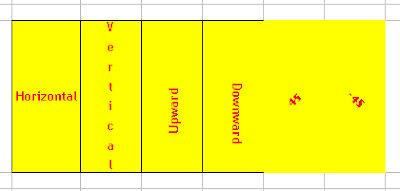
Here is an example
Sub Orientations()
ActiveCell.Orientation = xlHorizontal
ActiveCell.Orientation = xlVertical
ActiveCell.Orientation = xlUpward
ActiveCell.Orientation = xlDownward
ActiveCell.Orientation = 45
ActiveCell.Orientation = -45
End Sub
The orientation of the cell in Excel would be as follows:

Tuesday, August 21, 2007
ShutDown Windows using VBA
VBA Function to Logoff /VBA Function to Restart Windows
Option Explicit
' Win API Declarations
Const MF_BYPOSITION = &H400&
Private Const EWX_LOGOFF = 0
Private Const EWX_SHUTDOWN = 1
Private Const EWX_REBOOT = 2
Private Const EWX_FORCE = 4
Private Declare Function ExitWindowsEx Lib "user32.dll" ( _
ByVal uFlags As Long, _
ByVal dwReserved As Long) As Long
Use the function with atmost caution, you will not be warned by Windows for Shutdown / Restart. Save all your work before trying this example:)
Function Common_ShutDown_Logoff()
'Shutdown Windows
Call ExitWindowsEx(EWX_SHUTDOWN, 0)
'Restart Windows
Call ExitWindowsEx(EWX_REBOOT, 0)
'logoff Windows
Call ExitWindowsEx(EWX_LOGOFF, 0)
End Function
Option Explicit
' Win API Declarations
Const MF_BYPOSITION = &H400&
Private Const EWX_LOGOFF = 0
Private Const EWX_SHUTDOWN = 1
Private Const EWX_REBOOT = 2
Private Const EWX_FORCE = 4
Private Declare Function ExitWindowsEx Lib "user32.dll" ( _
ByVal uFlags As Long, _
ByVal dwReserved As Long) As Long
Use the function with atmost caution, you will not be warned by Windows for Shutdown / Restart. Save all your work before trying this example:)
Function Common_ShutDown_Logoff()
'Shutdown Windows
Call ExitWindowsEx(EWX_SHUTDOWN, 0)
'Restart Windows
Call ExitWindowsEx(EWX_REBOOT, 0)
'logoff Windows
Call ExitWindowsEx(EWX_LOGOFF, 0)
End Function
Disable Close Button in UserForm (VBA)
Disable Close Button in Userform (Visual Basic)
Option Explicit
'API Declarations
Const MF_BYPOSITION = &H400&
Private Declare Function GetSystemMenu Lib "user32" _
(ByVal hwnd As Long, _
ByVal bRevert As Long) As Long
Private Declare Function RemoveMenu Lib "user32" _
(ByVal hMenu As Long, _
ByVal nPosition As Long, _
ByVal wFlags As Long) As Long

Public Sub DisableCloseWindowButton(frm As Form)
Dim hSysMenu As Long
'Get the handle of the Window
hSysMenu = GetSystemMenu(frm.hwnd, 0)
'Disable the close button of the Form
RemoveMenu hSysMenu, 6, MF_BYPOSITION
'Remove the seperator bar
RemoveMenu hSysMenu, 5, MF_BYPOSITION
End Sub
Option Explicit
'API Declarations
Const MF_BYPOSITION = &H400&
Private Declare Function GetSystemMenu Lib "user32" _
(ByVal hwnd As Long, _
ByVal bRevert As Long) As Long
Private Declare Function RemoveMenu Lib "user32" _
(ByVal hMenu As Long, _
ByVal nPosition As Long, _
ByVal wFlags As Long) As Long

Public Sub DisableCloseWindowButton(frm As Form)
Dim hSysMenu As Long
'Get the handle of the Window
hSysMenu = GetSystemMenu(frm.hwnd, 0)
'Disable the close button of the Form
RemoveMenu hSysMenu, 6, MF_BYPOSITION
'Remove the seperator bar
RemoveMenu hSysMenu, 5, MF_BYPOSITION
End Sub
Sunday, August 12, 2007
Detecting duplicate values (Excel VBA)
Check presence of values in a column/range using Excel VBA
Most often a programmer would be given a job of Insert/Update scenarion in EXcel. That is, Insert a new row if a specific value does not exist; if it does then update some. So the process is to check for existence of a specific value
Here is a generic function ;
Sub CheckForExistence()
myVal = "Sample"
myRange = "A:A"
If Check_Val_Existence(myVal, myRange) = True Then
MsgBox "Value exists"
End If
End Sub
This used the Find Method. This method finds specific information in a range, and returns a Range object that represents the first cell where that information is found. Returns Nothing if no match is found.
Function Check_Val_Existence(ByVal sText, ByVal sRange) As Boolean
Dim rFnd As Range
Dim sText As String
Set rFnd = ActiveSheet.Range(sRange).Find(What:=sText, LookAt:=xlPart)
If Not rFnd Is Nothing Then
Check_Val_Existence = True
Else
Check_Val_Existence = False
End If
End Function
Most often a programmer would be given a job of Insert/Update scenarion in EXcel. That is, Insert a new row if a specific value does not exist; if it does then update some. So the process is to check for existence of a specific value
Here is a generic function ;
Sub CheckForExistence()
myVal = "Sample"
myRange = "A:A"
If Check_Val_Existence(myVal, myRange) = True Then
MsgBox "Value exists"
End If
End Sub
This used the Find Method. This method finds specific information in a range, and returns a Range object that represents the first cell where that information is found. Returns Nothing if no match is found.
Function Check_Val_Existence(ByVal sText, ByVal sRange) As Boolean
Dim rFnd As Range
Dim sText As String
Set rFnd = ActiveSheet.Range(sRange).Find(What:=sText, LookAt:=xlPart)
If Not rFnd Is Nothing Then
Check_Val_Existence = True
Else
Check_Val_Existence = False
End If
End Function
Automatically Event Repeat in Excel VBA (OnTime Method)
VBA Code that can run at a fixed time can be done using the OnTime Method.
OnTime Method schedules a procedure to be run at a specified time in the future (either at a specific time of day or after a specific amount of time has passed).
Application.OnTime TimeValue("11:00:00"), "StartProc"
Application.OnTime TimeValue("13:00:00"), "EndProc"
Assuming that you have two procedures called StartProc and EndProc the procedures would ne executed at the specified time
OnTime Method schedules a procedure to be run at a specified time in the future (either at a specific time of day or after a specific amount of time has passed).
expression.OnTime(EarliestTime, Procedure, LatestTime, Schedule)
expression Required. An expression that returns an Application object.
EarliestTime Required Variant. The time when you want this procedure to be run.
Procedure Required String. The name of the procedure to be run.
LatestTime Optional Variant. The latest time at which the procedure can be run. For example, if LatestTime is set to EarliestTime + 30 and Microsoft Excel is not in Ready, Copy, Cut, or Find mode at EarliestTime because another procedure is running, Microsoft Excel will wait 30 seconds for the first procedure to complete. If Microsoft Excel is not in Ready mode within 30 seconds, the procedure won’t be run. If this argument is omitted, Microsoft Excel will wait until the procedure can be run.
Schedule Optional Variant. True to schedule a new OnTime procedure. False to clear a previously set procedure. The default value is True.
Remarks
Use Now + TimeValue(time) to schedule something to be run when a specific amount of time (counting from now) has elapsed. Use TimeValue(time) to schedule something to be run a specific time.
Application.OnTime TimeValue("11:00:00"), "StartProc"
Application.OnTime TimeValue("13:00:00"), "EndProc"
Assuming that you have two procedures called StartProc and EndProc the procedures would ne executed at the specified time
Subscribe to:
Posts (Atom)

Download Windows Live Toolbar and personalize your Web experience! Add custom buttons to get the information you care about most.


 Posts
Posts


